# Finding
The editor has two ways to search. The **Find / Replace** panel searches the procedure, the file or the whole project, and replaces text. The Quick Find widget searches the file you are in, in a small box over the code.
## The Find / Replace panel
Open the panel with one of these:
| To | Do this |
|---|---|
| Find | **Edit → Find...**, Ctrl+F |
| Find and replace | **Edit → Replace...**, Ctrl+H |
| Search the whole project | **Edit → Find In Project...**, Ctrl+Shift+F, or the **Find In Project...** button of the toolbar |
| Show the panel without searching | **View → FIND / REPLACE** |
Ctrl+F and Ctrl+H do the same thing: both open the panel, and the panel has no separate mode for replacing. They fill **Find What** with the word at the caret, or with the selection, clear **Replace With**, and put the focus in **Find What** with its text selected. A selection of several lines fills **Find What** with the first line, and ticks **Selected Text**.
The panel is in no built-in layout. The first time you show it, it floats. You can dock it like any other panel; see [Panel layouts](/tB/IDE/Customising/Panel-Layouts.md).
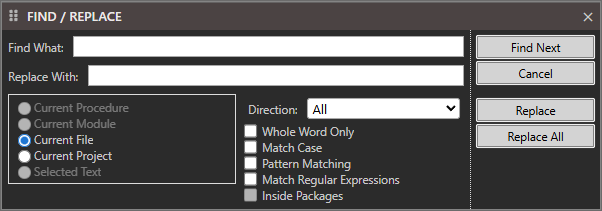{:width="600" height="209"}
The labels of the panel are in English whatever the IDE language is.
### The controls
**Find What**
: The text to find. Enter runs **Find Next**. Click the label to select the text in the box.
**Replace With**
: The text that replaces a match. Enter runs **Find Next**.
**Current Procedure**
: Searches the procedure the caret is in. It is available only while the caret is inside a procedure.
**Current Module**
: This scope is always greyed out. Use **Current File**.
**Current File**
: Searches the file you are editing. It is the scope the panel takes when you move the caret into a file and no scope is ticked.
**Current Project**
: Searches every file of the project. See [Search the whole project](#search-the-whole-project).
**Selected Text**
: Searches only the selection. It is available only while some text is selected.
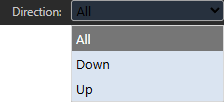
**Direction**
: **All**, **Down** or **Up**. With **All**, a search that reaches the end of its scope goes round to the other end without asking.
**Whole Word Only**
: A match counts only when the characters before and after it are not letters or digits. An accented letter next to the match, such as *é*, also stops it counting.
**Match Case**
: Tells capital and small letters apart. Without it, a plain search ignores case. Ticking it clears **Match Regular Expressions**.
**Pattern Matching**
: Reads **Find What** as a pattern, like the `Like` operator. Ticking it clears **Match Regular Expressions**.
**Match Regular Expressions**
: Reads **Find What** as a regular expression. Ticking it clears **Match Case** and **Pattern Matching**.
**Inside Packages**
: Includes the packages the project references in a project search. It is available only with **Current Project**.
**Find Next**
: Finds the next match in the direction, and selects it in the editor.
**Replace**
: Replaces the selected match and finds the next one. The first press only finds a match; later presses replace.
**Replace All**
: Replaces every match in the scope. A project search refuses it; see [Search the whole project](#search-the-whole-project).
**Cancel**
: Closes the panel. It shows only while the panel floats.
{:width="233" height="99"}
The panel keeps the text of **Find What** and **Replace With** that you searched with, and the options. Down in the **Find What** box shows the newest search, and each further Down an older one. Up goes back to newer ones. The IDE keeps this history and the options for each project.
### Keys
| Key | What it does |
|---|---|
| F3 | Find Next, from the editor or the panel. |
| Shift+F3 | Find Previous. |
| Esc | Closes the panel when it floats, and puts the focus in the code. |
These keys work only while the focus is in the panel:
| Key | What it does |
|---|---|
| Alt+N | Find Next. |
| Alt+R | Replace. |
| Alt+A | Replace All. |
| Alt+F, Alt+W | Go to **Find What**, go to **Replace With**. |
| Alt+P, Alt+C | Choose **Current Procedure**, **Current Project**. |
| Alt+D | Go to **Direction**. |
| Alt+O, Alt+S, Alt+U | Tick **Whole Word Only**, **Match Case**, **Pattern Matching**. |
**Match Regular Expressions** and **Inside Packages** have no key.
### What a search says
A search that reaches the end of its scope with **Down** asks **End of search scope has been reached; do you want to continue from the beginning?** With **Up** it asks **Beginning of search scope has been reached; do you want to continue from the end?** The buttons are **Yes** and **No**.
A search with **All**, a project search, and **Replace All** end with **The specified region has been searched.** After a **Replace All**, a second box says how many replacements were made: **N replacements were made.**, or **1 replacement was made.** In a project search, one box says both, and in how many files: **The specified region has been searched. N replacements were made in M files.** (see [Search the whole project](#search-the-whole-project)). With no scope ticked, the panel says **Scope not selected**.
> [!NOTE] BETA 1045
> After a search of **Selected Text**, moving the caret leaves **Selected Text** ticked but greyed out, and **Current File** is no longer ticked. **Find Next** then says at once that the end of the search scope has been reached. Tick **Current File** again to search on.
## Match text
A plain search ignores case unless **Match Case** is ticked.
> [!WARNING] BETA 1045
> **Whole Word Only** never finds a match that starts at the very first character of the file. For example, searching for `Module` with **Whole Word Only** skips a `Module` on line 1, column 1. A **Replace All** with **Whole Word Only** leaves that word unchanged. Search without **Whole Word Only**, and check the first line yourself.
### Pattern matching
With **Pattern Matching**, **Find What** is a pattern like the one the `Like` operator reads:
| Pattern | Matches |
|---|---|
| `?` | Any one character. |
| `*` | Any run of characters, including none. |
| `#` | Any one digit. |
| `[abc]` | Any one of the characters in the brackets. |
| `[!abc]` | Any one character not in the brackets. |
For example, `Tw?ce` finds `Twice`, `[AV]rea` finds `Area`, and `Area(#, #)` finds a call with two single-digit numbers. `*` takes as much as it can, so `W*Optional` finds from the first `W` to the last `Optional` on the line.
### Regular expressions
With **Match Regular Expressions**, **Find What** is a JavaScript regular expression, written between slashes with optional flags after the second slash: `/pattern/flags`. The flags can be `g`, `i`, `m`, `s`, `u` and `y`. The panel adds `m` itself. For example, `/to+tal/i` finds `total` in any case.
If **Find What** is not in the `/pattern/flags` form, a box says **Invalid format. Expecting /pattern/flags**. If the pattern is not a valid expression, a box says **Invalid RegExp:**.
> [!WARNING] BETA 1045
> A regular expression that has a capital letter finds nothing unless it has the `i` flag. The search runs on the text of the file turned into small letters, and the pattern is left as written. `/End Sub/` finds nothing and reports **The specified region has been searched.**, while `/end sub/` and `/End Sub/i` find every `End Sub`. Write the pattern in small letters, or add the `i` flag.
> [!NOTE] BETA 1045
> A regular expression whose match spans a line break, such as `/^\s+end sub$/`, selects nothing. The selection is an empty one at the end of the line before the match, and **Find Next** stays there. Search for one line at a time, or use [Quick Find](#regular-expressions-in-quick-find), which can match across lines.
> [!NOTE] BETA 1045
> The **Invalid RegExp:** box leaves out the reason. It shows the words and nothing after them.
## Search the whole project
{: index="find in files; search all files; search in project; replace in project; replace in all files" }
**Find In Project** has no dialog and no list of results of its own. It opens the **Find / Replace** panel with **Current Project** ticked, and you go through the matches with **Find Next**.
{:width="649" height="349"}
A project search:
- starts in the file you are editing, goes on through the files after it in the order of the Project Explorer tree, and then through the files before it, ending back in the first part of the start file;
- looks in `.twin`, `.bas`, `.cls` and `.md` files, and skips every file whose name starts with a dot;
- does not look in the packages unless **Inside Packages** is ticked;
- does not look in forms (`.tbform` files);
- always goes down, whatever **Direction** says;
- opens each file that holds a match in a tab. The tab is a preview tab when **Single-Click Preview** is on.
**Replace All** in a project search replaces every match in the project's `.twin`, `.bas`, `.cls` and `.md` files at once, wherever the search started. It opens each file that holds a match in a tab and makes the replacements there, so Ctrl+Z in a file's tab takes back the replacements made in that file. One box then says **The specified region has been searched.** and how many replacements were made in how many files, such as **8 replacements were made in 2 files.** A file that could not be changed is listed in the box with the reason. **Replace All** never changes the packages, even with **Inside Packages** ticked, and like the search it does not look in forms.
## Quick Find
The Quick Find widget searches the file you are in, with a small box at the top right of the editor.
| To | Do this |
|---|---|
| Open Quick Find | **Edit → Quick Find...**, Alt+F |
| Open it with the replace row | **Edit → Quick Replace...**, Alt+H |
| Close it | Esc, which returns the focus to the code |
| Go to the next match | Enter, or Alt+F3 |
| Go to the previous match | Shift+Alt+F3 |
| Show an earlier search | Up |
| Show a later search | Down |
The widget opens with the selected text in its box, and with the count of the matches, such as *1 of 10*. Its toggles are **Match Case**, **Match Whole Word**, **Use Regular Expression** and **Find in Selection**, and the replace row has **Preserve Case**. The toggles have no keys: click them. Shift+Enter does nothing. The IDE does not remember the toggles between uses.
{:width="752" height="430"}
With a word selected, Ctrl+F3 in the code goes to its next occurrence and shows the widget.
> [!NOTE] BETA 1045
> Enter in the replace box replaces nothing. It adds a line break to the replacement, and the box grows to two lines; **Replace All** then writes that line break into the code after each replacement. Take the line break out with Backspace, and click **Replace** or **Replace All** instead.
### Regular expressions in Quick Find
With **Use Regular Expression** on, the text in the box is a JavaScript regular expression, written without slashes: `/total/` looks for the slashes too. A pattern with capital letters finds text in any case unless **Match Case** is on.
Quick Find reads the file one line at a time, so a match never spans a line break, unless the pattern holds `\n`, `\r` or `\W`. Then it reads the whole file, with each line break as `\n`:
- Write `\n` where a line breaks. `\r\n` finds nothing.
- `\s` and `[\s\S]` on their own keep the search on one line. `Info[\s\S]*Name` finds nothing when `Info` and `Name` are on different lines.
- In a pattern that holds `\n`, `\s` matches a line break too. Match the spaces at the start of the next line with `[ \t]*` rather than `\s*`, which can also take in blank lines.
In the replace row, `$1`, `$2` and so on put back the text that each group in brackets matched, and `\n` starts a new line. For example, to change each pair of lines such as
```text
s.Enum_Info "Red"
s.Enum_Info 1
```
into
```text
s.Enum_Name "Red"
s.Enum_Value 1
```
open Quick Replace with Alt+H, click **Use Regular Expression** to turn it on, fill in the two boxes, and click **Replace All**:
| Box | Text |
|---|---|
| Find | `s\.Enum_Info(.*)\n([ \t]*)s\.Enum_Info` |
| Replace | `s.Enum_Name$1\n$2s.Enum_Value` |
`(.*)` takes the rest of the first line, and `([ \t]*)` the spaces in front of the second.
### Select all matches
**Edit → Select All Matches** (Alt+A) opens the widget, gives a cursor to every match of the text in it, and closes the widget. You can then type to change every match at once; see [several cursors](/tB/IDE/Code/Editor.md#several-cursors-at-once). Ctrl+Shift+L does the same with the word at the caret, with no widget.
While the focus is in the Find / Replace panel, Alt+A is **Replace All** and Alt+F goes to **Find What**. In the editor they run Select All Matches and Quick Find.
> [!WARNING] BETA 1045
> Once the panel's **Find What** holds text, as it does after any search with the panel, Alt+A and Alt+R run the panel's **Replace All** and **Replace** in the code and in Quick Find too, even with the panel closed. They use the panel's **Find What** and **Replace With**, not the text in Quick Find. Alt+A in the code then selects nothing, replaces every match of **Find What** in the file, and a box says how many; Ctrl+F empties **Replace With**, so the matches are deleted. Alt+R selects the panel's next match, and a second press replaces it with no message. To select every match, use Ctrl+Shift+L on the word, and press neither Alt+A nor Alt+R in the code or in Quick Find.
## See Also
- [Edit menu](/tB/IDE/Reference/Menu/Edit.md) -- the menu that holds the find commands
- [Editor](/tB/IDE/Code/Editor.md) -- Change All Occurrences and the other editing commands
- [Navigating](/tB/IDE/Code/Navigating.md) -- move by definition, bookmark or line