# Keyboard shortcuts
Every IDE command can have keys, and you can change them. You write your changes in *groups*, and the IDE layers the groups that are switched on on top of the built-in keys.
## How shortcuts are layered
The keys come from a stack of groups, merged in order:
1. The built-in group, **Default Built-in Keyboard Shortcuts**, is always first. It is always on and you cannot switch it off. [Keyboard shortcuts](/tB/IDE/Reference/Keyboard-Shortcuts.md), in the reference, lists its commands and keys.
2. After it come the groups you create, in the order you created them, but only the ones that are switched on.
A later group changes what the groups before it say. So you never switch between whole sets of shortcuts. You leave the built-in group on, and add a group that holds only your differences. A group can replace the keys of a command, add keys to it, or remove its keys.
To remove a default key, override the command in a group of your own with no keys. Clicking the built-in group does not remove it: the IDE answers that you cannot switch off the built-in shortcuts, and that you should create a group to override or disable single commands.
## Switch groups on and off
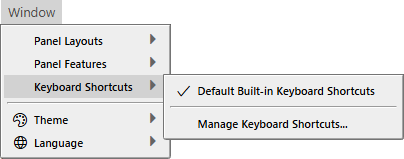
Point at **Window → Keyboard Shortcuts**. The submenu lists the built-in group, which is always ticked, then your groups as **Custom** *n*. *name*, then **Manage Keyboard Shortcuts...**.
{:width="405" height="159"}
A tick means the group is on. Click a group to switch it on or off. The change applies at once: menu items show their new keys. The IDE keeps the set of groups that are on.
The first ten groups have commands that switch them: `tbKeyboardShortcuts_ToggleActiveKeyboardShortcutGroupCustom1` to `...Custom10`. **Manage Keyboard Shortcuts...** has the command `tbKeyboardShortcuts_ShowManageKeyboardShortcuts`. None of these has a default key.
Menu items show their keys in the order Ctrl+Shift+Alt+key. The key names are in the language of the IDE.
## Manage keyboard shortcuts
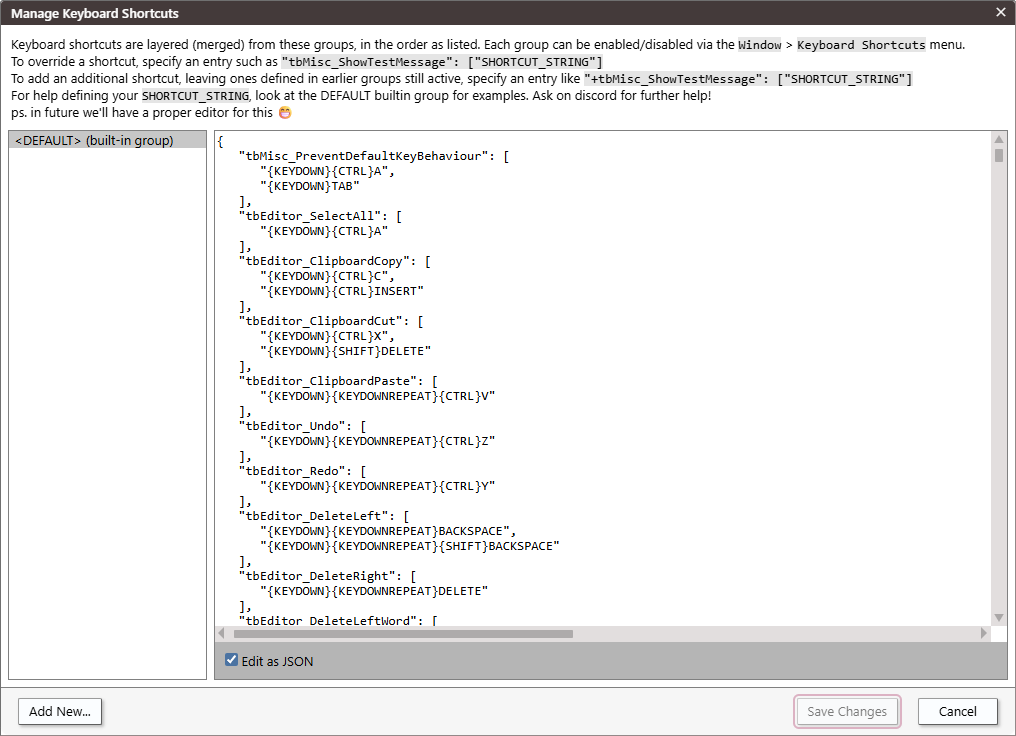
Choose **Window → Keyboard Shortcuts → Manage Keyboard Shortcuts...** to create, edit and delete groups.
{:width="1016" height="740"}
The text across the top of the dialog describes the layering, and how to override a shortcut and how to add one. The list on the left holds ` (built-in group)`, which is read-only, and then your groups. Each of yours has a close icon that deletes it. The pane on the right holds the selected group as JSON in a monospace text area.
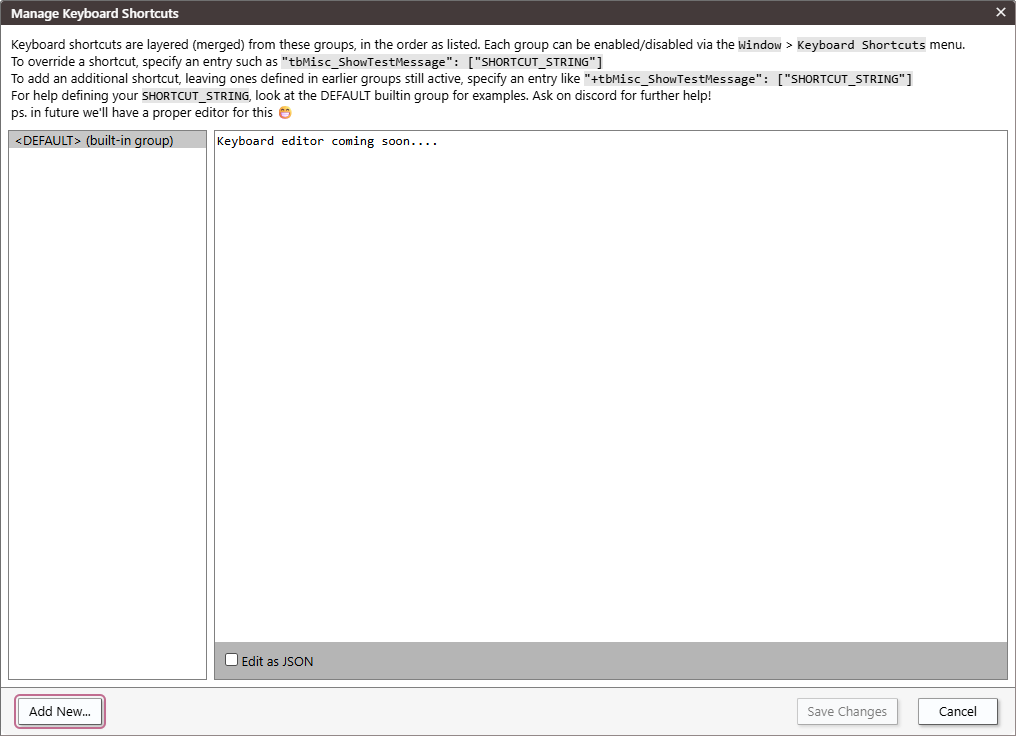
The **Edit as JSON** box is ticked. If you clear it, the pane shows only the text *Keyboard editor coming soon....*, so keep it ticked.
{:width="1016" height="740"}
> [!ADDIN] With the Help Add-In
> The [Help Add-In](/tB/IDE/AddIns/Help.md#the-keyboard-shortcut-editor) replaces this pane with a table of every command, where a group's keys are changed by pressing them, and conflicts between commands are marked. It also adds Ctrl+F and F3 to search the JSON text, which has no find of its own: see [Finding text in the shortcut editors](/tB/IDE/AddIns/Help.md#finding-text-in-the-shortcut-editors).
>
> {:width="1016" height="723" secondary}
**Add New...**
: Asks for a name, then creates a group that holds one sample entry, `{"tbMisc_ShowTestMessage":["{KEYDOWN}{CTRL}0"]}`. Ctrl+0 then opens a test dialog that reads *This is just a test modal dialog.* A name that starts with `<` is refused with a message that says *Custom panel name cannot begin with '<'*, although it means a group name. A name that contains a vertical bar is refused with *Group name cannot contain '|'*, because the IDE saves the list of groups that are on as their names, each between two bars, such as `|Mine||Other|`. A name already in use is refused with *Group already exists*.
**Save Changes**
: Greyed out until you change something. It saves the groups, switches on the groups you added, and applies the result.
**Cancel**
: Discards every change made in the dialog.
Text that is not valid JSON turns red. The IDE ignores a group whose text is not valid when it merges the groups.
## The text of a group
A group is a JSON object. Each key names a command, and each value is a list of key strings. Any command of the IDE can be named, whether or not the default group gives it a key. The [reference](/tB/IDE/Reference/Keyboard-Shortcuts.md) lists every command with its default keys and a line on what it does, in one table for each prefix of a command's name. It is the place to look up the name of a command.
| Entry | Meaning |
|---|---|
| `"command": ["..."]` | Replaces every key that earlier groups gave the command. |
| `"+command": ["..."]` | Adds keys, and keeps the ones the earlier groups gave. |
| `"command": []` | Gives the command no key. `[""]` does the same. |
| `"command('argument')": ["..."]` | Binds the key to the command called with the argument. |
An entry with an argument is always added to the keys of the command, with or without the `+`. The single quotes around the argument are optional. In the IDE, only `tbDebugConsole_ExecuteCode` takes an argument.
This group adds a second key for word wrap, keeps only Ctrl+X for **Cut**, and binds Ctrl+Shift+J to run an expression in the Debug Console:
```json
{
"+tbEditor_ToggleWordWrap": ["{KEYDOWN}{CTRL}{SHIFT}Y"],
"tbEditor_ClipboardCut": ["{KEYDOWN}{CTRL}X"],
"tbDebugConsole_ExecuteCode('? 6*7')": ["{KEYDOWN}{CTRL}{SHIFT}J"]
}
```
The built-in group gives **Cut** two keys, Ctrl+X and Shift+Delete. The entry without a `+` replaces both with the one. Alt+Z still toggles word wrap, because the entry for it begins with `+`.
## Shortcut strings
A key string describes **one key press** with its modifiers. The IDE has no way to write a sequence of two key presses.
The IDE changes the string to upper case. It then reads these parts, in this order:
`{KEYDOWN}`
: The binding runs when the key goes down. A string without it, such as `CONTROL`, which the default group uses to hide the inline code hints, runs when the key is released.
`{KEYDOWNREPEAT}`
: The binding also runs again while the key is held down. It is always written beside `{KEYDOWN}`.
`{CTRL}`, `{ALT}` and `{SHIFT}`
: The modifier keys that must be held.
The key
: One key name, such as `A`, `F5` or `ARROWLEFT`.
For example, `{KEYDOWN}{KEYDOWNREPEAT}{CTRL}{SHIFT}ARROWLEFT` runs on Ctrl+Shift+Left, and again for as long as you hold the keys.
The key names are `A` to `Z`, `0` to `9`, `F1` to `F19`, `ARROWLEFT`, `ARROWUP`, `ARROWRIGHT`, `ARROWDOWN`, `ENTER`, `SPACE`, `BACKSPACE`, `DELETE`, `TAB`, `ESCAPE`, `HOME`, `END`, `PAGEUP`, `PAGEDOWN`, `INSERT`, `CAPSLOCK`, `CANCEL`, `CONTROL`, `SHIFT`, `ALT`, `OTHERKEY` and these punctuation keys: `[ ] / + - ! , . & ( ) * : = \ { } #`. A name that is not in the list gives no binding. A backslash is written `\\` in JSON.
A punctuation key written without `{SHIFT}` matches both the plain and the shifted form of the key.
A digit with `{SHIFT}` never matches a key press. With Shift held, the key arrives as its shifted symbol, and the IDE looks that up in place of the digit. `{CTRL}{SHIFT}0` is therefore a string that cannot be pressed.
The form `{ALLEXCEPT}KEY|KEY|...` binds every key in the table except the ones listed. Only the built-in command `tbIntellisense_ShowAfterKeyPress` uses it.
## When two commands share a key
Nothing warns you when a key is bound to more than one command. The IDE tries the commands in the order of its command table. A command runs only if its own context allows it, for example while a text editor has the focus. The IDE stops after the first command that has handled the key press completely.
For example, with `tbMisc_ShowTestMessage` and `tbTheme_SwitchToggle` both on Ctrl+Shift+Y, both run: the theme switches and the test dialog opens.
When a command fails, the Debug Console prints `command failed:` and the command's name in quotes.
## See Also
- [Keyboard shortcuts reference](/tB/IDE/Reference/Keyboard-Shortcuts.md) -- every command of the IDE, with its default keys
- [Window menu](/tB/IDE/Reference/Menu/Window.md#keyboard-shortcuts) -- the **Keyboard Shortcuts** entry
- [Panel layouts](/tB/IDE/Customising/Panel-Layouts.md) -- the commands that switch layouts
- [Themes](/tB/IDE/Customising/Themes.md) -- the commands that switch themes
- [Customising the IDE](/tB/IDE/Customising/index.md) -- where the settings are kept