# Debug Menu
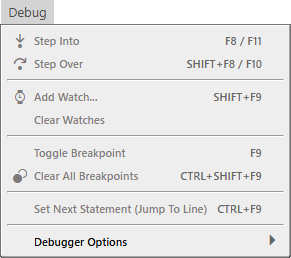
The Debug menu holds the commands for stepping through a paused program, for watches and for breakpoints. [Running and debugging](/tB/IDE/Debugging/index.md) explains them.
{:width="291" height="258"}
## Stepping
**Step Into** (F8, F11) and **Step Over** (Shift+F8, F10)
: Run the program one statement at a time. They work only while the program is paused. The menu shows the first key of each. There is no **Step Out** item: the toolbar button and the keys Ctrl+Shift+F8 and Shift+F11 do it. See [Step commands](/tB/IDE/Debugging/Breakpoints-and-Stepping.md#step-commands).
**Set Next Statement (Jump To Line)** (Ctrl+F9)
: Makes the line that has the caret the next one to run. It works only while the program is paused. See [Set Next Statement](/tB/IDE/Debugging/Breakpoints-and-Stepping.md#set-next-statement).
## Watches
**Add Watch...** (Shift+F9)
: Opens the **WATCHES** panel with a box for a new expression, filled with the selected text of the editor. It works whenever a project is open. See [Watches](/tB/IDE/Debugging/Inspecting.md#watches).
**Clear Watches**
: Removes every watch, with no confirmation. It has no key.
## Breakpoints
**Toggle Breakpoint** (F9)
: Sets or clears a breakpoint at the caret's line. It works when the focus is in a code editor. See [Breakpoints](/tB/IDE/Debugging/Breakpoints-and-Stepping.md#breakpoints).
**Clear All Breakpoints** (Ctrl+Shift+F9)
: Clears the breakpoints in every file of the project, open or not. It works whenever a project is open.
## Debugger Options
{:width="556" height="308"}
{:width="274" height="79"}
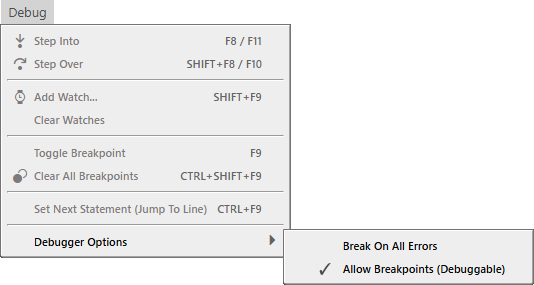
**Break On All Errors (this project)**
: Turns the project setting [Break On All Errors](/tB/IDE/Project-Settings.md#break-on-all-errors) on and off. It is off by default. When it is on, the program stops at an error that an `On Error` statement would handle, in the project's own code. See [Break On All Errors and Debuggable](/tB/IDE/Debugging/Breakpoints-and-Stepping.md#break-on-all-errors-and-debuggable).
**Break On All Errors (inside packages)**
: Turns the project setting [Break On All Errors (packages)](/tB/IDE/Project-Settings.md#break-on-all-errors-packages) on and off. It does the same for errors raised in the code of the packages that the project references, and is off by default.
**Allow Breakpoints (Debuggable)**
: Turns the project setting [Debuggable](/tB/IDE/Project-Settings.md#debuggable) on and off. It is on by default. While it is off, no breakpoint stops the program.