Object Browser
The Object Browser lists the components of the project and of the libraries it uses, with their members, and takes you to the code where each one is declared.
Opening it
With a project open, choose View → Object Browser or press F2. F2 opens it from the code editor too, although the editor’s right-click menu shows F2 beside Rename Symbol.
If text is selected in the code editor, the Object Browser opens with that text as its search, so selecting a name and pressing F2 lists the components and members of that name. With nothing selected, the search is empty; the word at the caret is not used.
The Object Browser is a dialog: the rest of the IDE waits until you close it. It opens on the project, in the view you used last, with the first component selected.
Browse and Results
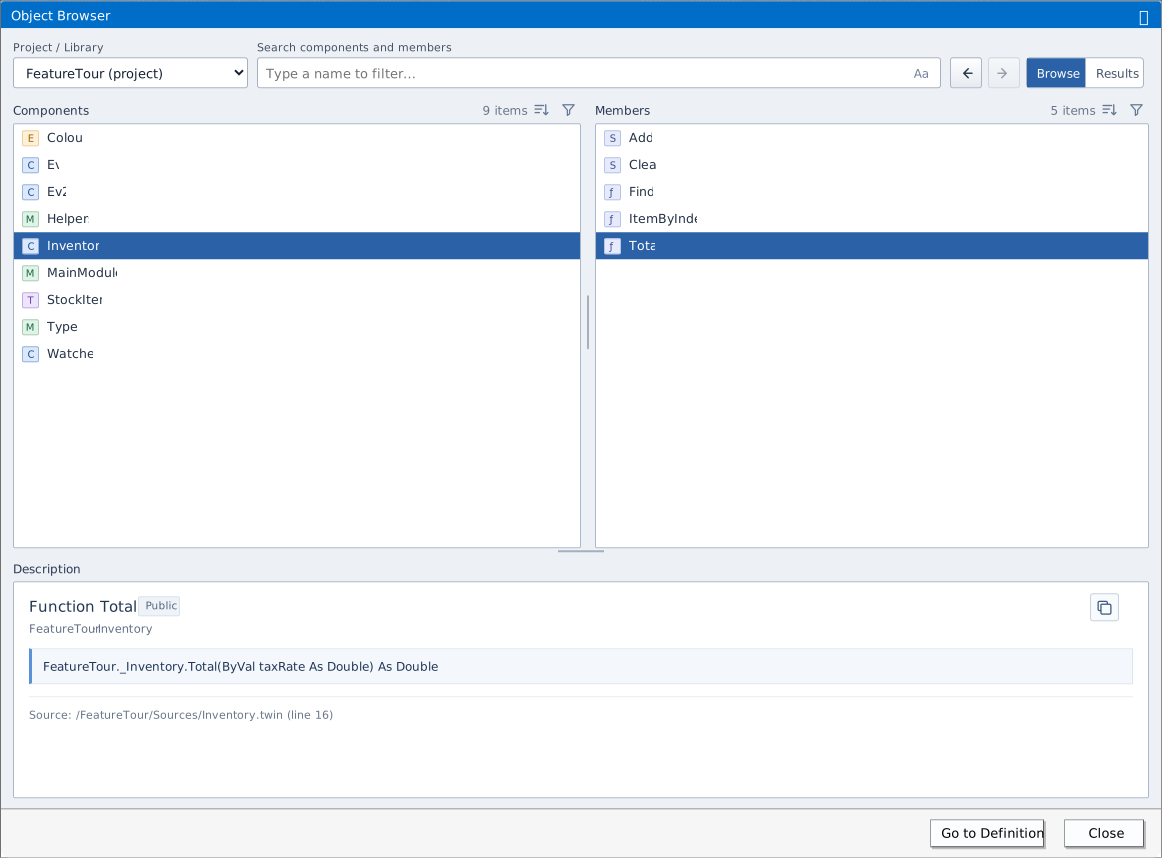
Browse shows two lists side by side. Components lists the project’s classes, modules, forms, interfaces, enums and user-defined types. Select one, and Members lists its members. A coloured letter before each name stands for its kind; hover over a name for the kind in words. The number of items in each list is shown above it.
- An enum or a type declared inside a module is a component of its own. Its description names the module.
- A class that inherits another lists the members it inherits as well, in italics, with the name of the class that declares them at the right.
- Private members are not listed until you ask for them (see Filters and sorting).
Results shows one list, Symbols, of every component and every member, each by its full name, such as FeatureTour.Inventory.Total, with its kind at the right. It suits a search for a member whose component you do not know.
The Project / Library box chooses what the lists show: the project, marked (project), one library, or <All Libraries>. The libraries are the packages the project references, such as VBA, VB and VBRUN, and its type libraries, such as stdole. Under <All Libraries>, each component shows its library at the right.
Back and Forward, the two arrow buttons, step through the items you have selected since the Object Browser opened.
Searching
The search box filters the lists as you type. It matches any part of a name: tory finds Inventory. Capitals do not matter unless Aa, at the right end of the box, is pressed. Only names are searched, not declarations or descriptions.
In Browse, a component is listed when its own name matches, or the name of one of its members does. When the component’s name matches, all its members are listed; otherwise only the members whose names match.
A dot in the search names the component first. Inventory. lists the class Inventory and all its members, and Strings.Left finds the members whose names contain Left in a component whose name contains Strings.
The search covers only what Project / Library shows. To find Strings.Left, which is in VBA, choose VBA or <All Libraries>.
Filters and sorting
Above each list are two buttons. The first sorts the list, the second filters it. In Results, the list has a sort button and two filter buttons, one for components and one for members.
The filter of Components lists the kinds of component, each with a tick box, and All and None. It also has Show hidden components, off at first, which adds the components and members that are marked hidden or restricted.
The filter of Members lists the kinds of member, and two display options:
- Show inherited members, on at first. Clear it to list only the members a class declares itself.
- Show private members, off at first. Tick it to list the
Privatemembers as well, and the other members that are not public, such asProtectedones.
A filter takes effect at once. A filter button that is not at its defaults is marked with a dot. Esc closes the list of a filter or a sort without closing the Object Browser.
Components can be sorted Alphabetical or by Type, and Members and Symbols also by Declaration order, which is the order of the code.
The description
Description, under the lists, describes the selected item:
- its kind and name, its visibility, and for a property whether it is Read / Write, Read Only or Write Only;
- its library and component, and for an inherited member the class it is inherited from;
- its declaration, with its full name; a property has one line for each of its Get, Let and Set;
- the description its library gives it, when there is one, as VBA’s Left has;
- for a class, the class it inherits;
- Source:, the file and the line where it is declared.
A class’s members are shown on the class’s default interface, whose name is the class’s with an underscore before it: FeatureTour._Inventory.Total for Total of the class Inventory.
The button at the top right of the description copies the declaration of the selected item, or the full name of a selected component. If you have selected some of the description’s text, it copies that text instead.
Going to the code
Go to Definition closes the Object Browser and puts the caret at the start of the line where the selected item is declared: the selected member, or the component when no member is selected. Double-click an item, or press Enter in a list, for the same:
- a double-click on a component goes to the component, even when one of its members is selected;
- an inherited member goes to its declaration in the class it is inherited from.
A member of a package, such as VBA’s Left, opens the package’s source in a read-only tab. An item of a type library, such as stdole, opens the IDE’s read-only text of the library, which declares its types in twinBASIC.
Using the keyboard
In a list, Up, Down, Home and End move the selection, and typing the first letters of a name selects the next item that starts with them. Letters typed within a second of each other make one name; after a pause, a letter starts again. Enter goes to the definition. Esc closes the Object Browser from anywhere in it, as Close and the title bar’s X do, and the focus goes back to where it was.
Note BETA 1034
Tab moves the focus from the search box to Aa and no further. Shift+Tab moves it from the search box to Project / Library, then to the copy button of the description, and no further. To use a list from the keyboard, click it first: its keys then work.
What it remembers
The Object Browser keeps these between openings: the view, Aa, the filters and their display options, the sorts, and the sizes of its panes. To resize the panes, drag the bar between Components and Members, or the bar above Description.
It does not keep the choice of Project / Library, the search, the selection, or the history of Back and Forward. Each time, it opens on the project, with an empty search or the selected text.
See Also
- Navigating – Go To Definition and Last Position in the code editor
- Editor – the editor’s commands, Rename Symbol among them
- View menu – the menu that opens the Object Browser