Writing code
The code editor and the panels you use beside it: tabs, editing commands, IntelliSense, navigation, searching and the list of problems.
- Editor — the editor panel and its tabs, the three navigation combo boxes, editing commands, formatting, Auto Prettify and the command palette.
- IntelliSense — the completion list, signature help, hover, inline code hints and CodeLens.
- Navigating — Go To Definition, Last Position, bookmarks, Go To Line/Column, and the Outline, Open Editors and History panels.
- Finding — the Find / Replace panel, searching the whole project, the Quick Find widget and regular expressions.
- Diagnostics — the panel that lists the errors and warnings the compiler finds, and how to filter and copy them.
The commands of these pages are listed by menu in the Edit menu and View menu reference pages. Everything that sets how the editor looks, such as its fonts, the minimap and the IntelliSense mode, is in IDE Options.
The editor panel
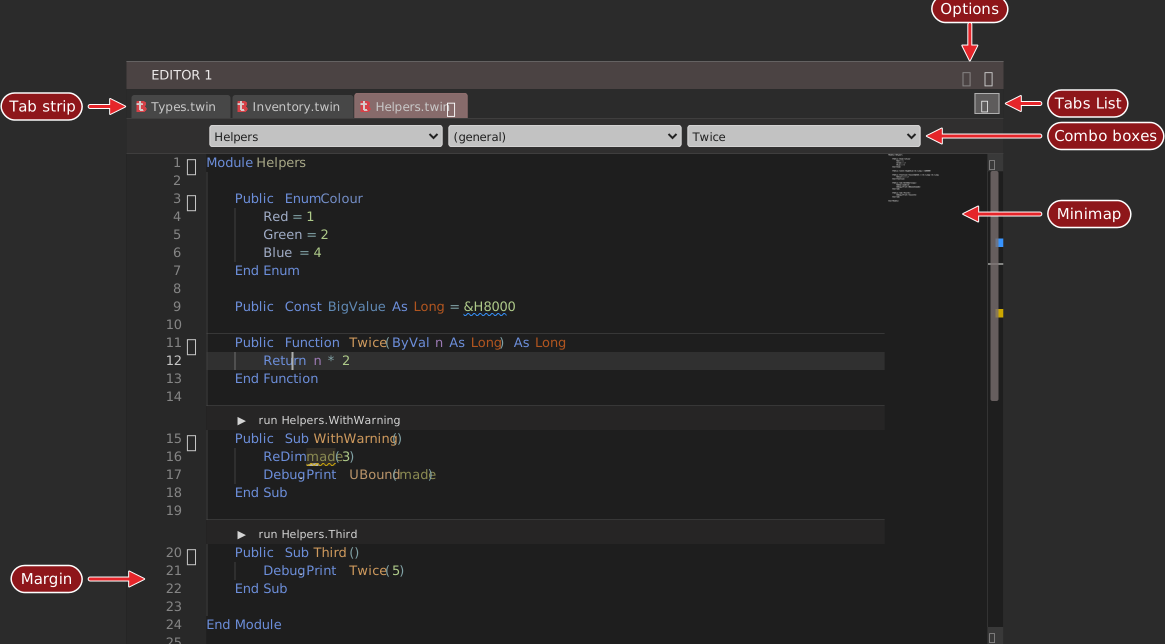
The editor is a panel titled EDITOR. View → EDITOR shows it. From top to bottom, it holds:
- The header, with the … button at the right. The button opens the menu of editor options, described in IDE Options.
- The tab strip, with one tab for each open file and the Tabs List button at its right end.
- The three navigation combo boxes, which you can place above the code, below it or hide.
- The code. A margin at its left holds line numbers, fold arrows, bookmarks and the marks for breakpoints. A minimap can sit at its right.
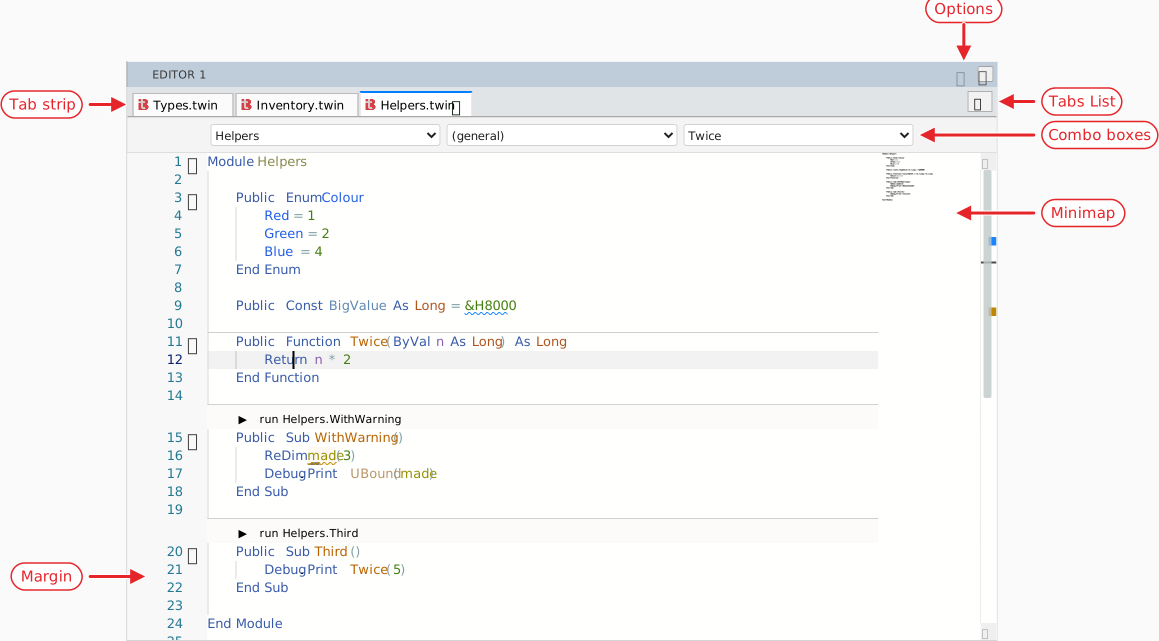
The status bar shows the position of the caret, Ln and Col, at its right end while a code editor is active. Clicking it opens Go To Line/Column.
What the compiler supplies
The editor does not understand twinBASIC by itself. The compiler runs beside the IDE, and the editor shows what the compiler reports about the file you are editing:
- the colours of the code, which follow the meaning of each word;
- the problems, as wavy underlines and in the Diagnostics panel;
- the completion list, signature help and hover text;
- the contents of the combo boxes and of the Outline;
- the fold ranges, the inline hints and the CodeLens bars;
- the corrections of Auto Prettify.
The editor itself does the text work: selecting, moving by word and line, several cursors at once, commenting, folding, word wrap and finding.
The panels you use while writing
Five panels belong with the editor. All of them are in the View menu.
| Panel | Page |
|---|---|
| DIAGNOSTICS | Diagnostics. Docked in the default layout. |
| FIND / REPLACE | Finding. |
| OUTLINE | Navigating. |
| OPEN EDITORS | Navigating. |
| HISTORY | Navigating. |
Only DIAGNOSTICS is docked in the default layout. The other four are in no built-in layout, so the first time you show one, it comes up as a floating panel. You can dock it, and save the arrangement as a panel layout.
See Also
- Edit menu – the menu of editing commands
- View menu – the menu that shows the panels
- Customising the IDE – fonts, themes, shortcuts and layouts