View Menu
The View menu switches between a file’s code and its designer, moves around the code, changes the zoom, and shows the panels of the IDE.
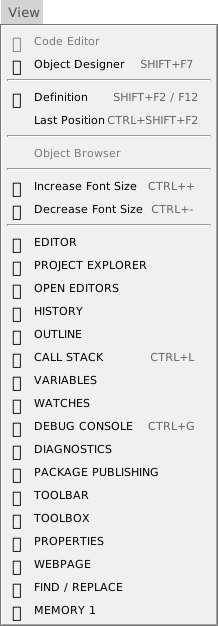
The picture shows the menu while the code editor has the focus. The upper commands depend on what has the focus; the panel names are always available.
Code and designer
- Code Editor
- Shows the code of the current form or control. It is greyed out while the code has the focus.
- Object Designer (Shift+F7)
- Shows the designer of the current form or control.
Navigation
- Definition (F12 or Shift+F2)
- Goes to where the name at the caret is declared. See Go To Definition.
- Last Position (Ctrl+Shift+F2)
- Goes back to the place the caret was before. See Last Position.
- Object Browser
- Always greyed out. It has no function.
Zoom
While the code editor has the focus, the menu shows Increase Font Size (Ctrl++) and Decrease Font Size (Ctrl+-) in place of the zoom commands. They change the editor’s font by 1px and save the new size at once. See Word wrap and zoom.
While the form designer has the focus, the menu shows Zoom In and Zoom Out, which scale the form designer.
Panels
The last seventeen items show a panel. A panel that is in no layout in use comes up floating. See Show, hide and focus a panel.
- EDITOR
- The code editor. See Writing code.
- PROJECT EXPLORER
- The files and objects of the project. See Project Explorer.
- OPEN EDITORS, HISTORY and OUTLINE
- The open files, the places where you edited, and the symbols of the current file. See Navigating.
- CALL STACK (Ctrl+L), VARIABLES, WATCHES, DEBUG CONSOLE (Ctrl+G) and MEMORY 1
- The debugging panels: the chain of calls, the variables in scope, your watch expressions, the program’s output and commands, and raw memory. See Call Stack, Variables, Watches, Debug Console and Memory. The Watches and Memory panels are not in the default layout.
- DIAGNOSTICS
- The errors and warnings of the project. See Diagnostics.
- FIND / REPLACE
- The search panel. See Finding.
- PACKAGE PUBLISHING
- The details of a project built as a package, and the button that publishes it. See Package Publishing.
- TOOLBAR
- The row of buttons under the menu. See Toolbar.
- TOOLBOX and PROPERTIES
- The controls you can place on a form, and the properties of the selected one. See Toolbox and Properties.
- WEBPAGE
- A web browser pane inside the IDE. See Webpage.