Designing reports
The report designer lays out a report in bands, one for each part of the page, and lets you place labels, shapes, lines, pictures and QR codes in them. It is the form designer in another mode, so selecting, moving, the grid, zoom, undo and the right-click menu work as they do for a form. This page describes what is different. How a report is filled with data and shown from code is in the Report class.
Add a report
Add Windows Report creates the report. It is in the Add menu, and needs the WinNativeForms package. The command makes MyReport.tbreport and MyReport.twin and opens the designer, as Add a form describes for a form. The class in the code file has an empty Sub Report_Load().
The bands
A new report has five sections, from top to bottom:
| Section | Height | Height in PROPERTIES | Also |
|---|---|---|---|
| Report Header | 25 pixels | 375 | |
| Page Header | 100 pixels | 1500 | |
| Report Detail | 25 pixels | 375 | KeepTogether is True |
| Page Footer | 50 pixels | 750 | |
| Report Footer | 25 pixels | 375 | KeepTogether is True |
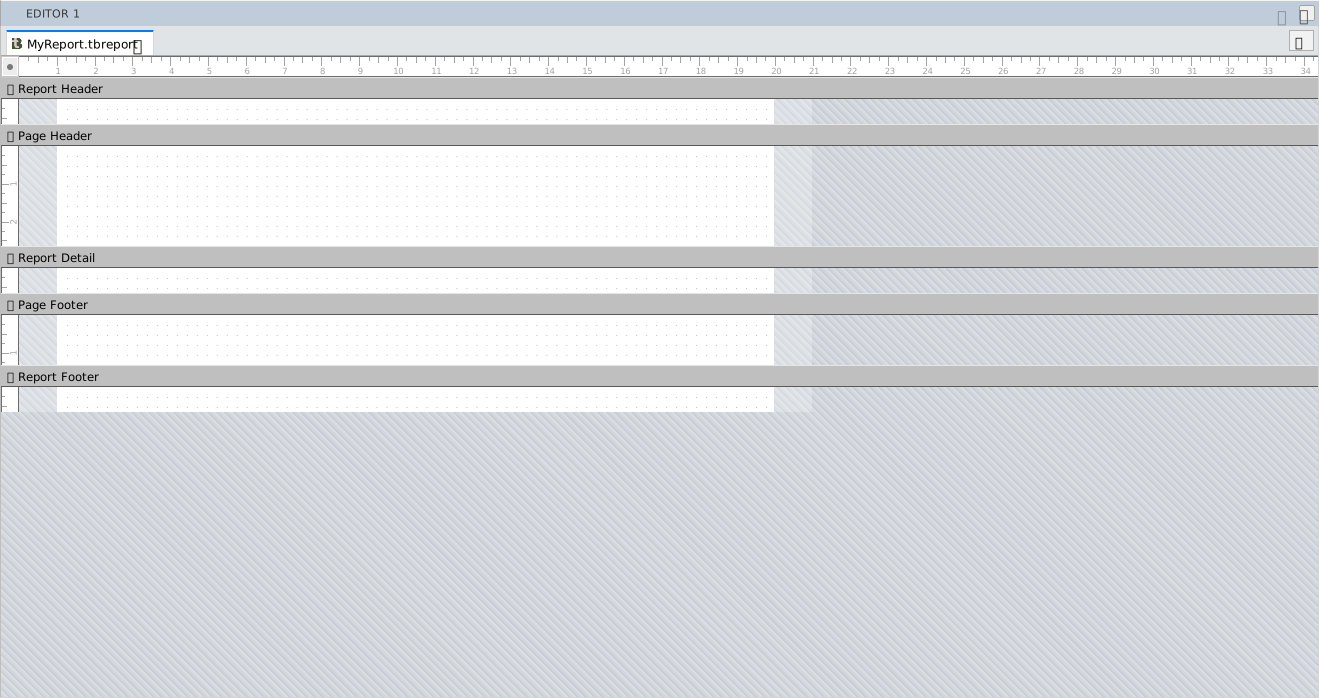
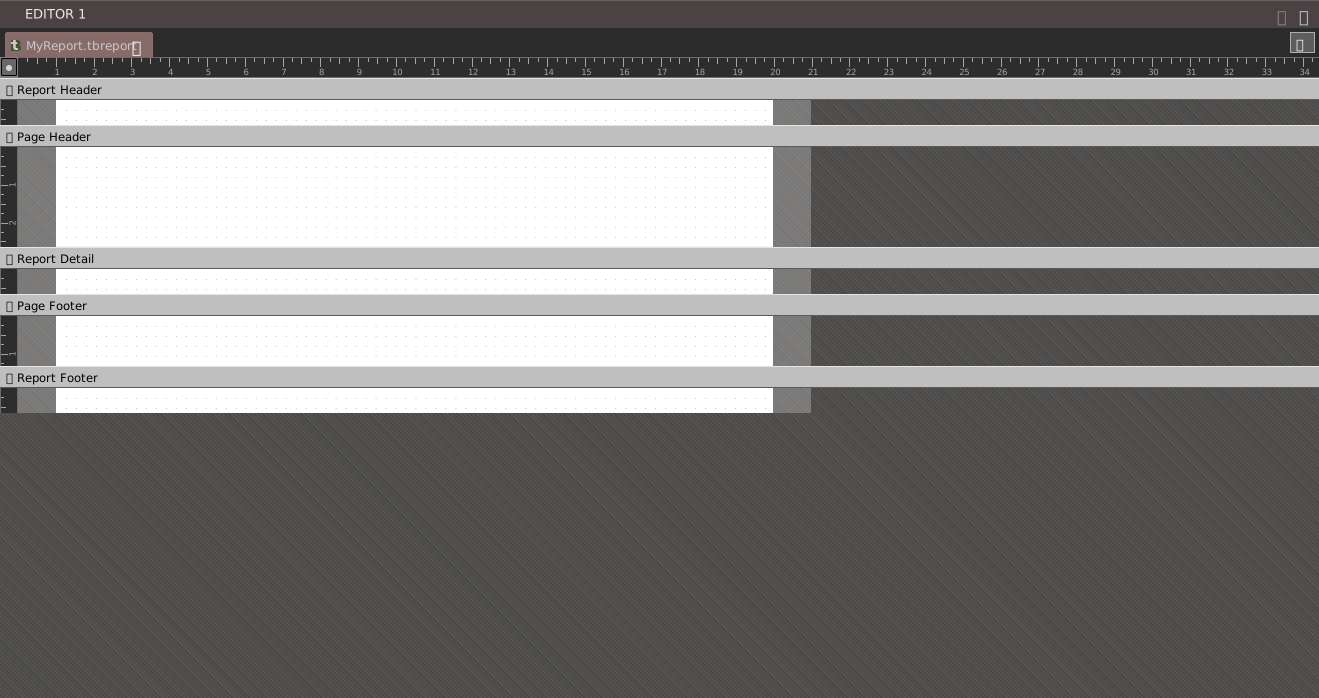
Each section is a bar that shows the section’s name, with a working area under it. The area is as wide as the report, and the page margins show as padding. A ruler in centimetres runs across the top, with a tick every quarter of a centimetre, and each section has a ruler at its left.
The bar only selects the section. A click on it, or on an empty part of the section, shows the section’s properties in PROPERTIES, and the object drop-down lists the section as its name followed by ConstrolsSection, spelled that way. A second click changes nothing. A band does not collapse.
The sections have these properties, beside Height: IdeCaption, SectionType, BackStyle, BackColor, BackColorAlternate, BorderBottomHeight, BorderBottomColor, ForcePageBreak and KeepTogether. Heights show in twips, 15 to a pixel. Setting a back colour also sets BackStyle to opaque.
To change a section’s height, drag the blue bar at its bottom edge. The change sets the section’s Height.
The page
Click the corner where the rulers meet to select the report itself. Its properties include the page settings: ReportWidth, ReportHeight and the margins. A new report has margins of 10 mm, 37.795 pixels, on each side, a ReportWidth of 717.567 pixels and a ReportHeight of 1047.053 pixels. PROPERTIES shows them in twips, so ReportWidth reads 10763.5.
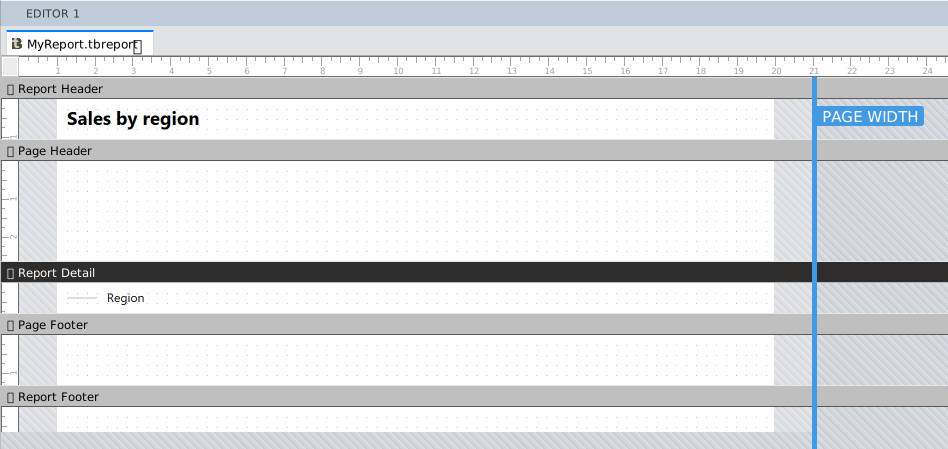
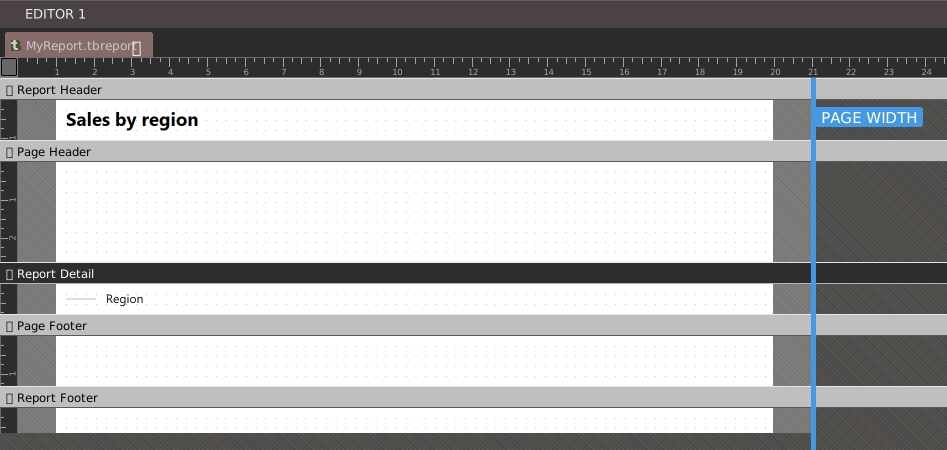
The designer lists no page-size control. Set the page by typing ReportWidth and ReportHeight in PROPERTIES, or drag the bars that run the height of the report:
- PAGE WIDTH sets ReportWidth. Dragging it 30 pixels to the right makes the report 30 pixels wider.
- LEFT MARGIN sets the left margin. The right edge of the report stays where it is.
- RIGHT MARGIN sets the right margin. Dragging it to the right makes the margin smaller and ReportWidth larger by the same distance.
Each of the three bars shows only while the pointer is over it.
Controls in a report
A report holds windowless controls only. Its Toolbox lists seven tools: Pointer, Label, Shape, Line, Image, CheckMark and QRCode. It shows no group title bars and no More components.
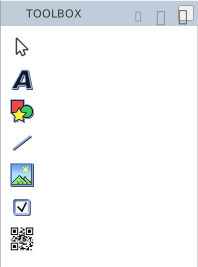
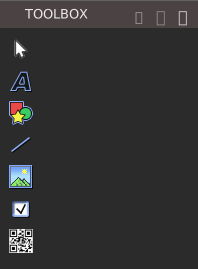
A control belongs to the section where you draw it. A double-click on a tool places the control in the current section, and a control that you paste goes into the section that is shown. Drawing or pasting any other control gives the notification Can’t add the control’s type to a report. Only windowless controls allowed., and adds nothing.
Note BETA 1010
A floating Toolbox lists all 24 controls and More components when a report is open. A control that a report does not allow is refused when you use it, so nothing is lost. Dock the Toolbox, or use only the seven tools above.
A report has no Form Menu bar and no control arrays, and its controls have no Index property. The other designer features work: selection, moving and sizing, the grid, copy and paste, locks, undo, zoom, the right-click menu and the Format commands.
Preview a report
PREVIEW and F6 open the report in a window titled with the project’s name, with the design as it is on the screen. See Previewing a form. The window and its toolbar are described in the Report class.
See Also
- Designer – opening a designer, the grid, zoom and locks
- Toolbox – the list of tools
- Properties – the PROPERTIES pane and its units
- Report class – showing and printing a report from code