Edit Menu
The Edit menu holds the commands that change and search text. Writing code explains them.
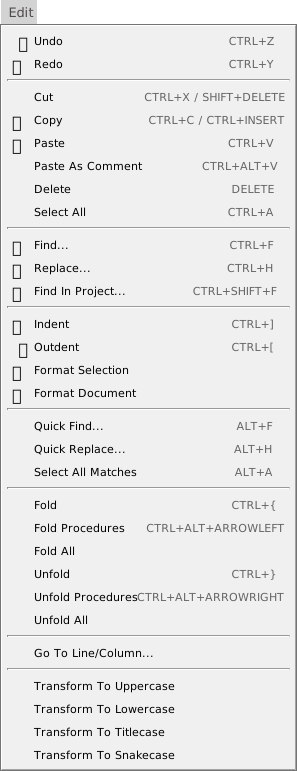
The picture shows the menu while the code editor has the focus. The commands act on the code editor, so which ones are available depends on what has the focus. With nothing in focus, Paste As Comment is missing and every command is greyed out. While the form designer has the focus, Paste As Comment is missing and the text commands, from Cut and Copy to the Transform To items, are greyed out.
Undo and the clipboard
- Undo (Ctrl+Z) and Redo (Ctrl+Y)
- Step back and forward through the changes to the file. There is no second key for Redo. See Undo and redo.
- Cut, Copy and Paste
- The editor’s own clipboard commands, with the keys Shift+Delete, Ctrl+Insert and Ctrl+V as well as the usual ones. Paste re-indents the text to the code around it. See Copy, cut and paste.
- Paste As Comment (Ctrl+Alt+V)
- Pastes the clipboard text with
'before each line that is not blank.
Find and replace
- Find… (Ctrl+F) and Replace… (Ctrl+H)
- Both open the FIND / REPLACE panel and fill it with the word at the caret. See Finding.
- Find In Project… (Ctrl+Shift+F)
- Opens the same panel with Current Project ticked. It has no list of results. See Search the whole project.
- Quick Find… (Alt+F), Quick Replace… (Alt+H) and Select All Matches (Alt+A)
- Search the current file with a small box over the code, and give a cursor to every match. Their names are in English whatever the IDE language is. See Quick Find.
Indent and format
- Indent (Ctrl+]) and Outdent (Ctrl+[)
- Move the selected lines one level in or out. See Indent and outdent.
- Format Selection and Format Document
- Re-indent the selection or the file, four spaces to a level. They have no keys. See Format the code.
Fold and unfold
- Fold (Ctrl+{) and Unfold (Ctrl+})
- Fold and unfold the block at the caret.
- Fold Procedures (Ctrl+Alt+Left) and Unfold Procedures (Ctrl+Alt+Right)
- Fold or unfold every procedure except the one the caret is in.
- Fold All and Unfold All
- Fold or unfold every block in the file. These two have no keys. See Folding.
Go to and transform
- Go To Line/Column…
- Opens a box that takes a line number, or
line:column. It has no key. See Go to a line. - Transform To Uppercase, Transform To Lowercase, Transform To Titlecase and Transform To Snakecase
- Change the case of the selected text. They have no keys. See Change case.