Menu editor
The menu editor designs the menus of a form on the form itself: you add a menu and its items, type their captions, and move them with the mouse and the keys. The menu editor is not a window of its own. It is the Form Menu bar above the form in the designer.
The bar is on a Windows form, an MDI form and a user control. A CustomControls form and a report do not have it. No menu item or key opens the menu editor. The menus are Menu controls, and they belong to the form. The Toolbox does not list Menu.
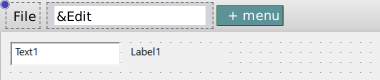
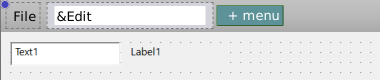
Add a menu
- Click + menu in the bar. A text box opens in the bar, holding the name of the new control, such as
Menu1, with all of it selected. - Type the caption. Enter commits it, and Esc restores the old text. Clicking elsewhere commits it.
A new top-level menu goes to the end of the bar.
The control’s Name follows the caption while you type it. The name is the caption with every character removed except the letters A to Z in either case, the digits 0 to 9 and the characters above U+00FF. So Edit Stuff gives EditStuff, and &File gives File. The accented letters of Latin-1 are dropped, so &Édition gives dition. An empty result gives Menu, and a name that is taken gets the next free number. The name follows the caption only while it still equals the name that the old caption suggested. After you edit the name in PROPERTIES, it stops following.
Add and arrange items
Click a menu in the bar to open its drop-down, which lists the items. The + row at the end of the list adds an item. Click an item to select it. If it has items of its own, its list opens to its right.
- A caption of
-makes a separator, drawn as a line. - An
&in a caption marks the accelerator letter. The editor shows the caption without the&, and&&shows a literal&. The underline is not drawn. - The shortcut text of an item shows at the right of its row, taken from its ShortcutId.
- A tick shows an item whose Checked is True, and an arrow an item that has items of its own. A caption is grey with a light shadow when Enabled is False, and faded when Visible is False.
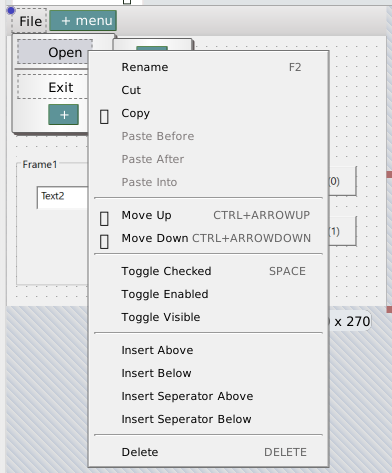
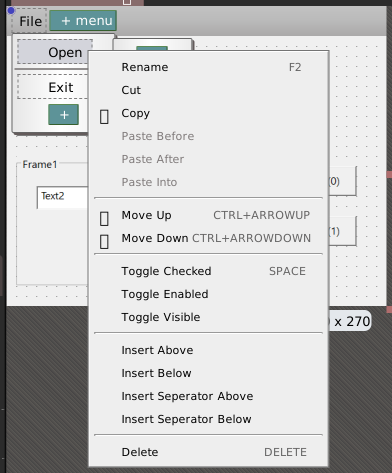
The right-click menu of an item
Right-click a menu or an item to open its menu. The labels are in English whatever the IDE language.
| Item | Key | Works on |
|---|---|---|
| Rename | F2 | A menu and an item. |
| Cut, Copy | A menu and an item. | |
| Paste Before, Paste After, Paste Into | A menu and an item, live only while the clipboard holds one menu item. | |
| Move Left, Move Right | Ctrl+Left, Ctrl+Right | A menu in the bar. |
| Move Up, Move Down | Ctrl+Up, Ctrl+Down | An item in a list. |
| Toggle Checked | Space | An item in a list. |
| Toggle Enabled, Toggle Visible | A menu and an item. | |
| Insert Left, Insert Right | A menu in the bar. | |
| Insert Above, Insert Below | An item in a list. | |
| Insert Seperator Above, Insert Seperator Below | An item in a list. The menu spells them that way. | |
| Delete | Delete | A menu and an item. |
The keys work while a menu item is selected and the designer has the focus. Rename opens the text box in place, with the caption selected, and the Name follows what you type. Cut removes the item and keeps it on the clipboard. Paste Into puts the cut item under the selected menu or item. Copy puts one item on the system clipboard as JSON, as a control is copied.
Set other properties
Everything else about a menu item is a property in PROPERTIES: Name, Index, Caption, Picture, Enabled, Visible, HelpContextID, Checked, IconSizeX, IconSizeY, NegotiatePosition, ShortcutId, Tag and WindowList. ShortcutId is a drop-down of 76 values, from 0 - vbShortcutNone and 1 - vbShortcutCtrlA on. The menus and the items are in the object drop-down of PROPERTIES as File Menu. A rubber band does not select them.
A double-click on a menu item opens its Click handler, and inserts it if it is missing. A double-click on File, for example, inserts Private Sub File_Click().
Menus in a preview
A menu is part of the form. The window of a preview shows the menus that you designed.
See Also
- Designer – the Form Menu bar in the designer window
- Menu – the class that a menu item is
- Properties – the properties of a menu item