Files and folders
The right-click menu of the PROJECT EXPLORER holds the commands that change the files of a project. This page describes the menu, and then each command in turn: renaming, moving, copying, exporting and deleting. Adding files describes the Add item.
The commands that change files change the project in memory. Nothing reaches the .twinproj file until the project is saved, by you or, in a few cases, by the IDE itself (see Other commands that save). None of the commands can be undone.
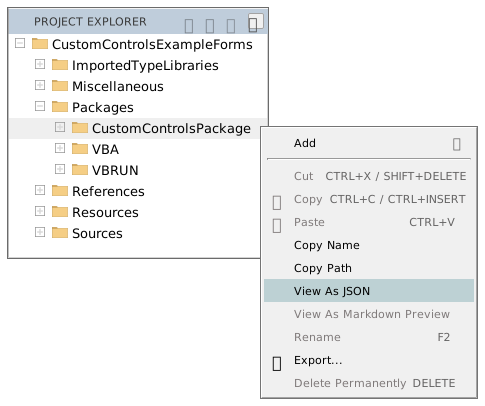
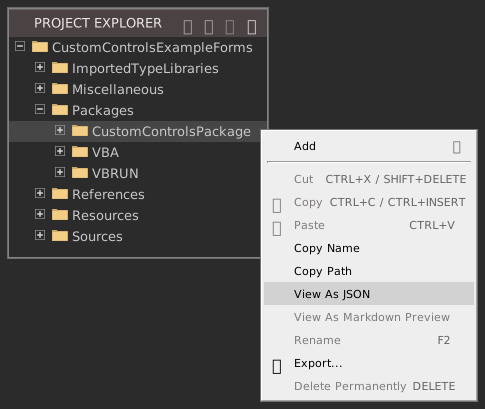
The right-click menu
A right click on a row opens the menu for the rows selected. A right click on a row that is not selected selects it first. A right click on the empty space below the tree opens the menu with nothing selected, and then only Add and Export… are available.
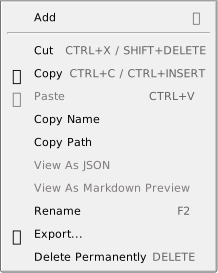
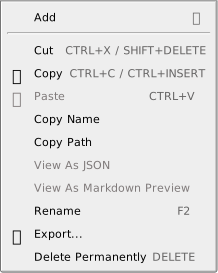
An item that does not apply is greyed out, not hidden. The keys work when the tree has the focus in the file view.
- Add
- Opens a submenu of the things that can be added. See Adding files.
- Cut (Ctrl+X, Shift+Delete), Copy (Ctrl+C, Ctrl+Insert) and Paste (Ctrl+V)
- Move or copy files inside the project. They work on files only. Cut is greyed out when a folder or a read-only row is selected, and Paste when the clipboard holds nothing the IDE put there. See Cut, copy and paste.
- Copy Name and Copy Path
- Put the names, or the IDE paths, of the selected rows on the clipboard as text. Several are joined with a semicolon. A path is written as
/<ProjectName>/Sources/Startup.twin. It is the IDE’s path, not a path on disk. - View As JSON and View As Markdown Preview
- Open a read-only copy of a file in a tab, as JSON text or as a rendered Markdown preview. See View as JSON.
- Rename (F2)
- Changes the name of a file, folder or the project. See Rename.
- Export…
- Writes the selected rows to a folder on disk. See Export a file.
- Delete Permanently (Delete)
- Removes the selected rows from the project. See Delete.
Cut, Rename and Delete Permanently are greyed out when any selected row is read-only, as the files of a package are. The menu has no item that duplicates a file, and none that opens a file’s folder in Windows Explorer. Project → Open Project Folder… opens the folder of the .twinproj file.
Rename
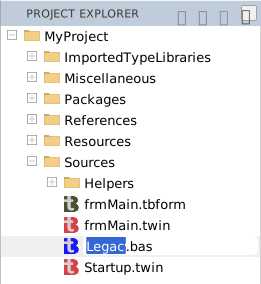
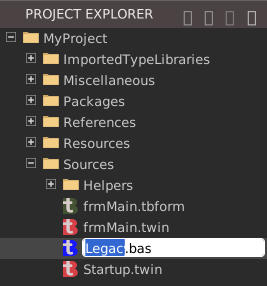
Select a row and press F2, or choose Rename. A text box replaces the name in the row, with the name selected up to the last period, or all of it for a name with none. Typing checks the name at every key, and the box turns red when the name is not allowed. Enter, or a click anywhere else, renames the file. Esc leaves the name as it was.
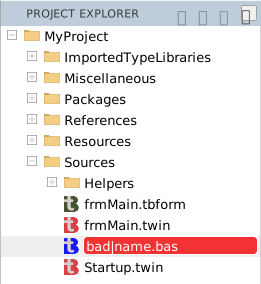
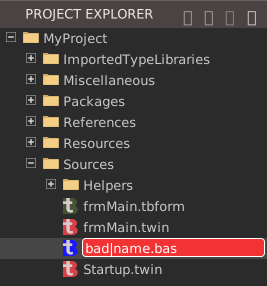
A name is refused, with a notification in the corner of the window, when it:
- is empty, or begins with a period, or ends with a period or a space;
- contains any of
\ / : * ? " < >or|; - is the same as the current name, or differs from it only in case;
- is the name of another entry in the same folder, in any case.
The notification reads Cannot rename: the new name entered is invalid. The seven special folders, Settings, Sources, Resources, References, Packages, Miscellaneous and ImportedTypeLibraries, cannot be renamed at all: the notification is Cannot rename: permission denied.
Note BETA 1010
A rename that changes only the case of a name, or nothing, is refused with the same message as an invalid name, so legacy.bas cannot be changed to Legacy.bas in the tree.
If the file is open in a tab with changes you have not saved, the IDE refuses the rename and shows a box, Rename/Move failed. Please close the following editors that are preventing the operation:, with the paths of the files. The same box appears for a folder that holds such a file. Save the file, or close its tab, and rename again. A tab on a file with no unsaved changes does not stop the rename. The tab closes, and the IDE does not open it again under the new name. Bookmarks move with the file.
A form and its code
A form’s designer file and its .twin file belong together. After you rename one, the IDE shows a notification, Rename the partner to the new name also?, with YES and NO buttons. YES renames the partner as well. NO leaves it. The question comes whichever of the two you rename. It does not come when the base names of the two files already differ. The class named inside the .twin file does not change either way: edit it in the code.

The project
The top row of the tree is the project. Renaming it changes the Project Name setting in the Settings file. The row, the title bar and the .twinproj file keep their names. A name that is not a valid project name gives Cannot rename the project: the new name entered is invalid.
Note BETA 1010
Renaming the project also saves it, with the unsaved edits of the open editors, and the title bar’s changed mark goes.
Move a file or folder by dragging
Drag a row, or the selected rows, onto a folder. The folder under the pointer is highlighted while you drag. The rows move into the folder at once. The IDE does not ask, and the move cannot be undone. A drop on a file, or on the row itself, does nothing.
- A form’s designer file moves without its
.twinfile, and the other way round, unless both are selected. - A file with unsaved changes in an open tab is not moved. The box Rename/Move failed appears, as it does for a rename.
- The
Resourcesfolder accepts a dropped file, although Paste refuses to put one there. - A file dragged in from Windows is not accepted.
Warning BETA 1010
Dragging a folder onto one of its own files, or onto one of its own subfolders, is accepted with no message. The tree then nests the folder inside itself, about fifty levels deep. The next Ctrl+S prints the green [DONE] line in the Debug Console, and then an error, and it writes a project file that the IDE cannot open: opening it stops at Please wait… 25.0%. Never drop a folder onto anything inside it. If you did, do not save. Close the project with Discard Changes in the question that follows, and open it again.
Note BETA 1010
Nothing stops a drag of a special folder. Dragging Sources onto Miscellaneous moves it there with no message, and the next save keeps it there. Do not drag the special folders. A drop of a file on Packages does nothing.
Cut, copy and paste
Copy and Cut put the paths of the selected files on the clipboard in a format only the IDE reads. Paste puts the files into the selected folder, or into the folder of the selected file. A file cannot be pasted into another program, and a file copied in Windows cannot be pasted into the project: use Import for that. Plain text on the clipboard gives the notification bad clipboard data.
- A name that already exists in the folder gets a suffix:
Startup.twinpastes asStartup copy.twin, thenStartup copy 2.twin, and so on. - Cut and Paste make a copy and delete the original. A cut file pasted into its own folder stays where it is.
- Only the selected files are pasted. To copy a form, select its designer file and its
.twinfile both. - The menu greys out Cut for a read-only row, such as a file of a package. Ctrl+X on a
Referencesentry still puts a cut on the clipboard. - The menu greys out Cut and Copy for a folder. Ctrl+C on a folder still puts its path on the clipboard.
Warning BETA 1010
A file that you cut and paste onto the Resources folder itself, or onto Packages, is deleted. The IDE shows the notification cannot create files inside the root resources folder, which does not say so. The file is gone from the whole tree, and the next save writes the project without it. Do not cut a file into either folder. If a file went, close the project with Discard Changes before you save, and the saved project still has it.
Note BETA 1010
Pasting a file with no extension into a folder whose own name contains a period, such as v1.2, creates nothing and gives no message, when a file of that name is in the folder already. The IDE takes the file’s extension from the last period of the whole path.
Export a file
Export… writes the selected files and folders to a folder on disk, as ordinary files. It opens the Windows Browse For Folder dialog, headed WARNING: This will overwrite any existing files! and Export 1 item to: or, for more rows, Export 2 items to: and so on, and starting in the folder of the project. The files go into the folder you choose.
- A file is written under its own name. A file already there is overwritten, with no question.
- A folder is written with its subfolders.
Resources/ICONis written asICON\AppIcon.ico, for example. - A designer file is written alone: its
.twinfile goes only if you select it too.
The Debug Console prints [EXPORT] DONE: and the full path for each file. If the export fails, a box reads ERROR: exportFile failed. Error code and a number.
This command exports the rows you select. File → Export Project exports the whole project, and it empties its folder first; see Export Project.
View as JSON and Markdown preview
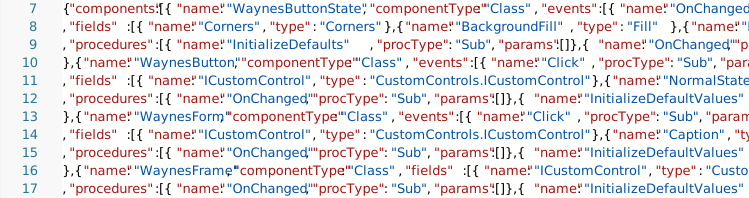
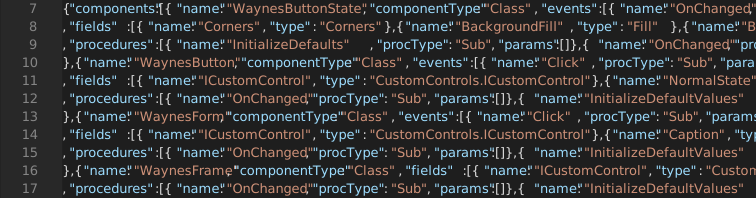
View As JSON opens a file as text in a read-only tab, titled JSON: 'frmMain.tbform':. It is available for the four kinds of designer file, .tbform, .tbcontrol, .tbppage and .tbreport, and for the rows directly under Packages. It is greyed out for other files, and for a designer file selected together with other rows.
The first lines of the tab are a comment that gives the URI: of the file and the SNAPSHOT: time. The tab is a copy as it was when you chose the command, and it does not follow later changes. It does include the changes that are open in the designer and not yet saved. A second View As JSON on the same file opens a second tab of the same name.
View As Markdown Preview is available for a .md file. It opens the formatted text in a read-only tab titled MD: 'Notes.md':, which is a copy as it was when you chose the command.
Delete
Select the rows, and press Delete or choose Delete Permanently. The IDE removes the rows from the project. Nothing goes to the Recycle Bin, because the files never existed on disk. The tabs open on a deleted file, or on a file in a deleted folder, are closed.
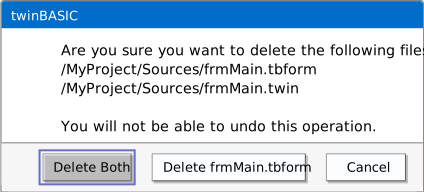
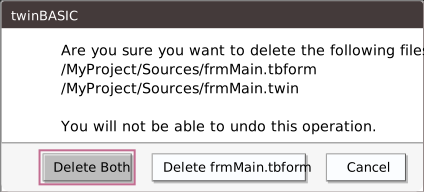
When Ask Before Delete Files is on, which is the default, a box asks first. IDE Options describes the option. The box depends on the selection, and each says that you will not be able to undo the operation.
- For one row: Are you sure you want to delete the path, with Delete and Cancel.
- For one row that has a partner, a designer file or its
.twinfile: the two paths, with Delete Both, Delete the file’s name, and Cancel. The second button deletes only the file you selected. - For several rows: Are you sure you want to delete the selected items?, with Delete and Cancel.
With the option off, the rows are deleted at once.
Some folders cannot be deleted. For Sources, References, Miscellaneous, ImportedTypeLibraries and the compiler packages under Packages, the box is shown, but nothing is deleted and no message follows.
Warning BETA 1010
A file with unsaved changes in an open tab is deleted without a word about the changes. The box is the plain one, the tab closes, and the changes go with the file. A folder that holds such a file is the same. Look for the dot on a tab before you delete its file. The saved copy stays in the .twinproj file until the next save, so closing the project with Discard Changes brings the file back.
Warning BETA 1010
Deleting the project’s own row, the top row of the tree, deletes every file in the project. The box reads like a file’s: Are you sure you want to delete the project’s path. After you confirm, the tree is empty, and the only message is an IDE internal error line in the Debug Console. The next Ctrl+S prints the green [DONE] line and writes a project with no files over the project file. Never delete the top row. If you did, do not save: close the project with Discard Changes and open it again.
Note BETA 1010
Delete with nothing selected shows the box Are you sure you want to delete the selected items?, and deletes nothing. Choose Cancel. Deleting an entry under References removes its row from the tree, but not the reference: it stays in the project’s settings. Remove a reference in Project Settings.
See Also
- Project Explorer – the tree, its views and what a click opens
- Adding files – new files, imports and resources
- Saving and exporting – writing the project to disk
- Navigating – OPEN EDITORS and HISTORY, for the files you have open