Project Explorer
The PROJECT EXPLORER panel shows the files of the open project as a tree, or the objects of the project as a list. This page describes the panel, its two views and what a click on a file opens. Files and folders describes the right-click menu and the commands that change files.
With no project open the panel is empty. When a project is open, the tree shows the project’s name with its folders below it.


The header buttons
Four buttons sit in the title bar once a project is open.


- Project Settings
- Opens the Project Settings dialog. Project → Project Settings… does the same.
- Search
- Opens the search bar of the object view. The button shows only in the object view.
- Toggle file view (Ctrl+R)
- Switches between the file view and the object view.
- Add…
- Opens the Add menu below the button. It lists the same items as the Add entry of the right-click menu, and Adding files describes them.
A button whose command does not apply is hidden, not greyed out. Hovering over a button shows its key in its title.
The two views
The file view is the tree of the project’s files and folders. The object view is a flat list of the project’s modules, classes, forms and other objects, grouped by kind, with the file name beside each one. The file view is the default.
Ctrl+R switches between them. It works whenever a project is open, whether the focus is in the panel or in the code editor. The IDE remembers the view you leave on, and opens the next session in it.
Choosing an item of the Add menu from the object view switches the panel to the file view first, because the new file appears in the tree. Leaving the object view closes its search bar.
The file view
Names are compared without regard to case: a folder cannot hold Form1.twin and form1.twin. An entry whose name begins with a period, such as the .meta file that holds the project’s saved state, is not drawn. The tree has no option to show hidden entries, and an empty folder shows the text (empty).
The folders
The tree draws six of the project’s folders. Settings, the seventh, is a file that the tree does not draw; open it with the Project Settings button.
- Sources holds the project’s code and its designer files. A new file of a code kind goes into
Sourcesunless a folder underSourcesis selected. See Adding files. - Resources holds the files the build embeds in the program. See Resources.
- References has one entry for each library the project refers to. See References and packages.
- Packages has a folder for each package the project embeds, and for the compiler packages
VB,VBAandVBRUN. A package’s files are read-only. - ImportedTypeLibraries holds the type libraries that were imported from a file. See Import from file.
- Miscellaneous is empty in a new project.
The folders Settings, Sources, Resources, References, Packages, Miscellaneous and ImportedTypeLibraries cannot be renamed. The project’s own name, at the top of the tree, can; Files and folders says how.
Icons and colours
The icon of a file shows its kind. A .twin file has a red icon, a .bas file a blue one and a .cls file an orange one. The four kinds of designer file, .tbform, .tbcontrol, .tbppage and .tbreport, have a green one. The entries under References, the Settings file and the other files each have an icon of their own, and a folder has the folder icon.
A file in which the compiler found an error has a red dot at the right end of its row. In the dark theme its name is drawn in light red, and so is the name of every folder above it, up to the project row, so a red folder says that something below it has an error. A file with only a warning has a yellow dot and a yellow name. Diagnostics lists the problems.
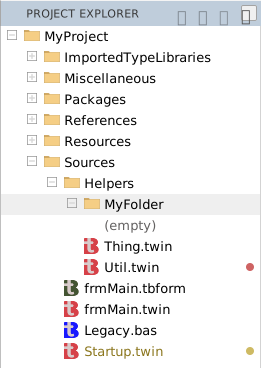
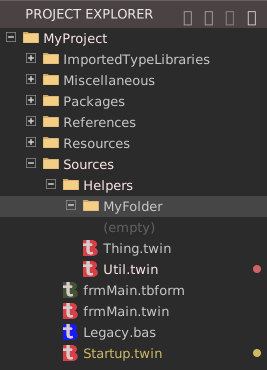
Pointing at a row for about a second and a half shows its IDE path, such as /MyProject/Sources/Startup.twin.
Select rows
A click selects one row. Ctrl+click adds a row to the selection, or removes it, and Shift+click selects the range from the last row you clicked. Ctrl+A selects every row shown. A right click on a row that is not selected selects it first.
A click on the name of a folder selects it and opens or closes it. The commands that make something new, such as Add, put it into the selected folder, or into the folder of the selected file.
Keys in the tree
These keys work while the tree has the focus.
| Key | What it does |
|---|---|
| Up, Down | Move the selection by one row. With Shift they extend it. |
| Left | Closes an open folder. On a closed folder or a file, selects the folder above it. |
| Right | Opens a closed folder. On an open folder, selects an entry inside it. |
| Enter | On a file, opens it in a normal tab and moves the focus to the editor. On a folder, does nothing. |
| Esc | Clears the selection. |
| Ctrl+A | Selects every row shown. |
| F2, Delete, Ctrl+X, Ctrl+C, Ctrl+V | Rename, delete, cut, copy and paste. See Files and folders. |
The tree scrolls to keep the selected row in view. Page Up, Page Down, Home and End do not move the selection.
Note BETA 1010
Several keys of the tree do not work as they should.
- Space does not open or close a folder. Click the folder’s plus or minus box.
- Typing the start of a name does not filter the tree, although the IDE has code for it. To find a file, open the folders, or switch to the object view and search for the object by name. To find text, use Find In Project.
- Right on an open folder selects the first entry in the order the compiler lists them. That is not always the first row drawn.
- Ctrl+A selects the rows correctly, but the IDE’s script also raises an error.
- Down on the last row selects the project’s
Settingsentry, which the tree does not draw, so no row is highlighted. Enter there raises an error and opens nothing.
What a click opens
Whether a click opens a file depends on the option Single-Click Preview, which is off by default. With the option off, one click selects a row, and a double-click or Enter opens the file in a normal tab. With the option on, one click opens the file in a preview tab. IDE Options describes the option, and Editor describes preview tabs. A double-click on a folder opens or closes it.
What opens depends on the kind of file.
| File | What opens |
|---|---|
.twin, .bas, .cls | The code editor. See Writing code. |
.tbform, .tbcontrol, .tbppage, .tbreport | The designer. See Designing forms. |
.ico, .cur, .png, .gif, .jpg, .jpeg, .svg, .bmp, .pdf | A read-only preview tab that shows the file. The tab is never marked as changed. A PDF opens, but the tab shows an empty box. |
A file with no extension in Resources/ICON, Resources/BITMAP or Resources/CURSOR | The same preview, as an icon, a bitmap or a cursor. |
| A Markdown file in a package | A Markdown preview. |
An entry under References | The code editor, with the declarations that the compiler generates for the library. |
Anything else, including .json, .xml, .txt, .md, and a file with no extension elsewhere | A text editor. |
The text editor colours .js, .ts, .html, .htm, .css, .json, .xml, .ini and .md files by their extension, and shows any other file as plain text. It has no navigation boxes and no OUTLINE. A binary file opens in it too, as replacement characters, and you can type into it.
The IDE has no resource editors. Icons, bitmaps and cursors are shown as pictures, and the manifest and the string table open as text. The version information is not a file: it is a section of Project Settings.
The object view
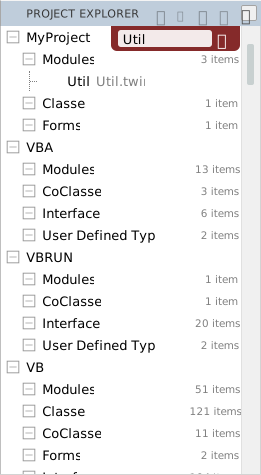
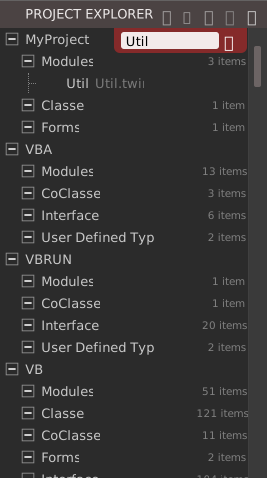
The object view lists what the language server finds in the project, not the files. At the top is the project, and below it the groups, such as Modules, Classes, Forms, Interfaces and User Defined Types. A group that the project has no objects for is not listed, and a group shows its number of items, such as 3 items. After the project’s own objects come the packages the project refers to, such as VBA, VBRUN and VB, each with its own groups.
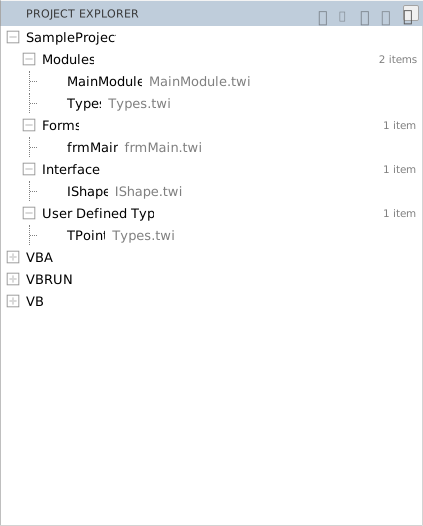
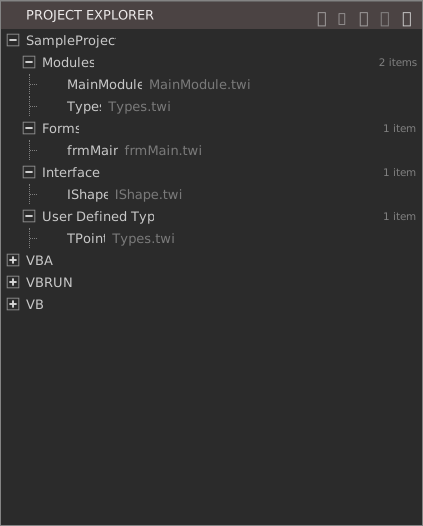
Each object has an icon for its kind and, in grey beside its name, the file it is in. The project and its groups are open when you first switch to the view, and the IDE saves which ones you closed with the project.
- Double-click an object opens its form in the designer if it has one. Otherwise it opens the code at the object’s declaration, and moves the focus to the editor.
- Double-click a group, or select it and press Enter, opens or closes it. Left and Right close and open the selected group. Enter on an object does nothing.
- Up and Down move the selection.
Search the objects
The Search button, or the first letter you type with a row selected, opens a search bar over the list. The list shows only the objects whose name contains the text, without regard to case. While a filter is set, the packages and their groups are drawn open, and each group keeps its full count. Esc, or the bar’s close button, closes the bar and brings back the whole list.
Note BETA 1010
The object view has some defects.
- A right click on a row opens no menu, so the menu’s View Object, View Code, Add, Rename and Delete cannot be reached. To rename or delete an object’s file, press Ctrl+R to return to the file view.
- Shift+double-click on a form opens its designer, like a plain double-click, and not its code. To open the code, switch to the file view and open the form’s
.twinfile. - When the search bar opens because you typed a letter, it holds
>before the letter. The>does not change what is matched.
See Also
- Files and folders – the right-click menu, and renaming, moving and deleting
- Adding files – the Add menu
- Navigating – Go To Definition, OUTLINE and OPEN EDITORS
- View menu – the command that shows the panel
- IDE Options – the options of the Project Explorer