References and packages
A project uses code from libraries. A library is a type library registered on the machine, or a twinBASIC package. This page describes the part of the Project Settings dialog that manages them: the lists, the ticks, the questions it asks, and the way a library is kept in the project. The language side of packages, such as how to build and publish one, is in Package Management.
Open the lists
The lists are the Library References section of Project Settings. In the project’s Settings file the setting is project.references.
- Project → References… (Ctrl+T) opens the dialog with its filter box holding
project.references, so that only this section shows. - The gear in the PROJECT EXPLORER title bar, and Project → Project Settings…, open the whole dialog. Click Library References in its rail, or type
project.referencesin the filter box, to reach the section. - The GoTo COM References button of the box that More components… opens in the Toolbox opens the dialog filtered to
project.references, as Project → References… does, on the Enabled Libraries tab. Choose Available COM References to add a library. - A reference that cannot be loaded opens it by itself, about a second after the project has loaded. See A reference that fails.
The three tabs
Three tabs above the list choose which list shows. The tab chosen is underlined in blue, and each tab has a tooltip that says what it lists.
| Tab | Lists |
|---|---|
| Enabled Libraries | The libraries the project uses, in order of priority. |
| Available COM References | Every type library that the compiler finds on the machine. The list is read again each time you choose the tab. A search box at the top of the Name column, marked with a magnifier, filters it by name or path. |
| Available Packages | The packages on the TWINSERV package server, the packages in your local packages folder, and the packages the project embeds. The IDE asks the server each time you choose the tab. |
Each list has more columns than fit in the dialog: scroll it sideways to see the rest.
To use a library, tick it in one of the two lists of available libraries. To stop using one, untick it in any list. Apply Changes puts the change into effect.
The Enabled Libraries list


The list begins with two rows that cannot be moved, whose drag handles are dimmed: the VBA and VBRUN compatibility packages. Unticking one does not remove it from the list. It switches the package off for the project, with the settings project.disablePackageVBA and project.disablePackageVBRUN. The packages that ship with the IDE show [BUILT-IN] as their publisher.
Each row has these columns:
- a drag handle, the tick, the name, and two arrows at the right of the name;
- Library Symbol, Version, Publisher, Path, LibraryID, Locale, Licence and Date;
- Use ActiveX Controls, which is ticked unless you clear it;
- ActiveX Fusion Mode and Fusion: Async Events, which show only when the IDE’s Fusion mode is on. See Fusion.
A Path column shows a win32: line and a win64: line when the two differ.
A package that the project embeds is marked [EMBEDDED-PACKAGE], and a package that is kept outside the project is marked [LINKED-PACKAGE]. See Linked Packages.
Unticking a row removes the reference. The IDE manages the project’s Packages folder from the packages the project embeds, so unticking an embedded package also removes its folder from the project. Updating a Package describes what to do to replace a package.
Priority
The list is in order of priority. Drag a row by its handle, ⠿, at the left of the row, with the tooltip Drag to reorder, to move it up or down the list. A row also shows two arrows at the right of its name while the pointer is over it, grey until the pointer is on one, which turns it pink. They move the row up, which gives it a higher priority, or down, which gives it a lower one. An arrow that cannot move the row is greyed out. The VBA and VBRUN rows stay at the top.
The library symbol
A library’s symbol is the name its components are qualified with in code. It is read from the library, and shows ... until the IDE has it. The pencil beside the symbol has the tooltip Click here to customize the library symbol used in this project, and opens a text box. A symbol that you type is stored as an override, with no spaces: Enter keeps it and Esc returns to the original. The row then shows the original struck through, and the override beside it. Library Symbols describes what a symbol does.
A reference that fails
A reference that the compiler cannot load shows ERROR unable to load this reference and a FIX link. About a second after the project loads, the dialog opens by itself to show it. It opened again after an Apply Changes that restarted the compiler. FIX does nothing but say that the feature is not implemented yet, and that you should remove the reference and add it again from Available COM References. A library listed twice shows ERROR duplicate reference on both rows.


Available COM References


Tick a library to add it to the project. The reference is added to project.references at once, with autoCtlExt set to true, and Apply Changes becomes available.
Available Packages
The tab lists the public packages of TWINSERV. After you sign in, it lists your private packages too. A yellow button under the list, at the right, ↪ LOGIN to see any PRIVATE packages you’ve made, opens the sign-in form, with tabs to log in and to register, and the box Remember password on this device. After you sign in, choose the tab again to refresh the list.


After the tick and the name, its columns are Embedded, Library Symbol, Version, Publisher, Path, LibraryID, Locale, Licence and Date.
Tick a package to add it. The Embedded column marks a package whose copy is part of the project. Clearing its tick makes the package linked: the project refers to it by its identifier, and the file is in %APPDATA%\twinBASIC\packages. Linked Packages describes the two ways, and Importing a Package from TWINSERV the steps.

The IDE asks you a question in three cases.
- You tick a package that is in your local packages folder and on TWINSERV. A box shows the two versions, and offers Use Local Package (LINK), Download it from TWINSERV (EMBED) and Cancel. With only one source, the IDE uses it without asking.
- You clear the Embedded tick of an embedded package. If a copy of the package is already in the local folder, a box shows both versions and offers Use Existing Local Package, Overwrite Local Package (export it from this project) and Cancel. If there is none, the IDE writes the package to the local folder, as
<symbol>.twinpack, and removes the copy from the project. - You tick the Embedded column of a linked package. The box offers Import Local Version, Import TWINSERV version and Cancel, when both exist.


Replacing an embedded package by a newer build, and the case of a linked package that is missing from the machine, are described in Updating a Package and Linked Packages.
Import from file
The Import from file… button under the lists opens the Windows Open dialog. What it imports depends on the tab.
- On Available COM References, and on Enabled Libraries, it asks for a type library. The IDE copies the file into the project as
ImportedTypeLibraries/<file name>, and adds it to the references at once, ticked. - On Available Packages, it asks for a
.twinpackfile. The package is added to the Available Packages list. Importing a Package from a TWINPACK File gives the steps.
Note BETA 1033
A package imported with Import from file… is listed but not ticked, so the project does not use it. Tick it yourself after the import.
Note BETA 1033
Import from file… puts a copy of the package under the project’s Packages folder. Closing the dialog with Cancel leaves the copy there, and the project is not marked as changed.
Note BETA 1010
A type library added with Import from file… is drawn on the Enabled Libraries list as [LINKED-PACKAGE], and on Available COM References it is listed twice, once from the project and once from the registered library, both ticked. Clearing the tick of either row removes the reference.
Package needed
Choosing an Add item for a Windows form without the WinNativeForms package in the project, or for a CustomControls form without the CustomControls package, shows a box, Package needed, and the name of the package. It says that the package must be added first, and that the compiler restarts. The button Add WinNativeForms package, or Add CustomControls package, adds the reference to the Settings file and restarts the compiler. It creates nothing: choose the Add item again. Cancel changes nothing. The package prompts shows the boxes.
The reference is listed under the package’s own name, WinNativeForms or CustomControlsPackage, until the compiler has answered, and then under the name of the library, such as twinBASIC - VB Compatibility Package (Forms).
Note BETA 1010
In a project that has a file, the button also saves the project, although the box speaks only of restarting the compiler. A project with no file yet is not saved, and restarts from memory.
Apply Changes and closing the dialog
The foot of the dialog has, at the right, the number of settings changed, such as 2 changed, then Apply Changes and Cancel. The count is hidden while it is 0. It counts each setting whose value differs from the one the dialog opened with, and not a library ticked, unticked or moved in the references lists. It can read 1 changed as the dialog opens, before anything is changed, because the IDE fills in details of the references as the dialog loads.
Apply Changes is greyed out until you change something. It applies the changes and closes the dialog. A change that needs no restart of the compiler is written to the Settings file, and the Debug Console prints [COMPILER] Project settings updated. When the change needs it, such as a reference ticked, the project is saved first and the compiler is restarted, without a question: the console prints Project settings changes require compiler-restart, saving to disk [DONE] and restarting from FILE, a Please wait… box shows the restart’s progress, and the restart then clears the console.
Cancel closes the dialog at once and drops every change, whichever it is, without asking. Esc does the same when the focus is in the filter box or in a setting’s text box. The close button in the title bar asks first, in a box, WARNING: you made changes but haven’t saved them. Close without saving?, with Yes, close and No, keep editing. No, keep editing returns to the dialog with the changes kept.
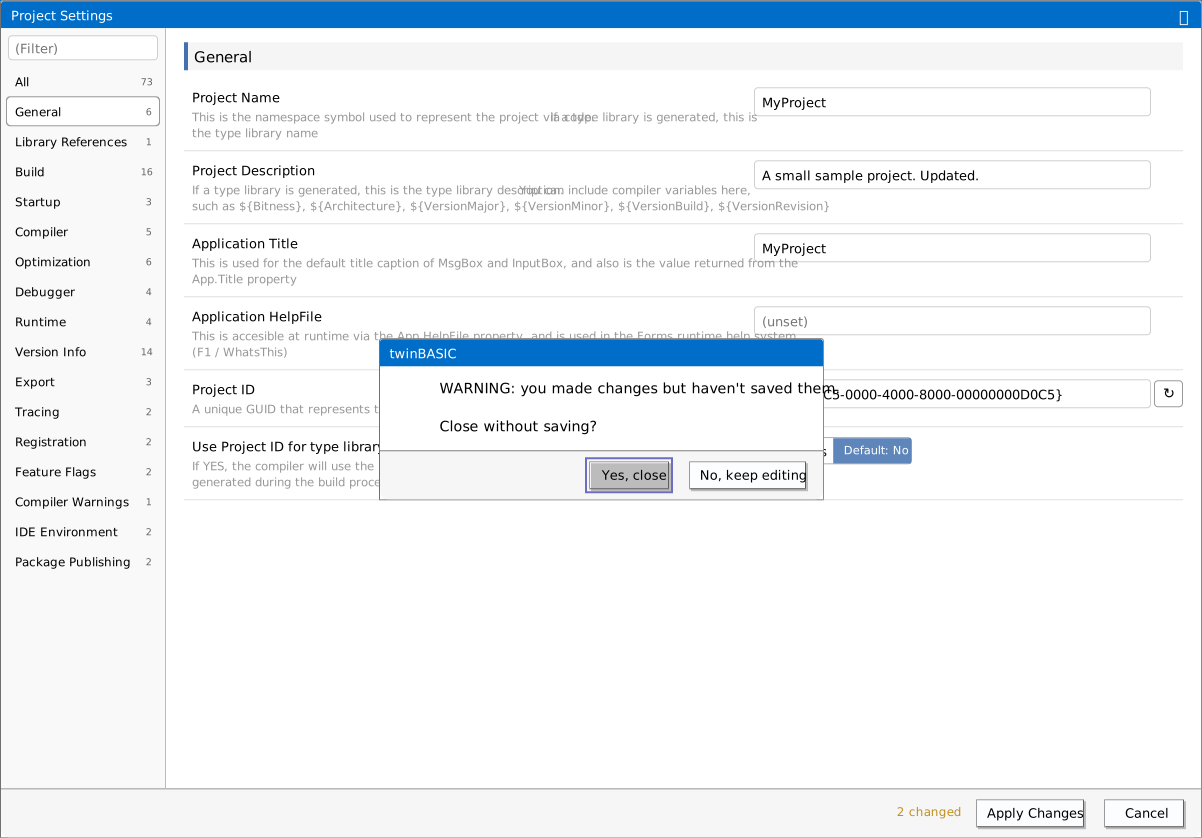
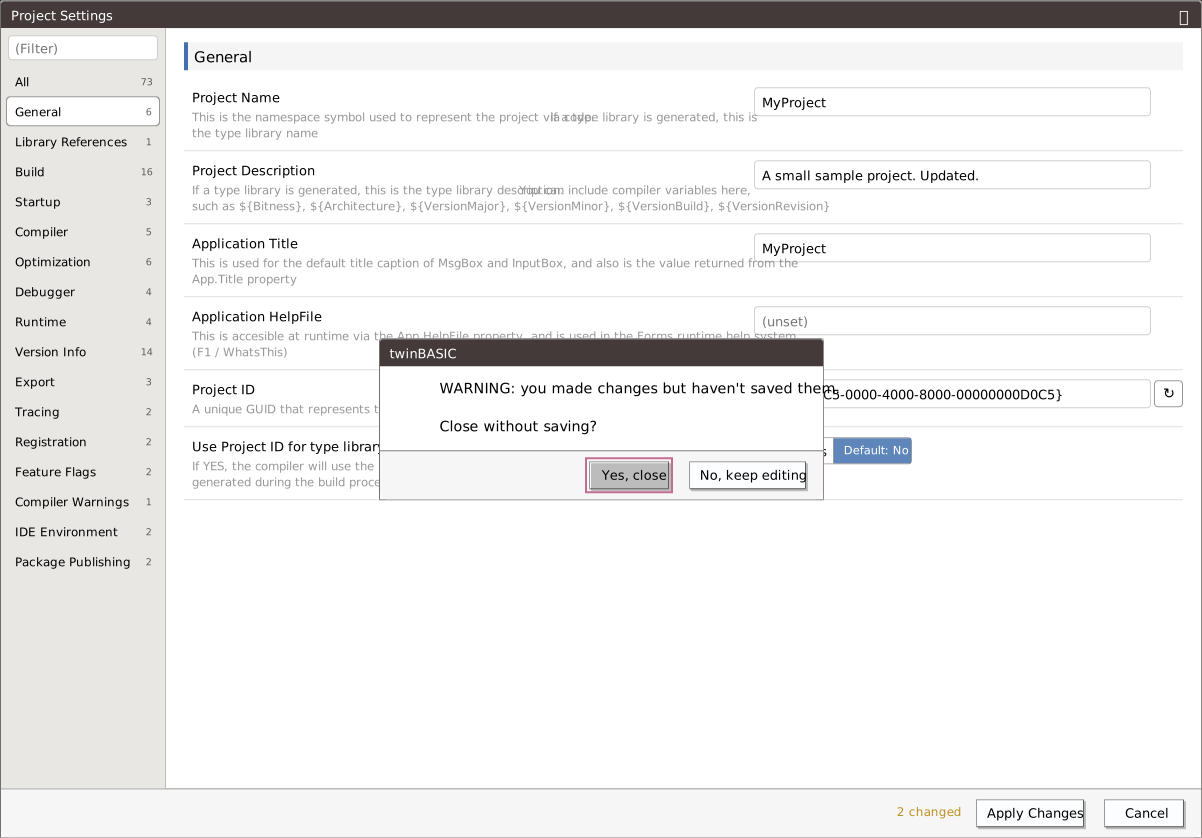
Warning BETA 1033
The close button of the title bar does not ask when the only change is to the references. The dialog closes, the change is dropped, and nothing says so. The code that compares the settings leaves out the compiler warnings as well. Press Apply Changes before you close the dialog.
The References folder
The References folder of the Project Explorer has one entry for each library the project uses. The entry is named with the library’s symbol and its identifier. It is not a file of the project, and it is not in the saved .twinproj. A double-click opens it in the code editor, as the declarations that the compiler generates for the library, with a comment that names the library’s original file.
Cut, Rename and Delete Permanently are greyed out on the right-click menu for these entries.
Note BETA 1010
The Delete key removes a References entry from the tree, although its menu item is greyed out. The reference itself stays in the project. To remove a reference, untick it in the Enabled Libraries list.
Where the project keeps them
- The references are in the
project.referenceslist of theSettingsfile, with the symbol overrides. - An embedded package is a folder under
Packages. A package’s files are read-only in the Project Explorer. - A type library imported from a file is a file in
ImportedTypeLibraries. - A linked package is a file in
%APPDATA%\twinBASIC\packages. The project refers to it by the package’s identifier.
See Also
- Project Settings – the setting, and the rest of the dialog
- Package Management – creating, importing, linking and updating packages
- Library Symbols – the name a library’s components are qualified with
- Adding files – the other items of the Add menu
- Project menu – References… and Project Settings…