Importing a VB6 project
The IDE turns a VB6 project file, a .vbp, into a new twinBASIC project. The compiler does the conversion: it reads the .vbp and the files it names, and gives the IDE the settings and the files of a twinBASIC project. This page describes the routes, what the importer converts and what it leaves, the log it writes, and what to do next. The FAQ entries What does ‘100% backwards compatible’ mean and So some of my projects won’t work? say what to expect of VB6 code.
The routes
| Route | What it does |
|---|---|
| New → Import from VBP… in the New / Open Project dialog, then Open or a double-click | Closes the open project, opens a Windows picker for the .vbp, then imports it. See the note on the import cards. |
File → Open Project… (Ctrl+O), or Browse… in the dialog, with a .vbp chosen | The same import. A name that ends .vbp goes to the importer. |
| The Recent (VB6) section of the dialog | Loads the .vbp by another route, described below. |
A .vbp on the command line | The same as Recent (VB6). |
Project → Add → Import… with a .vbp | Is not a new project. It copies files of the VB6 project into the open project. See Single files and the Import tree. |
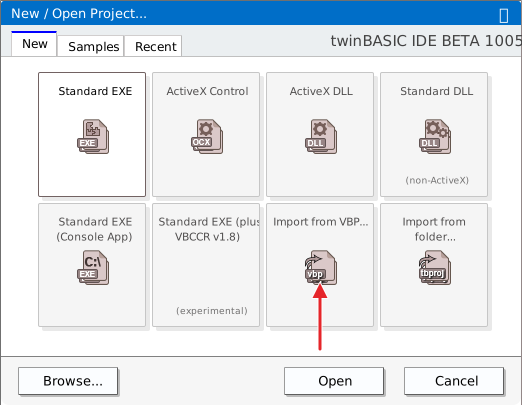
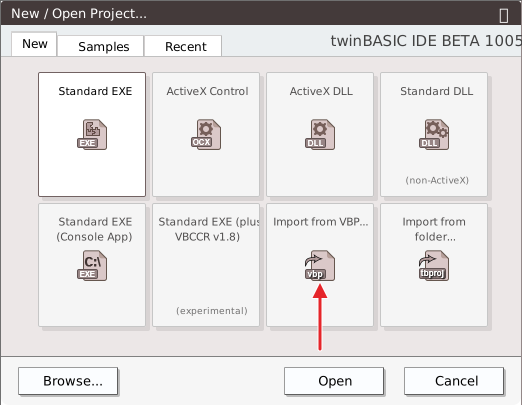
The card Import from folder… is not a route for a VB6 project. It opens the folder of a twinBASIC project. See New Project.
The first two routes
The IDE sets the build configuration to win32, sets DEP off and large-address-aware on, and shows a progress indicator while the compiler converts the project. Then the New Project Options box opens, with the rows of an import:
- Project Name, from the
.vbp’sName. - Option Explicit ON, ticked. The importer itself leaves the setting off, but the box starts ticked, so a default import ends with it on. A project that relies on undeclared variables then shows errors; see After the import.
- Unicode Common Control Notifications, ticked.
- Visual Styles, when the project has no manifest, and DPI Awareness, for a Standard EXE. The DPI choice starts at
NONE. - Register to HKEY_LOCAL_MACHINE, ticked, for an ActiveX DLL or ActiveX Control. An IDE that is not running as administrator then shows a warning about the machine-wide registry once after Continue. See ActiveX registration.
There is no Include Common Controls row. New Project Options describes all the rows.
Continue opens the project. It is unsaved and marked as changed, it is named from the box, and the title bar reads Unsaved.twinproj. Nothing is written to disk until you save it: File → Save Project opens the Save As box. A failed import shows the box ERROR: LoadProject failed. Error code … and nothing else.
The other two routes
A .vbp loaded from Recent (VB6) or the command line shows no New Project Options box. It gets the importer’s own settings. Option Explicit is off, and the project has no visual-styles manifest. The project is not marked as changed, so its title bar has no dot. The build configuration box is left as it is. File → Save Project still opens Save As, closing asks nothing, and the .vbp file is not touched.
Use the first two routes when you want the box’s choices.
What the importer converts
Project settings
In the .vbp | In the new project |
|---|---|
Name | the project name and the application title |
Type=Exe, Type=OleDll, Type=Control | a Standard EXE, an ActiveX DLL or an ActiveX Control |
Startup | the Startup Object: Sub Main or a form. An ActiveX DLL or Control gets (None). |
IconForm | the Icon Form |
LinkSwitches with /SUBSYSTEM:CONSOLE | Is Console Application set to Yes. The switch must be in capitals. It may stand alone, under [VBCompiler], or among other switches in quotes. In lower case, or as /SUBSYSTEM:WINDOWS, it sets nothing, and no other linker switch is carried over. |
Title, Description, MajorVer, MinorVer, RevisionVer, VersionCompanyName, VersionFileDescription, VersionLegalCopyright, VersionProductName | the matching version settings |
AutoIncrementVer=1 | the version’s auto-increment, set to Revision |
Reference= | a reference to the type library, with its path |
Object=, such as MSCOMCTL.OCX | a COM reference to the control file, and support for ActiveX controls turned on |
See Project Settings for these settings. The importer also adds the WinNativeForms package as a reference, turns Use Unicode Standard Library on, and sets the Build Output Path to a file in the project’s folder, such as ${SourcePath}\Project1.exe, not to the Build folder of the templates.
A reference to a type library the machine does not have fails to load, and Project Settings opens by itself on Library References. The version in the list can differ from the one the line names: a line for MSComctlLib that says 2.0 shows 2.1. To use the controls of an OCX, register it first; see the FAQ.
Files
- A
.basor.clsfile is copied unchanged, with itsAttributelines. - A
.frm,.ctlor.pagfile becomes two files. The designer file isForm1.frm.tbform,Ctl1.ctl.tbcontrolorPag1.pag.tbppage. The code is inForm1.frm.twin,Ctl1.ctl.twinorPag1.pag.twin, as aClasswith the file’s code. An MDI form is converted the same way, and the startup object is the MDI form. - A UserControl’s list of property pages, which VB6 keeps in the
.ctxfile, goes into its.tbcontrolfile. - A
.frxfile is read with its form. A picture or icon of the form’s controls is kept as bytes inside the.tbform, and the project gets noResourcesentry for it. A.frxrecord that VB6 itself cannot read loses its picture without a message.
How the Attribute lines are kept, and which of them have an effect in a built ActiveX DLL, is in the FAQ.
Resources
A .res file named by ResFile32= is imported as the project’s resources, and the log says imported resource file. Its manifest becomes Resources\MANIFEST\#1.xml. A string table becomes Resources\STRING\Strings.json. A resource of a numeric type keeps its type and its id: RT_RCDATA with id 201 is Resources\RCDATA\#201, and a name stays a name. The FAQ lists the resource folders.
Warning BETA 1034
A resource whose type is a name, such as CUSTOM or MYDATA, is imported with an empty name. The folder Resources\<type> holds one blank row, however many resources of that type the .res file holds, and the log still reports 0 ERRORS/WARNINGS. A saved project keeps the bytes of each resource under an empty name, and the IDE shows the row as empty. A build then ends with NATIVE EXCEPTION: ACCESS_VIOLATION and makes no executable. Resources whose type is a number are right, RT_RCDATA included. Take the resources of a named type out of the .res file before the import, and add them to the project afterwards, as Resources describes.
What the importer leaves
- The code. The importer does not change it. A
.basor.clsfile is copied as it is, and the.twinfile of a form holds the form’s code as VB6 wrote it. twinBASIC compiles it as VB code. - The
Attributelines. They stay as VB6 wrote them, and none becomes a twinBASIC attribute. - The linker switches other than
/SUBSYSTEM:CONSOLEin capitals. - A
.frmchosen alone with Project → Add → Import…, with no.vbp. It is copied unconverted. - The controls of an OCX. The importer adds the reference, and the OCX has to be registered on the machine.
The import log
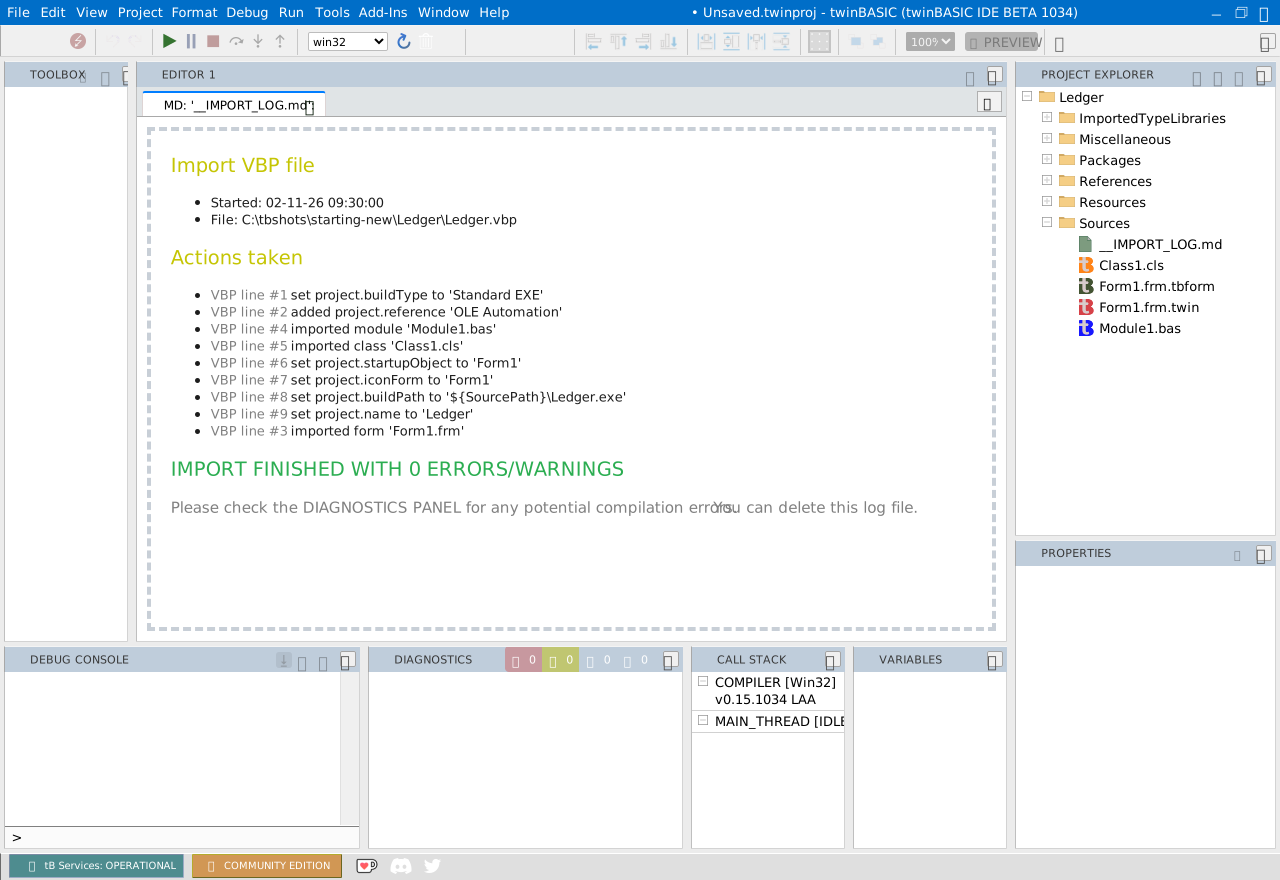
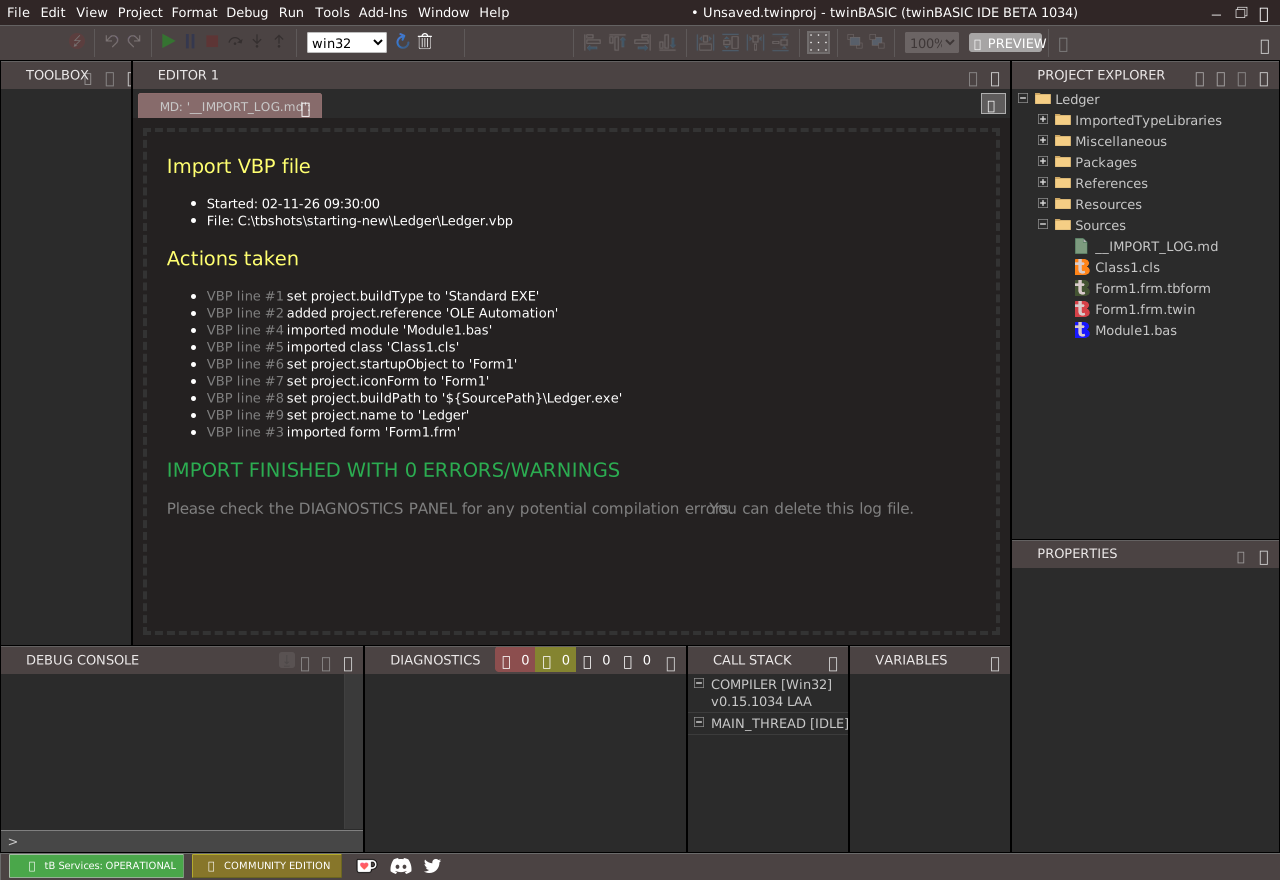
The project gets a file Sources\__IMPORT_LOG.md. It lists what the importer did, one line for each file and setting. A few lines, as they read:
added project.reference 'OLE Automation'
imported module 'Module1.bas'
imported class 'Class1.cls'
imported usercontrol 'UserControl1.ctl'
imported propertypage 'PropertyPage1.pag'
imported resource file 'Project1.res'
imported form 'Form1.frm'
The lines for the settings come first, and the forms are logged last, whatever their line in the .vbp. The log ends with IMPORT FINISHED WITH n ERRORS/WARNINGS and the advice Please check the DIAGNOSTICS PANEL. After the import, the one tab that is open is a preview of this file.
A file that is missing
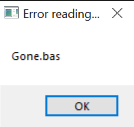
If the .vbp names a module, form, class, user control or resource file that is not there, the compiler opens a native Windows box. Its title is Error reading file., its text is the name of the file, and it has one OK. Meanwhile the IDE shows Migrating VBP to twinproj format… and Esc does nothing, so the IDE seems to hang. If the box is not in front, look for it in the taskbar. After OK the import goes on. The log then holds a line such as importing module 'Gone.bas' FAILED; unable to open or read the file, or import resource file 'Gone.res' FAILED, and ends with IMPORT FINISHED WITH 1 ERRORS/WARNINGS.
After the import
- Save the project. It has no file yet: File → Save Project opens Save As. See A project with no file.
- Read the DIAGNOSTICS panel. The errors are usually Unrecognized symbol (TB5079) for variables that were never declared, because Option Explicit ON was left ticked. Either untick the row in the box, or set Option Explicit On to No in Project Settings. The warning TB0002 can be set to IGNORE. The FAQ shows both.
- Run it. Start (F5) runs the project in the compiler. See Running.
Single files and the Import tree
Project → Add → Import… imports files into the open project, not a new project. See Import. Three cases:
- A
.basor.clsfile is copied as it is. - A
.frmchosen alone is copied unconverted, asSources\Form1.frm, with its text. Its.frxis not copied. No box opens, and the project is saved. - A
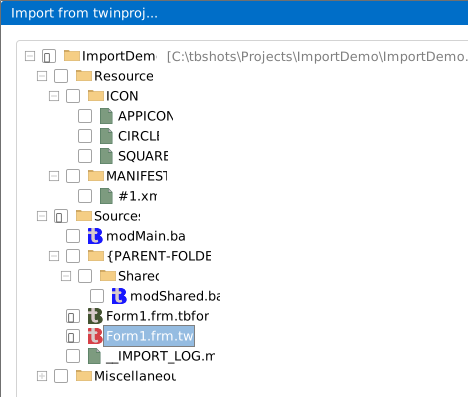
.vbpopens the Import from twinproj… tree, with the files already converted. The first row shows the project’s name and path; below it come the Resources, Sources and Miscellaneous branches. Tick both files of a form,Form1.frm.tbformandForm1.frm.twin. A user control and a property page have two files each, in the same way, and the log is a file too. Import copies the ticked files into the open project.
See Also
- New Project – the dialog and the New Project Options box
- Opening projects – the other ways to open a project
- Adding files – Import… and resources
- Project Settings – the settings the importer fills
- Project Types – the kinds of project twinBASIC builds
- FAQ: How do I import my VB6 project – the
Attributelines