New Project
The New / Open Project dialog makes a project from a template or a sample, imports an existing one, or opens a project you used recently. File → New Project… (Ctrl+N) opens it, and so does the start of the IDE when no project is named. This page describes the dialog, what each template makes, the New Project Options box that follows, and what the new project is.
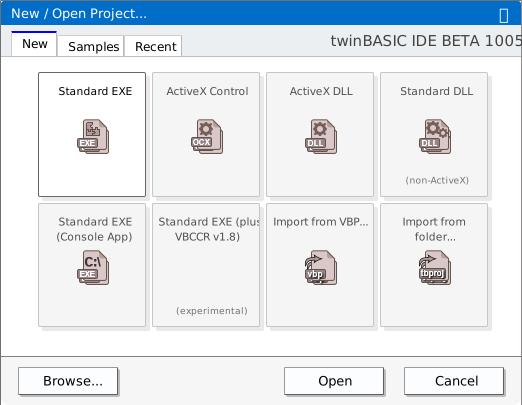
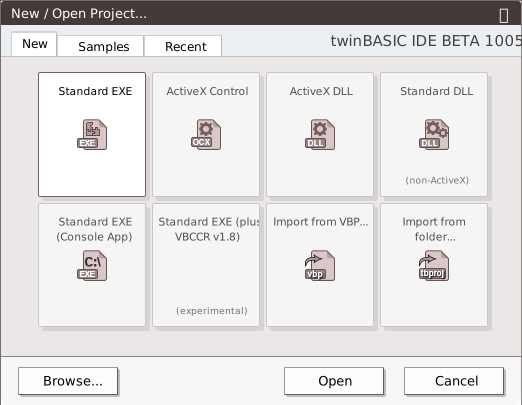
Opening the dialog
| How | Opens on |
|---|---|
| The start of the IDE, after the splash | New, or Recent when Focus The ‘Recent’ Tab On IDE Startup is on; then the section the dialog was last closed on |
| File → New Project… (Ctrl+N) | New |
| File → Open Recent… | Recent |
With a project open, the two File commands show the dialog over it. Nothing closes until you press Open or double-click an item. File → Open Project… (Ctrl+O) and the dialog’s Browse… button do not use this dialog’s lists: they open the Windows Open box. Opening projects describes them.
The section is remembered
Every way of closing the dialog — Open, Cancel, the close box of the title bar, Browse… and Esc — saves the section it was on, and so does a click on another section. At the start of the IDE, the dialog first shows the section that Focus The ‘Recent’ Tab On IDE Startup names, and then moves to the saved section. The option therefore decides only before the dialog has been closed for the first time. After that, the saved section wins.
New Project… and Open Recent… show New and Recent whatever is saved, and each saves the section it is closed on. A dialog opened from the menu and closed on Recent makes the next start open on Recent.
If the saved section is Recent (VB6) and the machine no longer has a VB6 project to list, the dialog opens on an empty section that reads Nothing here yet., with no section selected in the rail and Open greyed out. Click another section.
The parts of the dialog
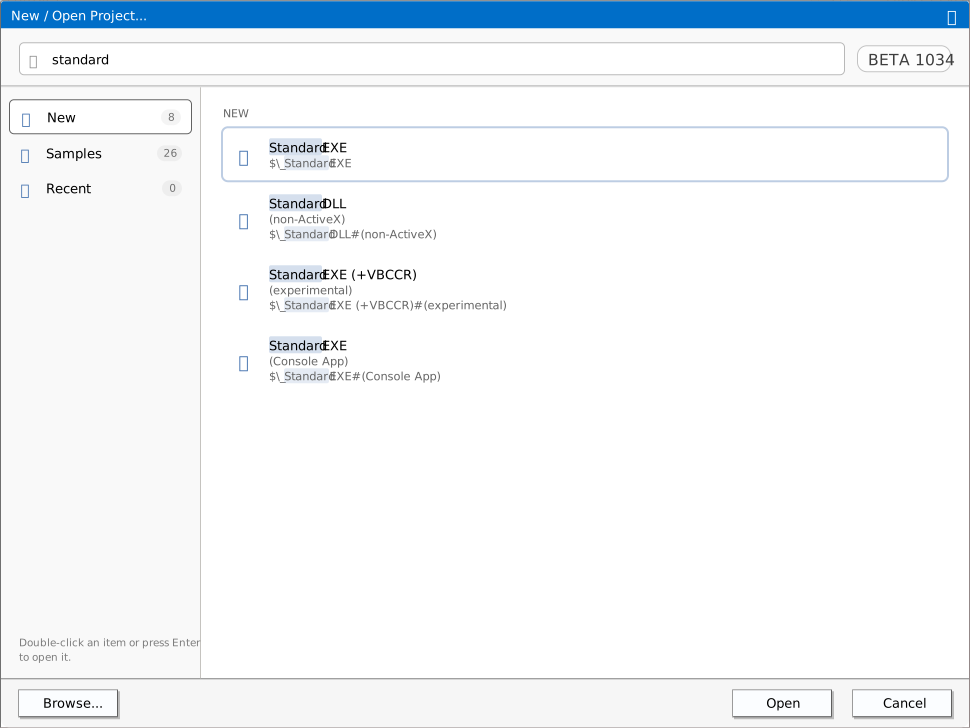
- The title bar reads New / Open Project…. You can drag it, and its close box does what Cancel does.
- The search box, across the top, has the focus when the dialog opens. At its right, a badge shows the IDE’s version.
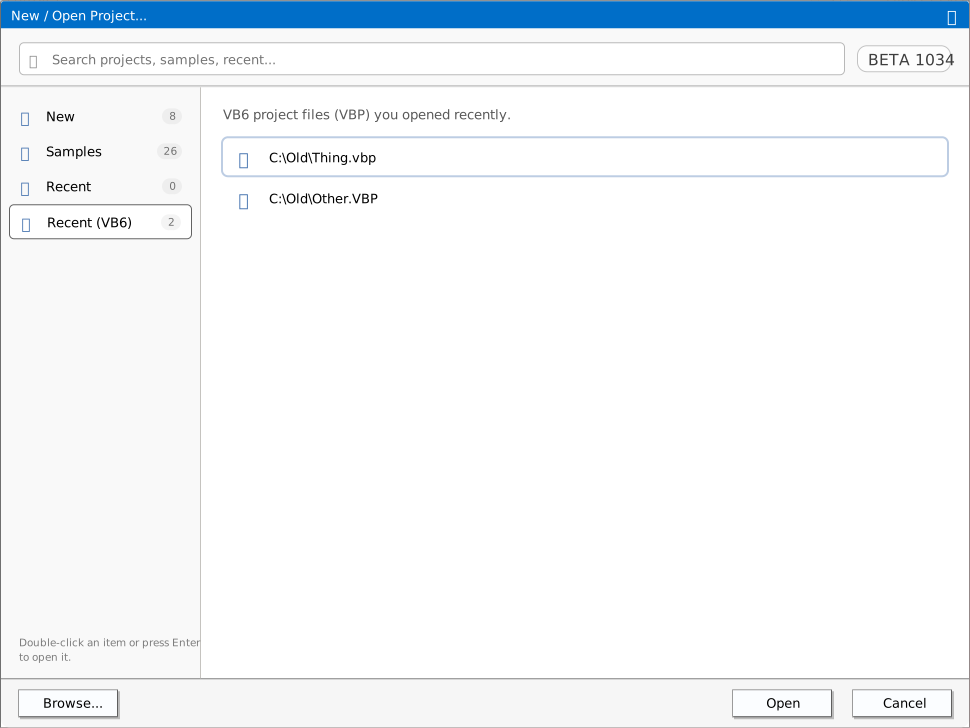
- The rail, down the left, lists the sections New, Samples, Recent and Recent (VB6). Each shows the number of entries it holds; Recent shows an ellipsis until its list is read. Recent (VB6) is in the rail only when VB6’s own list of recent projects holds a
.vbpfile. A hint under the rail reads Double-click an item or press Enter to open it. - The section, beside the rail, starts with a line that says what it holds. New and Samples show cards: a name in bold and, for some, a grey line under it. Recent and Recent (VB6) show rows. A section with nothing in it reads Nothing here yet., and while a list is being read it reads Loading….
- The buttons are Browse…, Open and Cancel. Open is greyed out while nothing is selected, and does nothing then. No button is the default one.
One click on a card or a row selects it, with an outline. A double-click opens it. The first item of the section is selected when the section is drawn, so Open has an item to act on unless the section is empty. A selected item that is still in the list after the section is drawn again stays selected.
The text after the first # of a name is its sub-text, set on a second line. The card Standard EXE#(Console App) shows Standard EXE over (Console App). Cards and rows follow the same rule. A sample’s name starts with its number, and the card does not show it: Sample 6. CustomControls shows as CustomControls. Samples lists the numbers, by which the documentation names the samples.
The lists of New and Samples are read once, when the IDE starts. A folder that you add to the IDE’s projects folder while the IDE runs shows only after the next start. Recent and Recent (VB6) are read each time the dialog opens, and not again after you remove an entry.
Search
The search box looks in every section at once. A word matches an item when it is in the item’s name or its path, in either case. Several words must all match. A section’s own name is not searched.
- The path of a template is its folder in the IDE’s
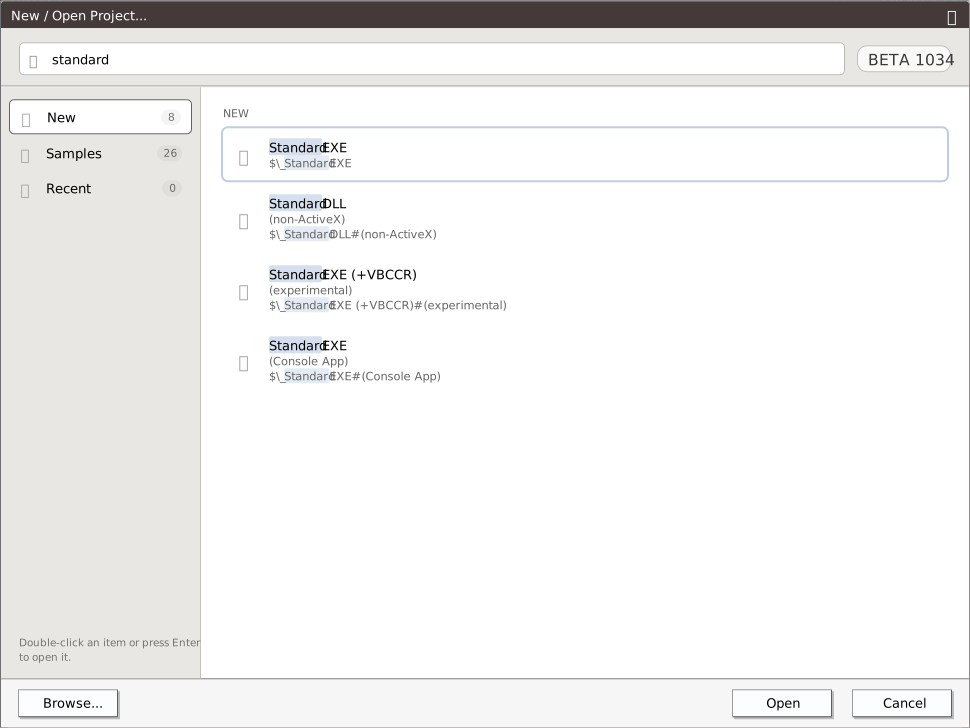
projectsfolder, such as$\_Standard EXE. The path of a sample is$\Sample 10. twinBASIC IDE Addin, with its number, sosample 10finds a sample by the number its card does not show. The two import cards have the paths$and$$, sovbpfinds Import from VBP…. - The results replace the section, and the rail keeps its selection. They are rows, grouped under a small heading for each section that has a match: New, Samples, Recent and, when it is listed, Recent (VB6). The matching text is marked. When two words match in the same line, only the last one is marked. A row of a template or a sample shows the item’s path on a further line, and no row has an X.
- With no match, the dialog reads No results found. and Open is greyed out.
- Clearing the box brings the section back. A click on a section in the rail clears the box.
Keys
- In the search box, Enter opens the selected item. When nothing is selected, it opens the first one listed. With no results, it does nothing.
- Esc empties the search box when it holds text, and takes the focus out of the box. A second Esc presses Cancel. With the box empty, Esc presses Cancel at once.
- With the focus outside the search box, Up and Down move the selection through the items in the order they are drawn, and wrap round at both ends. In a grid of cards, Down is the next card. Enter opens the selected item.
- Tab from the search box moves the focus to the first card of New or Samples. Focusing a card does not select it. Space on a focused card selects it.
- With a card focused, Tab, Left and Right do not move the focus. They move a highlight through Browse…, Open and Cancel.
Note BETA 1034
Up and Down do nothing while the search box has the focus, which it has when the dialog opens, and no key reaches the sections of the rail. In Recent, the search box is the only element that can take the focus: Tab moves it to the page behind the dialog, a second Tab to a panel behind that, and then Esc, Enter and the arrow keys do nothing until you click. To use the arrow keys in New or Samples, press Tab once, or click blank space in the dialog. Choose a section with the mouse, and in Recent double-click the row.
Note BETA 1034
After Tab has moved the highlight to a button, Enter presses that button and also opens the selected item. Open opens the item twice. Browse… opens the Windows box and the item. Cancel closes the dialog and then opens the selected item: a saved project with no unsaved change is closed with no question, and New Project Options opens for the selected card. Enter on a card that has the focus opens the selected card, not the focused one. Select the card you want with a click or the arrow keys, and press the buttons with the mouse. To cancel from the keyboard, press Esc.
What each template makes
The cards of New are the template folders of the IDE’s projects folder, in this order: Standard EXE first, the others in alphabetical order, then the two import cards. Each template is one project file. Choosing it makes a new project in memory from that file.
| Card | Project type | Files it makes | References | Startup |
|---|---|---|---|---|
| Standard EXE | Standard EXE | Form1.tbform and Form1.twin (an empty Form1 class), and the icon Resources\ICON\twinBASIC.ico | WinNativeForms, OLE Automation | Form1 |
| ActiveX Control | ActiveX Control | myActiveXControl.tbcontrol and myActiveXControl.twin (a class with one property and the ReadProperties and WriteProperties events), and the bitmap Resources\BITMAP\twinBASIC.bmp | OLE Automation, Microsoft Add-In Designer, VB, Microsoft Visual Basic for Applications Extensibility 5.3 | none |
| ActiveX DLL | ActiveX DLL | MyClass.twin (an empty class) | OLE Automation, WinNativeForms | none |
| Standard DLL (non-ActiveX) | Standard DLL | MainModule.twin, with a [DllExport] function MyCoolFunction and comments on calling it from VB6 or VBA | OLE Automation, the App global object | none |
| Standard EXE (+VBCCR) (experimental) | Standard EXE | As Standard EXE, with a visual-styles manifest | VB, OLE Automation, VBCCR18 | Form1 |
| Standard EXE (Console App) | Standard EXE, a console application | Console.twin (a Console class with Cls, WriteLine and ReadLine), MainModule.twin (a Sub Main that asks for a name), and the icon | OLE Automation, the App global object | Sub Main |
The VBCCR18 package is embedded in the project of the +VBCCR template, so the template file is 4.6 MB.
Every template names the project NewProject (the ActiveX Control one, myActiveXControlProject), turns Option Explicit on for the project, and sets the Build Output Path to ${SourcePath}\Build\${ProjectName}_${Architecture}.${FileExtension}.
The last two cards, Import from VBP… and Import from folder…, make no project from a template. See Importing a VB6 project and Import from folder.
Custom templates
A folder of the IDE’s projects folder whose name does not start with Sample is a card of New, if it holds a file named projectName.twinproj. A leading underscore is not shown, so _My Template is the card My Template. A # splits the name into a name and a sub-text, so _My#Template (sub) is My over Template (sub). The new cards sort after Standard EXE, with the other templates. A folder that starts with Sample and a number, such as Sample 1c. Mine, is a card of Samples instead, and sorts by its number. A custom card opens through New Project Options, like the others.
To make a template, save a project, copy its file into a new folder of projects, and name it projectName.twinproj. The IDE reads the folder at the start, and the folder belongs to one IDE folder on disk, so copy it into the projects folder of a newer IDE as well.
New Project Options
Choosing a template, a sample or an imported .vbp opens a small box, twinBASIC New Project Options, before the project is made. It has the buttons Continue and Cancel, and Continue is the default. The Project Name box is selected when the box opens. The rows that show depend on the project.


| Row | Shown for | Default | What Continue does |
|---|---|---|---|
| Project Name | every project | the name the template sets, such as NewProject; for a sample, its own project name; for a .vbp, the project’s Name | Sets the project’s name. For anything but a .vbp, it also sets the description and the application title to the same text. |
| Option Explicit ON (project scope) | every project | ticked | Turns Option Explicit On on for every file of the project. |
| Visual Styles (via embedded manifest file) | a Standard EXE that has no manifest yet | ticked | Adds the visual-styles manifest as a resource. |
| Register to HKEY_LOCAL_MACHINE (OFF will register to HKEY_CURRENT_USER) | an ActiveX DLL or ActiveX Control | unticked for the templates, ticked for an import | Sets Register DLLs to HKLM. |
| Include Common Controls (adds a reference to WinNativeCommonCtls) | a project that references WinNativeForms and not WinNativeCommonCtls, and is not a .vbp import | ticked | Adds the reference to the WinNativeCommonCtls package. |
| DPI Awareness | a Standard EXE | SYSTEM_DPI_AWARE; NONE for an import | Sets Force Dpi Awareness At Startup to NONE, SYSTEM_DPI_AWARE or PER_MONITOR_DPI_AWARE. |
| Unicode Common Control Notifications (affects manual WM_NOTIFY handling) | a .vbp import | ticked | Sets Unicode Control Notifications. |
The Project Name box takes letters, digits and the underscore, and ignores every other key you type. A leading underscore is removed.
Note BETA 1034
The box filters the keys you type, not its text. A name that you paste keeps its spaces, dots and other characters, and becomes the project’s name, its description and its application title. With My Project.x pasted, the project’s root folder has that name, and the build writes Build\My Project.x_win32.exe. Type the name, or paste only letters, digits and underscores.
A few more things about the rows:
- Option Explicit ON starts ticked for an import too, although the importer itself turns the setting off. A VB6 project that relies on undeclared variables then shows TB5079 errors. Untick the row to keep the VB6 behaviour.
- Visual Styles is not offered for a project that has a manifest already: the Standard EXE (+VBCCR) template, Sample 20, and a
.vbpwhose.resfile holds a manifest. It is never offered for an ActiveX project. - With Register to HKEY_LOCAL_MACHINE ticked, an IDE that is not running as administrator shows a warning box when the project’s Register DLL after build is on. See The warning at the machine-wide registry.
- Include Common Controls shows for a sample that references WinNativeForms and not yet WinNativeCommonCtls: Samples 0, 1, 1a, 2, 3, 4, 5, 9, 17, 19, 21 and 22. Samples 1b and 20 have the reference already, and the other samples do not reference WinNativeForms.
- Continue also turns Large Address Aware (LAA) on.
Cancel closes the box, the progress indicator and the project. Nothing is opened, and the IDE is left with no project, because the one that was open was closed before the box appeared.
Note BETA 1034
After Cancel in this box for an imported .vbp, the next template or sample shows the box with an import’s rows: Unicode Common Control Notifications is there, and Include Common Controls is not. Continue then makes a project with no reference to WinNativeCommonCtls, with Unicode Control Notifications on, and with the description and the application title left as they were, New project for a template, in place of the project’s name. The box is right again after that Continue, and in a new IDE. Cancelling the Windows picker of Import from VBP… does not do this. In a project made this way, add the package under Available Packages, and set the Project Description and the Application Title.


What a new project is
A project made from a card is new and unsaved. It exists in memory, and no file on disk holds it yet.
- The title bar reads
Unsaved.twinproj - twinBASIC, then the IDE’s version in brackets. A dot in front of the name marks a project with unsaved changes. A project made from a template or a sample is not marked as changed, so you can close it at once without a question. A project made from an import is marked as changed. - File → Save Project (Ctrl+S) opens the Windows Save As dialog first, with the project’s name proposed. Save Project As… does the same at any time. The project goes into Recent when you save it. See A project with no file.
- The build configuration box keeps the value it has. A
.vbpimport sets it to win32.


What opens depends on the template, and on the IDE Option Restore Editors State When Opening Project. The option is on by default. Each template carries a list of the files to open and the folders to expand. With the option off, no editor opens, and the folders expand as the template says.
| Template | Opens |
|---|---|
| Standard EXE, Standard EXE (+VBCCR) | Form1.twin and the designer of Form1, which is in front |
| ActiveX Control | myActiveXControl.twin and myActiveXControl.tbcontrol, with the code in front |
| ActiveX DLL | MyClass.twin |
| Standard DLL, Standard EXE (Console App) | MainModule.twin |
The Hello World tutorial starts from this state: Standard EXE, Continue, and Form1 in the designer.


Recent
Recent lists the projects you opened last, the newest first. Each row shows the project’s full path, and an X button at its right edge, titled Remove from this list. The X removes the entry at once, with no question, and the list is not read again after it.
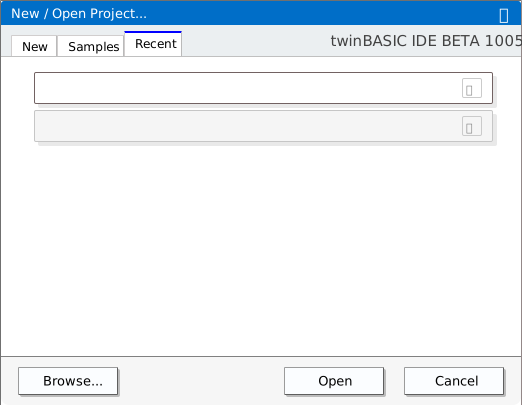
The IDE adds a project to the list when it starts to load the project, and when you save a project under a name. A project that is opened again moves to the top and is listed once. The list holds 21 entries, and the oldest falls off the end. A project made from a template, a sample or an import is not listed until you save it. A project that cannot be opened stays on the list until you remove it; see When a project will not open.
With nothing in the list, the section reads Nothing here yet., and Open is greyed out.
A path that holds a # is shown cut in two, as a name with a sub-text: C:\dev\C#\app.twinproj shows C:\dev\C with \app.twinproj under it. The row opens the full path.
Recent (VB6)
Recent (VB6) lists the .vbp files that VB6 itself opened recently. The IDE reads VB6’s list of recent files, in the registry key HKEY_CURRENT_USER\Software\Microsoft\Visual Basic\6.0\RecentFiles, and never writes it. Only entries that end in .vbp, in either case, are listed. When the key holds none, the section and its rail item are not shown. The rows have no X.
Open on a row loads the .vbp by the route described under Importing a VB6 project, which shows no New Project Options box.
Samples
The Samples section holds the 26 sample projects that ship with the IDE. A sample opens as a new, unsaved project through New Project Options, like a template. Samples says what each one is.
Import from folder
Opens a project from a folder of source files, such as the folder that File → Export Project writes. It shows a Browse For Folder dialog titled Select folder of the existing twinBASIC project…: choose the folder that holds the project’s Settings file. The card does not take a VB6 project’s folder. A .vbp goes through Import from VBP….
The project opens with no .twinproj file behind it: it is unsaved, and marked as changed. Because it has no file, the first Save Project (Ctrl+S) opens the Save As dialog to ask for one. The folder it is saved in becomes ${SourcePath}, which the project’s Export Path may use.
If the folder holds the compiler packages under Packages, as an export by the IDE does, delete their folders first: imported with them, the project gets a copy of them that the compiler does not use. See Packing the export back into a project. Keeping a project in Git from the IDE uses this command to open a fresh clone.
Note BETA 1034
Import from VBP… and Import from folder… close the open project before the Windows picker opens. If you cancel the picker, the IDE is left with no project and no dialog. The project’s file is as it was, and its path is in Recent. A project with unsaved changes is asked about first, and Cancel in that question keeps the project. File → Open Project… and Browse… close the project only after you have chosen a file, so cancelling them loses nothing. Open a .vbp with File → Open Project…, which imports it as the card does. For a folder there is no such command: save the project first, and open it again from Recent if you cancel.
See Also
- Opening projects – the other ways to open a project, and what happens as it loads
- Importing a VB6 project – the Import from VBP… card and the other routes for a
.vbp - Samples – the sample projects
- First launch – the splash, which the dialog follows
- Saving and exporting – saving a new project, and Recent
- IDE Options – the options for the start-up dialog
- File menu – New Project…, Open Project… and Open Recent…