Data Explorer
Shows the rows of a database table, a saved query or an SQL statement in a grid, from any database that ADO can open. It only reads: nothing in it changes the database. The add-in ships with the IDE, in the install’s addins\win32 and addins\win64 folders, so there is nothing to install. Its source is Sample 27.
A .tbdata file
Each view of a database is a file of the project with the extension .tbdata. The file holds the connection string, what to show, and how the grid shows it. Double-click a .tbdata file in the Project Explorer to open it in a tab of its own.
To make one, choose Add → Add DATA EXPLORER (.tbdata) in the Project Explorer. Type a name for the file in the box that opens, and press Enter. Escape makes nothing. The new file opens at once, with its connection settings.
Important
The .tbdata file holds the connection string as you typed it, a password included, and the file is saved in the project. Use Windows authentication, such as Integrated Security=SSPI, rather than a password in the string, for a project that others will read.
Connection settings
The settings open on their own for a new file, and from the header’s Database connection settings button at any time.
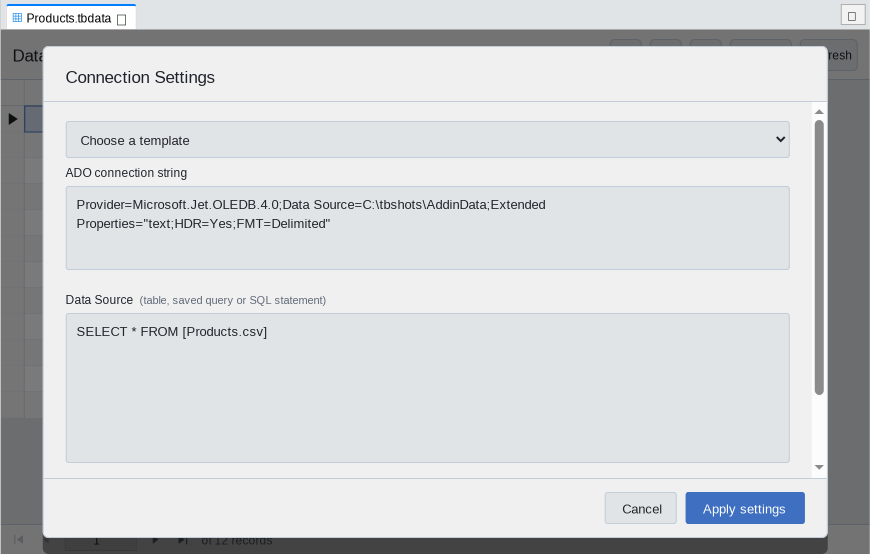
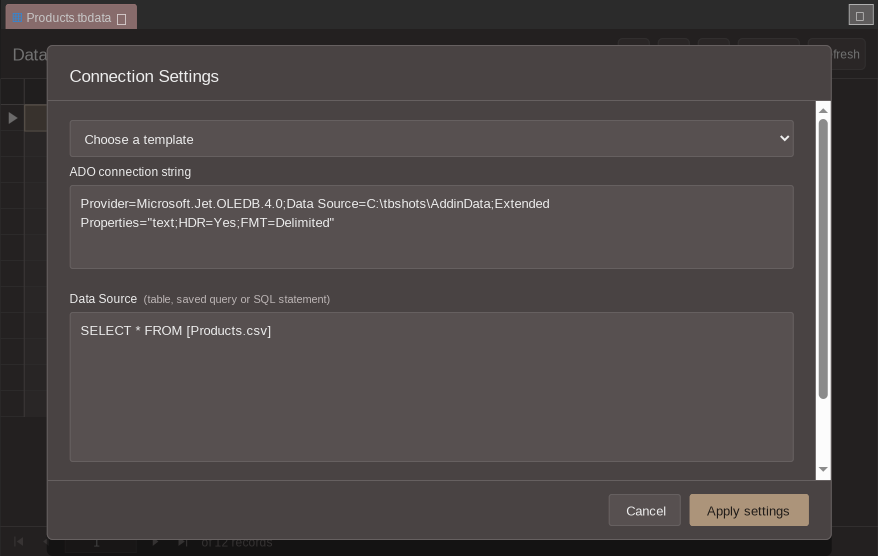
- Choose a template
- Puts an example connection string into the box below, for Microsoft Access (Jet or ACE), SQLite through ODBC, SQL Server (the OLE DB driver or ODBC), MySQL, MariaDB, PostgreSQL, or any ODBC data source name. Edit the path, the server and the names in it. The driver or provider it names must be installed on your computer.
- ADO connection string
- The string ADO opens the database with.
- Data Source (table, saved query or SQL statement)
- What to show. Text that starts with
SELECT,WITH,EXEC,EXECUTE,CALLorVALUES, or that has more than one line, is a statement. Anything else is a name: the add-in tries it as a table first, and then as a saved query. - Base Table
- Optional, for SQL Server only; see Large SQL Server tables.
- Timeout (seconds)
- From 1 to 3,600; 60 by default. This is how long the grid waits for each block of rows. It is not a time limit for the database’s query.
Apply settings checks the settings and opens the data. If the database cannot be opened, the panel stays open and shows why at its top, and the grid keeps the data it had. Cancel closes the panel.
The grid
The grid shows the rows a block at a time, fetching each as you scroll to it, so a large table opens quickly. A row not fetched yet shows grey bars. The bar at the bottom moves to the first, previous, next and last record, or to the record whose number you type, and says how many records there are.
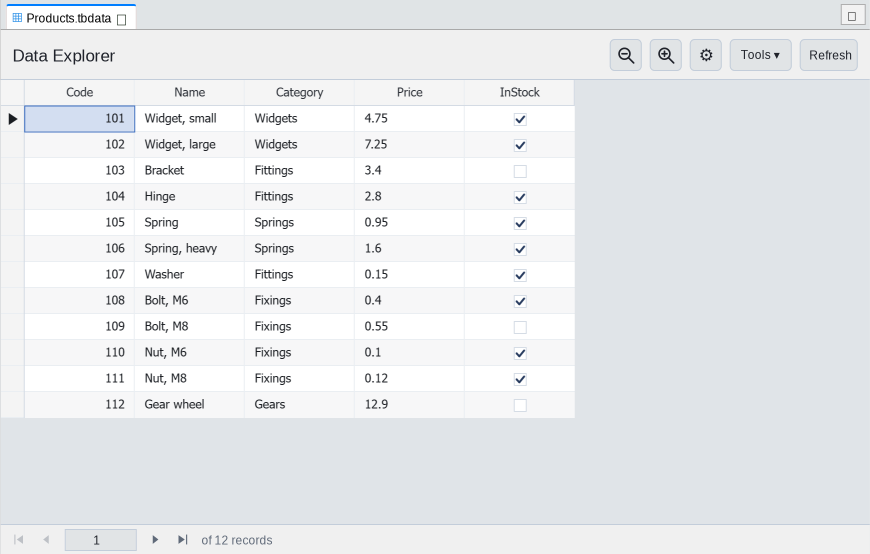
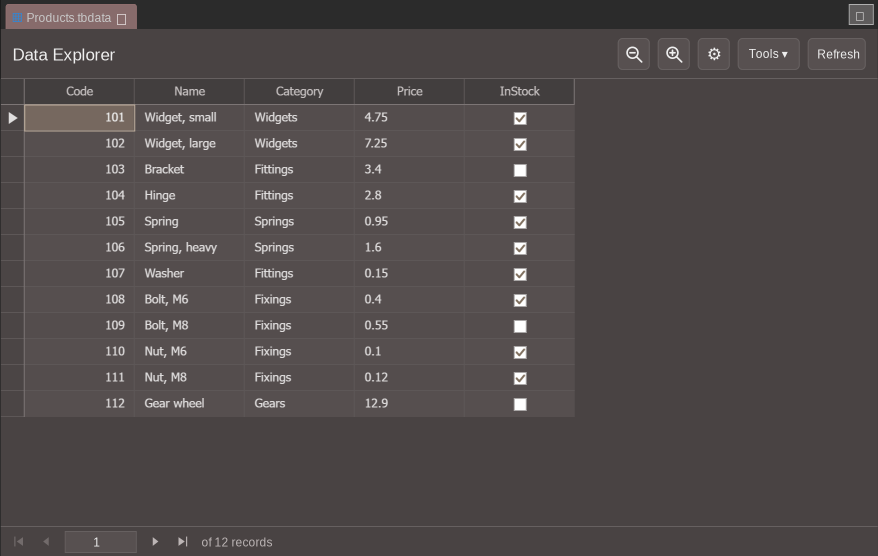
A column of Yes/No values shows a tick box. A null value is blank unless Show Nulls is on.
Warning BETA 1045
A number column shows a zero as a blank cell, as it shows a null with Show Nulls off. Turn Show Nulls on to tell them apart: a null then reads null, and a zero stays blank.
Click the box at the left of a row to select it, drag over these boxes to select several rows, or click the corner above them to select all. The rows you select are what Copy … (Selected Records) copies.
Drag the border between two column headers to change a column’s width, or double-click it to fit the column to what is shown. The widths are saved in the file.
The zoom buttons in the header make the grid larger or smaller, from 25% to 400%; hold one down to go on zooming. Refresh reads the rows from the database again.
Sort and filter
Right-click a column’s header for Sort Ascending, Sort Descending and Filter…, and to clear the sort or the filter of that column. The rows are sorted by one column at a time. A filter on more than one column shows the rows that match all of them, and the bar at the bottom says (filtered). The header of a sorted or filtered column shows a mark.
A filter has a condition and a value: Contains, Starts with and Ends with for text; Equals and Does not equal; Greater than, Less than and their or equal forms for numbers and dates; and Is null and Is not null. For a Yes/No column the value is Yes, No, True, False, 1 or 0. Enter in the value box applies the filter.
A long text column, such as an Access Memo, cannot be sorted unless the database does the sorting: use a short text column, or put the ORDER BY in an SQL statement.
The Tools menu
- Show Nulls, Show Gridlines and Alternate Row Colours
- Turn each on or off. The choice is saved in the file.
- Clear All Sorting and Filtering
- Shows every row again, in the order the source gives them.
- Copy as JSON, Copy as CSV, Copy as TSV
- Copy all the records, or the selected records, to the clipboard. JSON is a list of objects, one for each row, keyed by the column names. CSV puts quotes round a value that holds a comma, a quote or a line break. TSV changes a tab or a line break inside a value to a space. A null is empty in CSV and TSV. Selected Records needs one block of rows next to each other. A copy of a large table takes a while, and the IDE waits for it.
- Auto-fit Column Widths and Reset Column Widths
- Fit every column to the rows that are shown, or set every column back to its first width.
Large SQL Server tables
For SQL Server, the add-in can let the server fetch each block of rows, rather than reading the whole result first. It does so for a table with a primary key of one column. It does not do so for a saved query, a key of more than one column, or a statement with a comment, a ;, an ORDER BY, or a word that changes data in it.
For an SQL statement, put the table it reads in Base Table, and include the table’s primary key in the columns the statement returns. The add-in then fetches the statement’s rows in blocks too. This works for up to 2,147,483,647 rows.
Every other source is read once, and the grid shows the rows from that copy.