Help Add-In
Shows this documentation inside the IDE: press F1 on a name in the code editor, and its reference page opens in a tool window beside the code.
The add-in is named twinBASIC Documentation Help in the IDE. It works from an index of every symbol this documentation describes, built with the documentation itself, so it knows which page documents each function, statement, class and member. With the compiler’s help it also tells apart names that are spelled the same: c.Add on a Collection opens Collection.Add, and a bare Close opens the Close statement.
F1 and the help pane
Put the cursor on a name and press F1. The page that documents the name opens in the TWINBASIC HELP tool window. The cursor can be anywhere in the name, or just after it, as it is after typing the name.
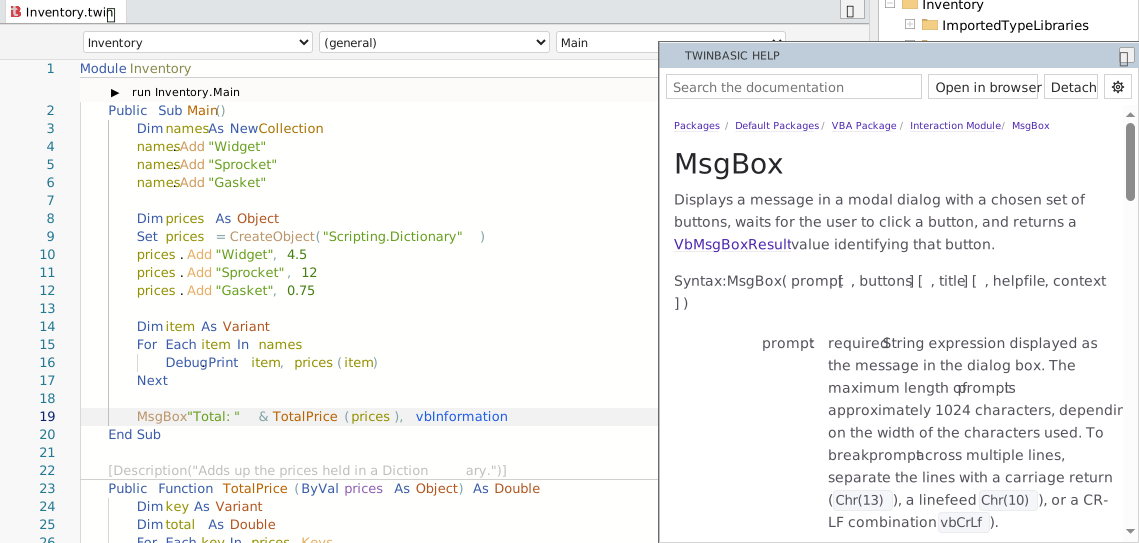
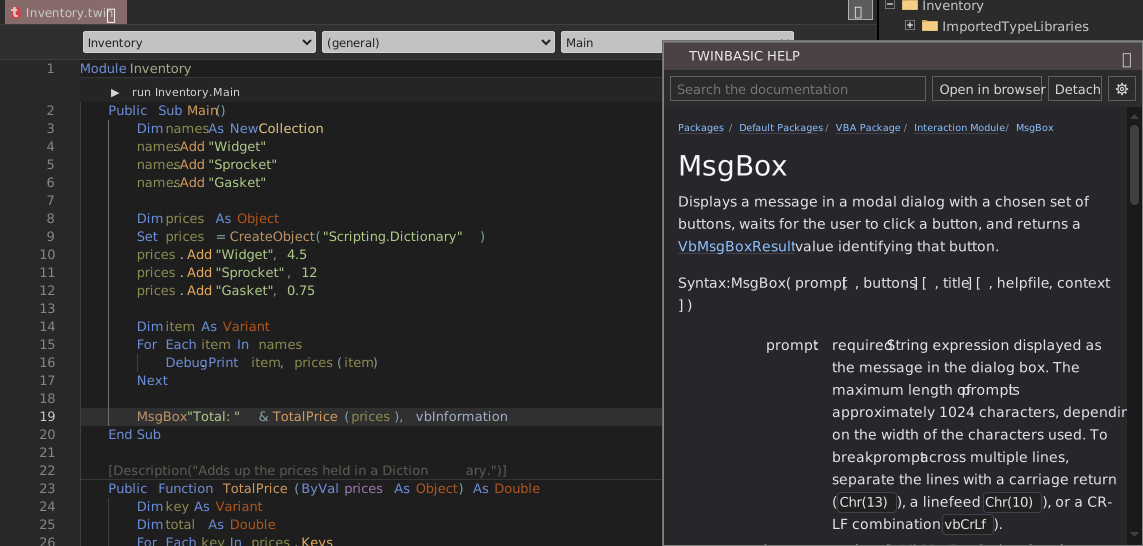
The help pane is an ordinary IDE tool window: it can float, or be docked like the other tool windows. The page in it follows the IDE’s theme, dark or light, and its links work as they do on the website. Above the page are a search box and three buttons:
- Open in browser
- Opens the page on docs.twinbasic.com in the default web browser.
- Detach
- Moves the help into a window of its own — see The help window.
- The gear
- Opens the settings.
The Help button the add-in adds to the IDE’s toolbar shows the pane and puts the cursor in its search box, ready to type.


F1 takes the whole dotted name to the left of the cursor, up to the end of the name the cursor is in: with the cursor on Add in Host.ToolWindows.Add(Name, Id), it looks up Host.ToolWindows.Add. A selection on one line is looked up exactly as it is selected. F1 on an empty spot shows the pane and puts the cursor in its search box.
When no page documents the name, the pane stays as it is, and a notification says so: No help for ‘Name’.
Note
F1 also expands or collapses the IDE’s signature help when it is showing. F1 does nothing while the keyboard focus is inside the page in the pane: click in the code editor first.
Hover help
With Hover help ticked in the settings, the information box the IDE shows when the mouse rests on a name gains a link to the name’s page, at its top. Clicking the link shows the page in the pane, as F1 does.


A link names the symbol, its kind and where it is declared: Help: MsgBox function (VBA.Interaction). A name that several pages document gets a link for each, up to five. A name without a page gets no link. Hover help is off until it is ticked.
Searching
Type in the search box to find a page by its symbol’s name. The list shows the names that start with the text first, then those that contain it, with each one’s kind. Text with a dot in it is matched against qualified names such as Collection.Add. Click a name to show its page, or press Enter for the first one. The clear button at the right of the box empties it and hides the list.
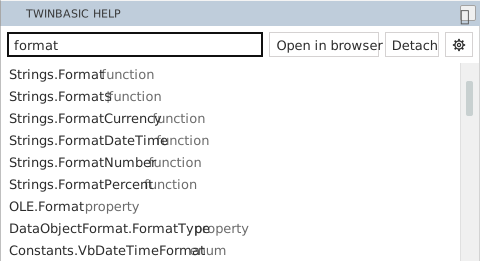
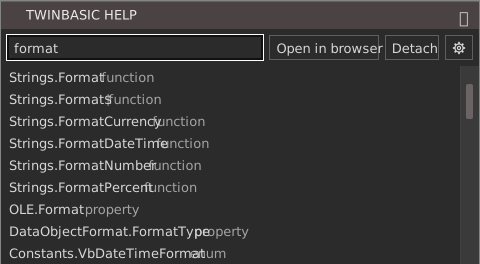
The search finds symbols, not words in the pages: to search the text of the documentation, use the search on the website.
When F1 finds several pages
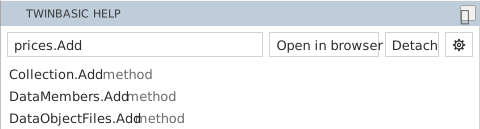
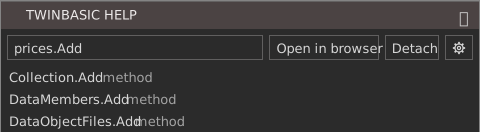
Sometimes the name alone cannot say which page is meant. A member called through a variable declared As Object is the common case: the object’s type is known only when the program runs. F1 then puts the name in the search box and lists every page that documents it, and the page in the pane stays as it was. Click the one that applies.
Your own procedures
F1 on a name declared in the project itself, or in a package or type library this documentation does not cover, shows a summary in place of a page. The summary gives the declaration, the text of the procedure’s Description attribute, and where the name is declared.
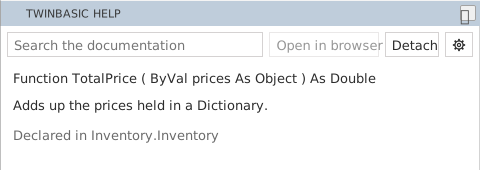
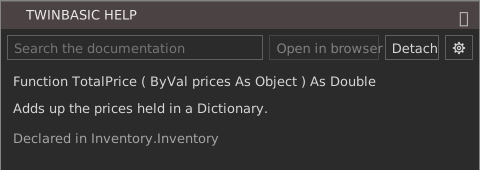
The summary for the procedure above comes from this code:
[Description("Adds up the prices held in a Dictionary.")]
Public Function TotalPrice(ByVal prices As Object) As Double
Without a Description attribute, the summary says No description. Open in browser is unavailable while a summary is shown.
Settings
The gear opens the settings. A click anywhere else, or Esc, closes them.
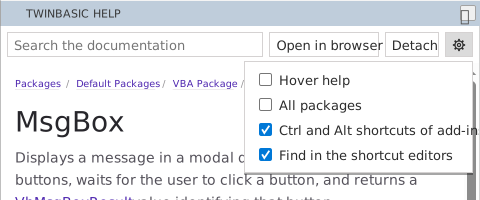
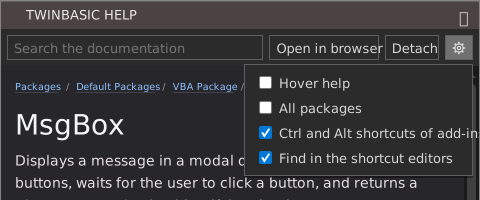
- Hover help
- Adds the links described under Hover help. Off by default.
- All packages
- Offers the pages of every package this documentation covers. Off by default: F1, the hover links and the search then offer only the language itself and the packages the project references, so that a name from a package the project does not use never hides the one it does. With this off, F1 on a name that only an unreferenced package documents says No help for ‘Name’ in the packages this project references.
- Ctrl and Alt shortcuts of add-ins
- Runs the keyboard shortcuts that other add-ins define with Ctrl or Alt, which the IDE on its own does not run: see Other add-ins’ shortcuts. On by default.
- Find in the shortcut editors
- Ctrl+F and F3 in the text of Manage Keyboard Shortcuts and Manage Panel Layouts: see Finding text in the shortcut editors. On by default.
The settings, the last page shown and the help window’s place are kept in the registry, under HKEY_CURRENT_USER\Software\VB and VBA Program Settings\tbDocsHelp. After the IDE restarts, the pane shows the page it showed last.
The help window
Detach moves the whole pane — search box, buttons and page — into a window of its own. The window has a button on the taskbar, can be moved to another monitor, and keeps its position and size from one session to the next. While it is detached, F1, the Help button and the hover links show their page in the window.
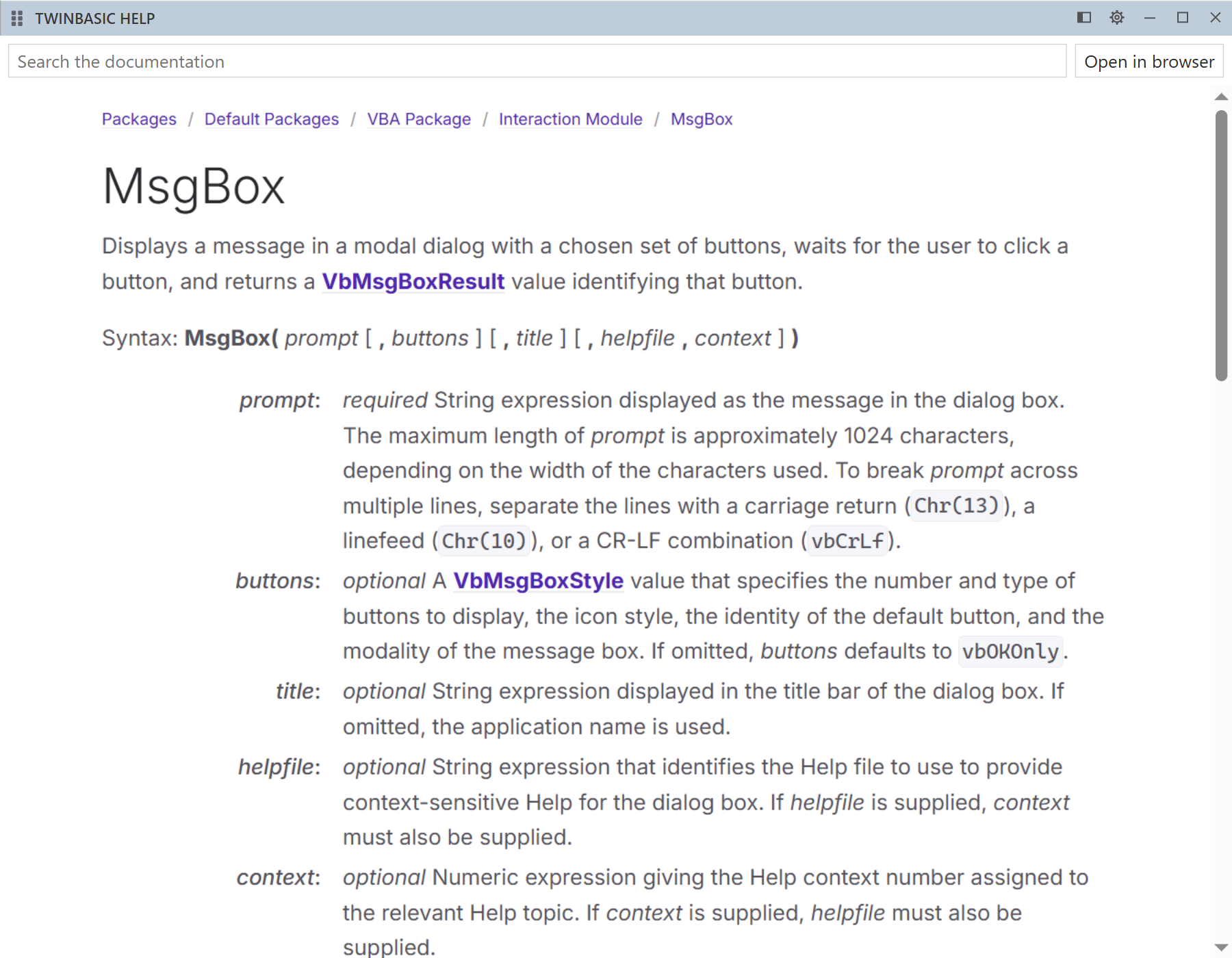
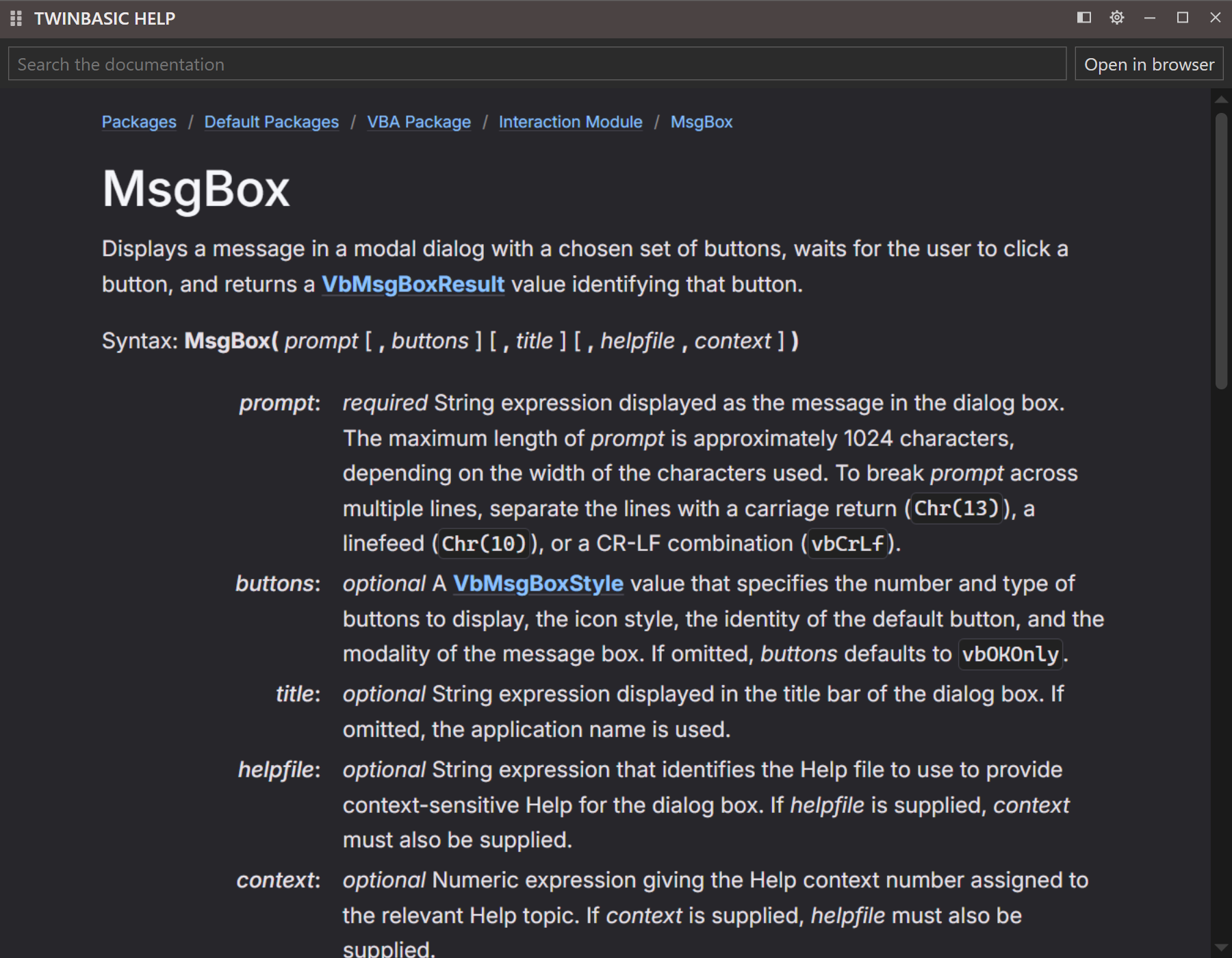
The window’s title bar holds, from the left:
- Attach
- Puts the help back in the pane in the IDE, with the same search text and page.
- The gear
- Opens the settings.
- Minimize, Maximize, Close
- Work as in any window. Close only hides the window: the help stays detached, and the next F1 shows the window again.
The window is open again the next time the IDE starts, if it was open when the IDE closed. With Show real OS titlebar turned on in the IDE’s options, the window has an ordinary Windows title bar instead, in the IDE’s dark or light colours, and Attach and the gear move next to the search box.
Other add-ins’ shortcuts
While this add-in is loaded, the keyboard shortcuts that other add-ins register with Ctrl or Alt work. Without it, the IDE does not run an add-in’s shortcut that includes Ctrl or Alt: see KeyboardShortcuts. The IDE’s own command on the same keys still runs as well. The setting Ctrl and Alt shortcuts of add-ins turns this off.
Finding text in the shortcut editors
The text of Window > Keyboard Shortcuts > Manage Keyboard Shortcuts, and of Manage Panel Layouts, has no find of its own. While this add-in is loaded, these keys work there, as in Visual Studio:
- Ctrl+F
- Opens a find box over the text, holding the selected text if it is on one line.
- Enter, F3
- Selects the next match. Shift+Enter and Shift+F3 select the one before. F3 and Shift+F3 also work after the find box is closed, with the last text searched for.
- Ctrl+F3
- Searches for the selected text, or for the word at the caret, without opening the find box. Ctrl+Shift+F3 searches backwards.
- Esc
- Closes the find box. The dialog stays open.
The search goes round past the end, and ignores case. The text scrolls to show each match. The setting Find in the shortcut editors turns this off.
Getting the add-in
The add-in is a twinBASIC project, which the IDE builds into two DLLs, one for each bitness.
- Download the project file, tbDocsHelp.twinproj, about 51 MB. It is made from the add-in’s source code each time this documentation is published. It holds the index of the symbols these pages document and a copy of the whole documentation.
- Open
tbDocsHelp.twinprojin the twinBASIC IDE and build it. Then set the build target to win64 and build it again. The two DLLs,tbDocsHelp_win32.dllandtbDocsHelp_win64.dll, are written to aBuildfolder next to the project file. - Copy each DLL to the matching
win32orwin64add-ins folder, as Add Ins describes, and restart the IDE.
An add-in built this way serves the pages itself, from the copy of the documentation in its DLL, so the pane needs no internet connection. Open in browser still opens the page on the website, docs.twinbasic.com.
The add-in’s version is in the DLL’s file properties. CHANGELOG.md, in the project and in the source folder, lists what changed in each version.
From the source code
The add-in’s source code is in the add-in folder of the documentation’s repository. Build from it to change the add-in. The folder holds the project’s files, not a project file, so pack it into one first with the Import/Export Tool, from the repository’s root folder:
python scripts/impexp.py import tbDocsHelp.twinproj add-in
Then build tbDocsHelp.twinproj and copy the DLLs as in steps 2 and 3 above.
For help that works offline, build the documentation before packing the folder, as Building and Deployment describes. The build writes a copy of the site into the add-in’s source folder, add-in\Resources\HELP\site.zip, about 50 MB. A DLL built with that file in place serves the pages itself, without the internet. The copy leaves out the pages about developing this documentation, the videos, the challenges and the files to download, which open from the website. Without the file, the add-in shows all the pages from the website.
See Also
- Add Ins – installing and loading add-ins
- Global Search add-in
- tbIDE Package – the API an add-in is written against