Diff Compare
Compares the text of two files side by side and marks what differs. The two files can be in the same project, or in projects open in two IDEs at once. The add-in ships with the IDE, in the install’s addins\win32 and addins\win64 folders, so there is nothing to install. Its source is Sample 26.
Comparing two files of one project
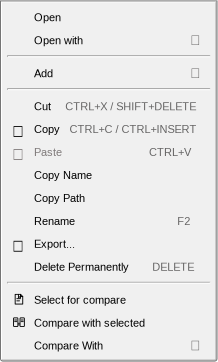
The add-in adds its commands to the menu you get by right-clicking a file in the Project Explorer. They are shown for a file, not for a folder.
- Right-click the first file and choose Select for compare.
- Right-click the second file and choose Compare with selected. This command shows only after a file has been selected for compare.
The comparison opens in a tab of its own, named first ↔ second. The first file is on the left, under ORIGINAL, and the second on the right, under MODIFIED. Hold the pointer over a name in the header to see the file’s full path.
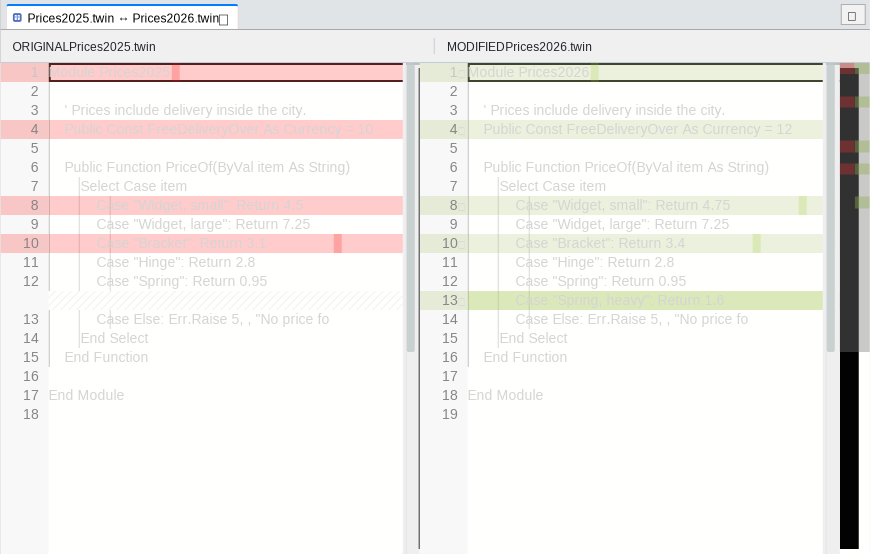
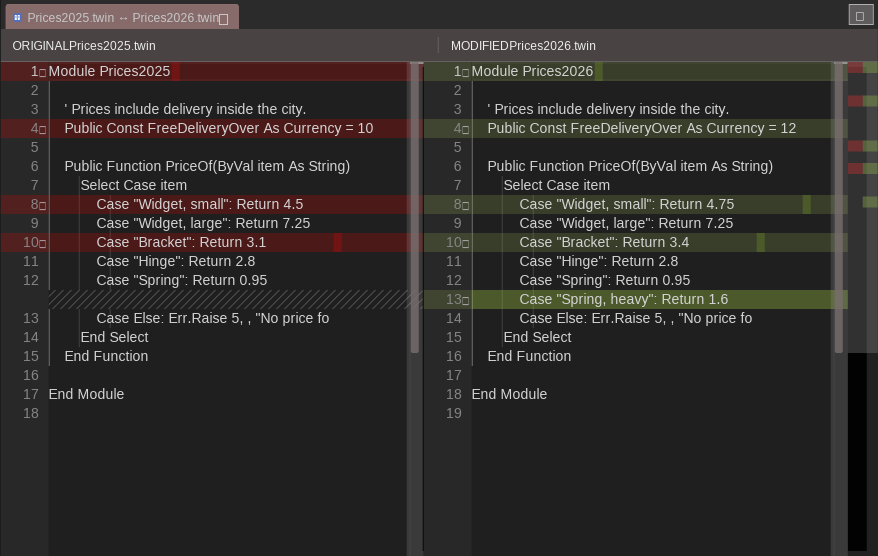
The comparison shows the text of the first file as it is when you choose Compare with selected, not when you chose Select for compare.
Comparing files of two IDEs
Select for compare also offers the file to every other IDE you have open on the same computer, as your own Windows user. In the other IDE, right-click a file and open Compare With: it lists each file offered, as [PROCESS <id>] <project> <file>, up to ten of them. With none offered, it shows {none}. Choose one to compare it, on the left, with the file you right-clicked, on the right.
The other IDE gets the text as it was when you chose Select for compare. An IDE offers one file at a time: choosing Select for compare again offers the new file in its place. The offer goes when the IDE closes.
The files go from one IDE to the other through a named pipe that only your own Windows account and the system can open, and that refuses connections from other computers. A file longer than 8,388,608 characters cannot be offered.
The comparison
The comparison is the side-by-side difference view of the IDE’s code editor. Both sides are read-only, and the tab changes no file. Close it like any other tab. A comparison tab does not come back after a restart of the compiler.