Debug Menu
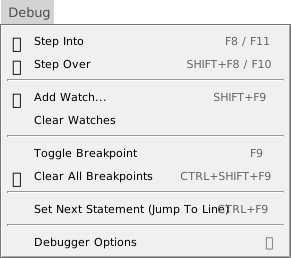
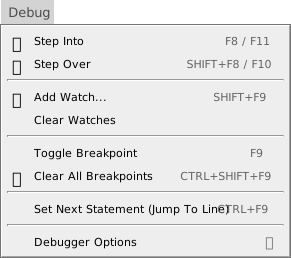
The Debug menu holds the commands for stepping through a paused program, for watches and for breakpoints. Running and debugging explains them.
Stepping
- Step Into (F8, F11) and Step Over (Shift+F8, F10)
- Run the program one statement at a time. They work only while the program is paused. The menu shows the first key of each. There is no Step Out item: the toolbar button and the keys Ctrl+Shift+F8 and Shift+F11 do it. See Step commands.
- Set Next Statement (Jump To Line) (Ctrl+F9)
- Makes the line that has the caret the next one to run. It works only while the program is paused. See Set Next Statement.
Watches
- Add Watch… (Shift+F9)
- Opens the WATCHES panel with a box for a new expression, filled with the selected text of the editor. It works whenever a project is open. See Watches.
- Clear Watches
- Removes every watch, with no confirmation. It has no key.
Breakpoints
- Toggle Breakpoint (F9)
- Sets or clears a breakpoint at the caret’s line. It works when the focus is in a code editor. See Breakpoints.
- Clear All Breakpoints (Ctrl+Shift+F9)
- Clears the breakpoints in every file of the project, open or not. It works whenever a project is open.
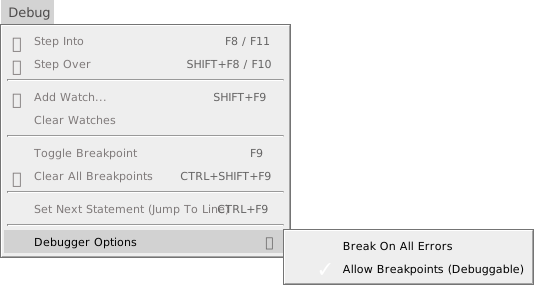
Debugger Options
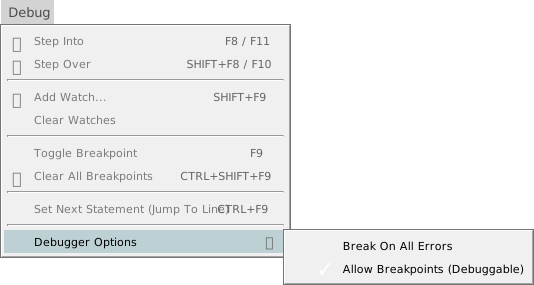
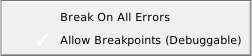
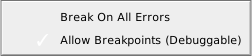
- Break On All Errors
- Turns the project setting of the same name on and off. It is off by default. When it is on, the program stops at an error that an
On Errorstatement would handle. See Break On All Errors and Debuggable. - Allow Breakpoints (Debuggable)
- Turns the project setting Debuggable on and off. It is on by default. While it is off, no breakpoint stops the program.