SpinBox class
A SpinBox is a text box that holds a whole number, with a pair of arrow buttons beside it that raise and lower the number. The user types the number or uses the arrows.
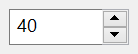
SpinBox1.Min = 0
SpinBox1.Max = 100
SpinBox1.Value = 40
Debug.Print SpinBox1.Text
SpinBox1.Value = 500                       ' above Max
Debug.Print SpinBox1.Value, SpinBox1.Text
' Output:
'  40
'  100          100
No control of the Microsoft common controls has this shape, and the WinNativeCommonCtls package has none. A SpinBox is what a program builds from a text box and an UpDown with the text box as its buddy: the control makes both, joins them, and shows the number in the box by itself. It has the range, the Increment and the events of the UpDown, and the text and selection members of a text box, so a program needs no buddy and no code that moves the number between the two.
Of the common members, the control has those under Name and place, Window handles, Font and visual styles, Mouse but its Click and DblClick events, Keyboard and focus, Dragging the control, OLE drag and drop and Right-to-left but RightToLeftLayout. Its hWnd is the window of the arrow buttons, and hWndEdit is that of the text box.
- The value and the text
- What a click raises
- Properties
- Methods
- Events
- SpbNumberStyleConstants
- See Also
The value and the text
Value is the number, from Min to Max: 0 to 100 for a new control. Text is what the box holds, and the control keeps the two together. An assignment to Value writes the number in the box, and when the text in the box changes, the control reads the number from it.
A Value outside the range becomes the nearest end of it. A Min above Max, or a Max below Min, raises run-time error 380. A new Min above Value, or a new Max below it, moves Value to that end.
Text that is a number changes Value, when the program next processes messages, and a number outside the range makes Value the nearest end while the text stays as typed. Text that is not a number leaves Value as it was. ValidateText writes Value in the box in place of the text.
SpinBox1.Text = "250"                      ' Max is 100
DoEvents                                   ' the control reads the text now
Debug.Print SpinBox1.Value, SpinBox1.Text
SpinBox1.ValidateText
Debug.Print SpinBox1.Value, SpinBox1.Text
SpinBox1.Text = "abc"
DoEvents
Debug.Print SpinBox1.Value, SpinBox1.Text
' Output:
'  100          250
'  100          100
'  100          abc
With NumberStyle hexadecimal the box shows the number as 0x and four hexadecimal digits, or eight when the range needs more than four: with Max at 1000, 255 shows as 0x00FF, and with Max at 100000 as 0x000000FF. In decimal it groups the digits by thousands when ThousandsSeparator is True, with the separator of the user’s language.

What a click raises
An arrow works as it does on an UpDown: BeforeChange, then the new text in the box and TextChange, then Change, and UpClick or DownClick when the user lets the button go.
A handler of BeforeChange can change Delta, the amount the click adds, and sets it to 0 to cancel the click.
With ArrowKeysChange set to True the Up and Down keys do what the arrows do, and SetAcceleration makes the value move faster the longer the user holds a button.
With ArrowKeysChange the Up key in the box adds Increment to Value.
Properties
Alignment
Which side of the box the arrows are on. A member of CCLeftRightAlignmentConstants. Default: CCLeftRightAlignmentRight, or CCLeftRightAlignmentLeft for a control made with RightToLeft set.
Any other value raises run-time error 380. A change makes the control draw again from new windows. A change of RightToLeft moves the arrows and the text to the side that suits the direction, when they are on the side that suits the other.
AllowOnlyNumbers
Whether the box takes digits only from the user. Boolean. Default: False. It does not limit what the program assigns to Text.
ArrowKeysChange
Whether the Up and Down keys change Value while the box has the focus. Boolean. Default: True. A change makes the control draw again from new windows.
BackColor
The background color of the control. OLE_COLOR. Default: vbWindowBackground.
ForeColor
The foreground color of the control. OLE_COLOR. Default: vbWindowText.
HideSelection
Whether the selected text stops being shown when the box loses the focus. Boolean. Default: True. A change makes the control draw again from new windows.
HotTracking
Whether the arrow under the mouse pointer is drawn highlighted. Boolean. Default: True. A theme can override it. A change makes the control draw again from new windows.
hWndEdit
The handle of the window of the text box. LongPtr, read-only.
Increment
What a click on an arrow adds to or subtracts from Value. Long. Default: 1. It is not checked, so 0 and a negative number are accepted. While SetAcceleration has given a list, it reads the first increment of the list.
Locked
Whether the user is kept from typing in the box. Boolean. Default: False. The arrows still work, and the program can still change Text.
Max
The upper end of the range. Long. Default: 100. See The value and the text.
Min
The lower end of the range. Long. Default: 0. See The value and the text.
NumberStyle
How the box shows the number. A member of SpbNumberStyleConstants. Default: SpbNumberStyleDecimal.
Any other value raises run-time error 380.
SelLength
The number of selected characters in the box. Long. An assignment selects that many characters from SelStart.
A negative value raises run-time error 380.
SelStart
The place of the first selected character, counted from 0, or of the insertion point when nothing is selected. Long. An assignment puts the insertion point there.
A negative value raises run-time error 380.
SelText
The selected text. String. An assignment replaces the selection with the new text, or inserts the text at the insertion point.
Text
What the box holds. String. An assignment raises TextChange, and Change when Value changes with it. See The value and the text.
TextAlignment
Where the text stands in the box. A member of AlignmentConstants: vbLeftJustify (the default, or vbRightJustify for a control made with RightToLeft set), vbCenter or vbRightJustify.
Another value raises run-time error 380.
ThousandsSeparator
Whether a decimal number in the box is grouped by thousands. Boolean. Default: True. A change makes the control draw again from new windows.
Value
The number. Long. Default: 0. It is the control’s default property. See The value and the text.
An assignment changes the text in the box, and raises TextChange and then Change if the value changed.
Wrap
Whether the value goes round to the other end of the range when an arrow passes one. Boolean. Default: False. A change makes the control draw again from new windows.
Methods
SetAcceleration
Makes the arrows add more the longer the user holds a button.
Syntax: object.SetAcceleration Delays, Increments
- Delays
- required An array of numbers: for each step, the seconds the button has been held before the step’s increment starts.
- Increments
- required An array of numbers of the same size: the increment of each step.
The two arrays have one dimension and the same bounds, or the method raises run-time error 5. An array that is not an array, and is not Empty, raises 380, and an array that is not allocated raises 91. Two Empty values take the list away and bring back Increment.
The delays are 0 or more, each at least the one before it: a negative delay, or one smaller than the delay before it, raises run-time error 381.
SpinBox1.SetAcceleration Array(0, 2, 5), Array(1, 5, 20) ' 1 at first, 5 after 2 s, 20 after 5 s
ValidateText
Writes Value in the box when the box holds other text. See The value and the text.
Syntax: object.ValidateText
Events
BeforeChange
Raised when the user’s click on an arrow is about to change the value, before it does.
Syntax: object_BeforeChange( ByVal Value As Long, Delta As Long )
- Value
- The value before the click.
- Delta
- What the click will add: Increment for the up arrow, and its negative for the down arrow. A handler changes it, and sets it to 0 to cancel the click.
Change
Raised when Value has changed, by a click, by typing, or by an assignment to Value or Text. An assignment of the value the control has raises nothing.
Change follows TextChange when an assignment to Value changes both.
Syntax: object_Change( )
ContextMenu
Raised when the user asks for the menu of the box, with the right mouse button or with Shift+F10, before the box shows the menu that Windows gives every text box.
Syntax: object_ContextMenu( Handled As Boolean, ByVal X As Single, ByVal Y As Single )
- Handled
- False when the event is raised. A handler that sets it to True keeps the box from showing its own menu, to show another one or none.
- X, Y
- The place of the click, measured from the top left corner of the control in the scale units of the control’s container. Both are -1 when the user asked with the keyboard.
DownClick
Raised when the user lets go of the down arrow after a click that lowered the value, or tried to.
Syntax: object_DownClick( )
TextChange
Raised when the text in the box has changed, by typing or by an assignment to Text or to Value.
Syntax: object_TextChange( )
UpClick
Raised when the user lets go of the up arrow after a click that raised the value, or tried to.
Syntax: object_UpClick( )
SpbNumberStyleConstants
The values of NumberStyle.
| Member | Value | Description |
|---|---|---|
| SpbNumberStyleDecimal | 0 | Decimal, grouped by thousands if ThousandsSeparator is True. |
| SpbNumberStyleHexadecimal | 1 | Hexadecimal, as 0x and four or eight digits. |
See Also
- Common members – the members this control shares with the package’s other controls
- UpDown – the arrow buttons alone, joined to a control of the program’s choice
- TextBoxW – a text box without arrows