ListView class
A ListView shows a list of items as large icons, small icons, a list, tiles or a report with a column for each part of an item. The user selects items, checks them, edits their labels, sorts the report by a column and drags items; the program can show the items in groups, or supply them as they are shown.
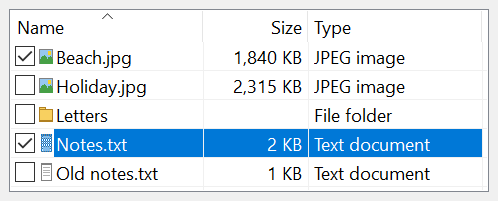
With ListView1
    .View = LvwViewReport
    .ColumnHeaders.Add , , "Name"
    .ColumnHeaders.Add , , "Size", , LvwColumnHeaderAlignmentRight
    .ListItems.Add(, "r", "readme.txt").SubItems(1) = "2 KB"
    .ListItems.Add(, "n", "notes.txt").SubItems(1) = "11 KB"
    .Sorted = True                          ' by the first column, from A to Z
    Debug.Print .ListItems(1).Text; " "; .ListItems(1).SubItems(1)
    Debug.Print .ListItems("r").Index
End With
' Output:
' notes.txt 11 KB
'  2
The control stands in place of the ListView of the Microsoft common controls (MSCOMCTL.OCX). The WinNativeCommonCtls package has a ListView too. This one adds the tile view, groups, work areas, a virtual mode for lists too long to hold, check boxes, filters and split buttons in the column headers, a background picture, insertion marks for drag and drop, and an event for each change of an item’s selection, focus or check box.
Of the common members, the control has all of them: those under Name and place, Window handles, Font and visual styles, Mouse, Keyboard and focus, Dragging the control, OLE drag and drop and Right-to-left, RightToLeftLayout included. Drag and Drop says what the control does of its own with OLEDrag and OLEStartDrag.
Topics
The members of the control are on these pages, by what they do:
- Views and Icons – the five views, the image lists of the icons, the arrangement of the icons, work areas, scrolling and the size of the control
- Items and Subitems – the items, the texts of their columns, their tool tips, and the events of a click on an item
- Selection and Check Boxes – the selected item, selecting several, check boxes, ghosted items and hot tracking
- Columns – the columns of the report view and the header above them: sizing, moving, sort arrows, check boxes, split buttons and filters
- Sorting and Searching – sorting the items by a column, finding an item by its text or its place
- Groups – the items shown in groups with headers, which the user can collapse
- Editing Labels – the user editing the text of an item in place
- Virtual Mode – a list whose items the program supplies when they are shown
- Drag and Drop – dragging items, insertion marks and dropped files
- Appearance – colors, border, background picture and the look of Windows Explorer
The objects the control holds have pages of their own:
- LvwListItems and LvwListItem – the items and one item
- LvwListSubItems and LvwListSubItem – the subitems of an item and one subitem
- LvwColumnHeaders and LvwColumnHeader – the columns and one column
- LvwGroups and LvwGroup – the groups and one group
- LvwWorkAreas and LvwWorkArea – the work areas and one work area
- LvwVirtualListItems and LvwVirtualListItem – the items of a virtual list and one item
Numbers and keys
Items, subitems, columns and groups are numbered from 1. A number is a place: it changes when an object is added or removed in front of it, and the number of an item also changes when the items are sorted. A key is a string of the program’s own that stays with its object, and capital and small letters in it are the same. Each collection of these has Add, Item, Exists, Count, Remove and Clear, and a program goes through it with For Each.
Filling a long list
While Redraw is False the control does not draw itself, so a program that adds many items sets it to False first and to True at the end. The items are there all the time; only the drawing waits.
Dim i As Long
ListView1.Redraw = False
For i = 1 To 500
    ListView1.ListItems.Add , , "Item " & i
Next
ListView1.Redraw = True
Debug.Print ListView1.ListItems.Count
' Output:
'  500
Properties
Redraw
Whether the control draws itself when its items change. Boolean. Default: True. Setting it to True draws the control again at once.
Events
ContextMenu
Raised when the user asks for a shortcut menu over the control: with the right mouse button, with Shift+F10, or with the menu key.
Syntax: object_ContextMenu( ByVal X As Single, ByVal Y As Single )
- X, Y
- Where the pointer is, measured from the control’s top left corner in the scale units of its container. Both are -1 when the user pressed a key: the program then shows the menu at the selected item, or at the control.
Private Sub ListView1_ContextMenu(ByVal X As Single, ByVal Y As Single)
    If X = -1 And Y = -1 Then
        Debug.Print "Menu from the keyboard"
    Else
        Debug.Print "Menu at"; X; Y
    End If
End Sub
See Also
- Common members – the members this control shares with the package’s other controls
- ImageList control – the pictures of the items, the columns and the groups
- ListView – the control of the same name in the WinNativeCommonCtls package