Groups
Shows the items of a ListView in groups, each under a header of its own, which the user can collapse.
Dim Folders As LvwGroup, Files As LvwGroup, Item As LvwListItem
With ListView1
    .View = LvwViewReport
    .ColumnHeaders.Add , , "Name"
    Set Folders = .Groups.Add(, "dirs", "Folders")
    Set Files = .Groups.Add(, "files", "Files")
    .GroupView = True
    Set Item = .ListItems.Add(, , "Documents")
    Set Item.Group = Folders
    Set Item = .ListItems.Add(, , "readme.txt")
    Set Item.Group = Files
    Set Item = .ListItems.Add(, , "notes.txt")
    Set Item.Group = Files
    Debug.Print Folders.ListItemCount; Files.ListItemCount
    Debug.Print .ListItems(3).Group.Header
End With
' Output:
'  1  2
' Files
- Groups and their items
- What a group shows
- Properties
- Events
- LvwGroupHeaderAlignmentConstants
- LvwGroupFooterAlignmentConstants
- See Also
Groups and their items
Groups returns the groups as an LvwGroups collection, and its Add method adds one, with the text of its header and of its footer. Each group is an LvwGroup. An item joins a group by its Group, and leaves it when that is set to Nothing.
Warning 1.8.141.0
In a 64-bit program an item cannot join a group: an assignment to its Group does nothing, Group returns Nothing, and every group’s ListItemCount is 0. The groups themselves, their headers and their states, work.
The control shows the groups while GroupView is True, in every view but the list view. With GroupView False the items are shown as they would be without groups, and the groups keep their items.
The groups need visual styles: in a program without them, reading Groups raises run-time error 91, and GroupView stays False.
Removing every group with Clear leaves GroupView as it was.
What a group shows
A group has a header, with an icon from GroupIcons and an optional Hint under it, a Link that raises GroupLinkClick, and a footer. A group that is Collapsible has a button in its header with which the user hides and shows its items.
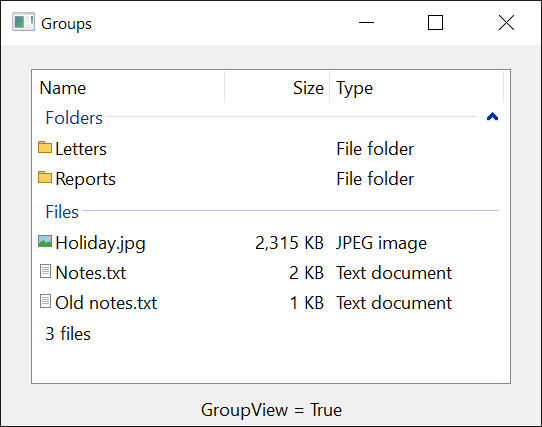
Each change of a group’s Collapsed, by the user or by code, raises GroupCollapsedChanged, and each change of its Selected raises GroupSelectedChanged.
A group that is Subseted shows only its first GroupSubsetCount items, and its SubsetLink under them, with which the user shows the rest.
Properties
GroupIcons
The image list of the icons of the group headers. Variant: an ImageList control, its name or the handle of an image list, as for Icons. Default: none. A group names its icon by its Icon. It has an effect when the program has visual styles.
Groups
The groups of the control, as an LvwGroups collection. Read-only.
In virtual mode, and in a program without visual styles, reading it raises run-time error 91.
GroupSubsetCount
The number of items a Subseted group shows. Long. Default: 0, with which every group shows all its items.
A negative number raises run-time error 380.
GroupView
Whether the items are shown in their groups. Boolean. Default: False. In virtual mode True raises run-time error 383.
SelectedGroup
The group that has the focus. An LvwGroup, or Nothing. Setting it to a group selects that group and gives it the focus; Nothing takes the focus from the group that has it. In virtual mode reading or setting it raises run-time error 5.
Events
GroupCollapsedChanged
Raised when a group is collapsed or expanded, by the user or by code.
Syntax: object_GroupCollapsedChanged( ByVal Group As LvwGroup )
GroupLinkClick
Raised when the user clicks the Link of a group.
Syntax: object_GroupLinkClick( ByVal Group As LvwGroup )
GroupSelectedChanged
Raised when a group is selected or is no longer selected, by the user or by code.
Syntax: object_GroupSelectedChanged( ByVal Group As LvwGroup )
LvwGroupHeaderAlignmentConstants
The values of a group’s HeaderAlignment.
| Member | Value | Description |
|---|---|---|
| LvwGroupHeaderAlignmentLeft | 0 | The header’s text is at the left. |
| LvwGroupHeaderAlignmentRight | 1 | At the right. |
| LvwGroupHeaderAlignmentCenter | 2 | In the middle. |
LvwGroupFooterAlignmentConstants
The values of a group’s FooterAlignment.
| Member | Value | Description |
|---|---|---|
| LvwGroupFooterAlignmentLeft | 0 | The footer’s text is at the left. |
| LvwGroupFooterAlignmentRight | 1 | At the right. |
| LvwGroupFooterAlignmentCenter | 2 | In the middle. |