Documentation Development
This chapter covers the consumption of the documentation, e.g. in an IDE, as well as the development process of the content itself.
- Permanent Links
- /tB/Core/<Statement>
- /tB/Modules/<ModuleName>/<Symbol>
- /tB/Packages/<Package>/…
- VBRUN – /tB/Packages/VBRUN/<Module>/
- VB – /tB/Packages/VB/<Class>/
- WebView2 – /tB/Packages/WebView2/…
- Assert – /tB/Packages/Assert/<Module>
- CustomControls – /tB/Packages/CustomControls/…
- CEF – /tB/Packages/CEF/…
- WinEventLogLib – /tB/Packages/WinEventLogLib/<Class>
- WinNamedPipesLib – /tB/Packages/WinNamedPipesLib/<Class>
- WinServicesLib – /tB/Packages/WinServicesLib/…
- tbIDE – /tB/Packages/tbIDE/<Class>
- WinNativeCommonCtls – /tB/Packages/WinNativeCommonCtls/…
- /tB/Core/Attributes#<attribute>
- Development Environment
- Deploying to docs.twinbasic.com
- Editing Screenshots
Permanent Links
The stable, or machine-accessible part of the documentation tree is rooted on the /tB/ prefix. The URLs with this prefix, as well as the internal links (e.g. docs.twinbasic.com/tB/Modules/Math/Round), are stable.
/tB/Core/<Statement>
- AppActivate
- Beep
- Call, ChDir, ChDrive, Class, Close, CoClass, Const, Continue
- Date, Declare, Deftype, DeleteSetting, Dim, Do-Loop
- End, Enum, Erase, Error, Event, Exit
- FileCopy, For-Next, For-Each-Next, Function
- Get, GetSetting, GoSub-Return, GoTo
- If-Then-Else, Implements, Input, Interface, Is
- Kill
- LBound, Let, Line-Input, Load, Lock, LSet
- Mid-equals for
Mid(...) = ..., MidB-equals forMidB(...) = ..., MkDir, Module - Name, New
- Option, On-Error, On-GoSub, On-GoTo, Open
- ParamArray, Print, Private, Property, Protected, Public, Put
- RaiseEvent, ReDim, Reset, Resume, RmDir, RSet
- SavePicture, SaveSetting, Seek, Select-Case, SendKeys, Set, SetAttr, Static, Sub, Stop
- Time, Type
- Unload, Unlock
- While-Wend, Width, With, Write
/tB/Modules/<ModuleName>/<Symbol>
Within each VBA module, each procedure, property, or statement has its own stand-alone page, e.g. LenB: /tB/Modules/Strings/Len. The $-suffixed and B/W variants are documented on the same page as the base symbol (so LenB, Len$, etc. all share the Len page).
- Collection
- Compilation
- Constants
- Conversion
- DateTime
- ErrObject
- TbExpressionService
- FileSystem
- Financial
- Information
- Interaction
- Math
- Strings
- Internal _HiddenModule
/tB/Packages/<Package>/…
Each package lives under /tB/Packages/<Package>/. The sub-structure depends on the package: modules, classes, enumerations, and sub-objects each have their own page.
VBRUN – /tB/Packages/VBRUN/<Module>/
- AmbientProperties
- AsyncProperty
- Constants
- ContainedControls
- DataMembers
- DataObject
- ErrorCallstack
- ErrorContext
- ErrorStackFrame
- Hyperlink
- ParentControls
- PropertyBag
VB – /tB/Packages/VB/<Class>/
- App, CheckBox, CheckMark, Clipboard, ComboBox, CommandButton
- Data, DirListBox, DriveListBox
- FileListBox, Form, Frame, Global
- HScrollBar, Image
- Label, Line, ListBox
- MDIForm, Menu, MultiFrame
- OLE, OptionButton
- PictureBox, Printer, Printers, PropertyPage
- QRCode, Report
- Screen, Shape
- TextBox, Timer
- UserControl, VScrollBar
WebView2 – /tB/Packages/WebView2/…
- WebView2 (control class, with EnvironmentOptions sub-page)
- WebView2Header, WebView2HeadersCollection, WebView2Request, WebView2RequestHeaders, WebView2Response, WebView2ResponseHeaders
- Enumerations: wv2DefaultDownloadCornerAlign, wv2ErrorStatus, wv2HostResourceAccessKind, wv2KeyEventKind, wv2PermissionKind, wv2PermissionState, wv2PrintOrientation, wv2ProcessFailedKind, wv2ScriptDialogKind, wv2WebResourceContext
- Types: COREWEBVIEW2_PHYSICAL_KEY_STATUS
Assert – /tB/Packages/Assert/<Module>
CustomControls – /tB/Packages/CustomControls/…
- Controls: WaynesButton (with WaynesButtonState), WaynesForm (with WindowsFormOptions), WaynesFrame, WaynesGrid (with CellRenderingOptions, Column), WaynesLabel, WaynesSlider (with WaynesSliderState), WaynesTextBox (with WaynesTextBoxState), WaynesTimer
- Styles: Anchors, Borders, Corners, Fill, Line, Padding, TextRendering
- Framework: Canvas, CustomControlContext, CustomControlsCollection, CustomControlTimer, CustomFormContext, ICustomControl, ICustomForm, SerializeInfo
- Enumerations: BorderStyle, ColorRGBA, CornerShape, Customtate, DockMode, FillPattern, FontWeight, PixelCount, PointSize, StartupPosition, TextAlignment, TextOverflowMode, WindowState
CEF – /tB/Packages/CEF/…
- CefBrowser (control class, with EnvironmentOptions sub-page)
- Enumerations: CefLogSeverity, cefPrintOrientation
WinEventLogLib – /tB/Packages/WinEventLogLib/<Class>
WinNamedPipesLib – /tB/Packages/WinNamedPipesLib/<Class>
WinServicesLib – /tB/Packages/WinServicesLib/…
- ITbService, ServiceCreator, ServiceManager, Services, ServiceState
- Enumerations: ServiceControlCodeConstants, ServiceStartConstants, ServiceStatusConstants, ServiceTypeConstants
tbIDE – /tB/Packages/tbIDE/<Class>
- AddIn, AddinTimer, Button, CodeEditor, DebugConsole, Editor, Editors
- File, FileSystem, FileSystemItem, Folder
- Host, HtmlElement, HtmlElementProperties, HtmlElementProperty, HtmlElements, HtmlEventProperties, HtmlEventProperty
- KeyboardShortcuts, Project, Themes, Toolbar, Toolbars, ToolWindow, ToolWindows
WinNativeCommonCtls – /tB/Packages/WinNativeCommonCtls/…
- Controls: DTPicker, ImageList, ListView, MonthView, ProgressBar, Slider, TreeView, UpDown
- Sub-objects: ListImages, ListImage, ListItems, ListItem, ColumnHeaders, ColumnHeader, Nodes, Node
- Enumerations: DTPickerFormatConstants, ImlDrawConstants, OrientationConstants, TreeBorderStyleConstants, TreeLabelEditConstants, TreeLineStyleConstants, TreeRelationshipConstants, TreeSortOrderConstants, TreeSortTypeConstants, TreeStyleConstants
/tB/Core/Attributes#<attribute>
Note
All non-alphabetic characters, as well as parameters, are removed from the links. All attribute names are in lowercase in the links. E.g. ArrayBoundsChecks(Bool) is referenced as /tB/Core/Attributes#arrayboundschecks.
- AppObject, ArrayBoundsChecks
- BindOnlyIfNoArguments, BindOnlyIfStringSuffix
- ClassId, ClassInterface, CoClassCustomConstructor, CoClassId, COMControl, COMCreatable, COMExtensible, ComImport, CompileIf, CompilerOptions, ConstantFoldable, ConstantFoldableNumericsOnly
- Debuggable, DebugOnly, DefaultMember, Description, DispId, DispInterface, DllExport, DLLStackCheck, DualInterface
- EnforceErrors, EnforceWarnings, EnumId, EventInterfaceId, EventsUseDispInterface
- Flags, FloatingPointErrorChecks, FormDesignerId, Hidden
- IdeButton, IgnoreWarnings, IntegerOverflowChecks, InterfaceId
- MustBeQualified
- OleAutomation
- PackingAlignment, PopulateFrom, PredeclaredID, PreserveSig
- Restricted, RunAfterBuild
- Serialize, SetDllDirectory, SimplerByVals
- TestCase, TestFixture, TypeHint
- Unimplemented, UseGetLastError, UserDefinedTypeIsAnAlias
- WindowsControl
Development Environment
The documentation is built (rendered to html) using Jekyll.
-
Ensure that the necessary requirements and additional requirements are met.
-
Fork https://github.com/twinbasic/documentation to your own GitHub account if you plan on making any changes or for convenience. This can be skipped if you just want to build the documentation without changes.
-
Clone either your fork in #2, or the documentation repository itself.
-
Go to the
/docsfolder in the cloned working tree. Building, serving, and other documentation operations are all done in this folder, not in the repository root.
Requirements
Jekyll and Ruby must be installed.
Also ensure that Jekyll is in the PATH. To adjust the path on Windows, press ⊞ R, type SystemPropertiesAdvanced Enter, and click the Environment Variables… button. 
Building
To build the documentation, i.e. render it from .md files into the _site/ (online), _site-offline/ (offline mirror), and _site-pdf/ (sparse PDF source) folders:
bundle exec jekyll build
or, on Windows only:
build.bat
A single Jekyll run produces all three trees; toggle also_build_offline / also_build_pdf in _config.yml to skip a sibling output if you only want _site/.
Checking Link Integrity
Before checking link integrity, the documentation must be built. This can be done by ad-hoc by building, or continuously in the background by building and serving.
To check that none of the internal links in the most recent documentation build are broken:
check.bat
This runs three checks: scripts/check_links.py against _site/ (the live tree, in offline mode), the same against _site-offline/ (the file://-browsable mirror), and scripts/check_offline_live_links.py over _site-offline/ that flags any surviving https://docs.twinbasic.com/<path> link — the offline mirror should not navigate back to the live docs site. The same three checks run in CI on every pull request and on every push to staging.
Building and Local Serving
To build and serve the documentation from http://localhost:4000:
bundle exec jekyll serve
or, on Windows only:
serve.bat
The documentation server detects changes in the filesystem and automatically regenerates the html files as needed. The server does not follow changes in _config.yml. If you change the configuration, the server has to be restarted. Interrupt the server by pressing CtrlC repeatedly.
Mermaid Diagrams
Mermaid diagrams are supported within the {% mermaid %} ... {% endmermaid %} tags, e.g.
{% mermaid %}
graph TD;
    A-->B;
    A-->C;
    B-->D;
    C-->D;
{% endmermaid %}
For ease of use, the diagrams are processed off-line during the Jekyll build/serve. The diagrams are extracted, rendered, and saved into assets/images. They are a part of the repository, and any new diagrams that appear in assets/images should be added in git. mermaid-cli is used for rendering.
Additional Requirements
To render new or changed diagrams, the following should be available:
- nodejs
-
npm install -g @mermaid-js/mermaid-cli
Deploying to docs.twinbasic.com
-
Push your changes to your Github fork of the documentation repository.
-
Click compare across forks.
-
Select your repository and branch to merge from.

-
Create the pull request.
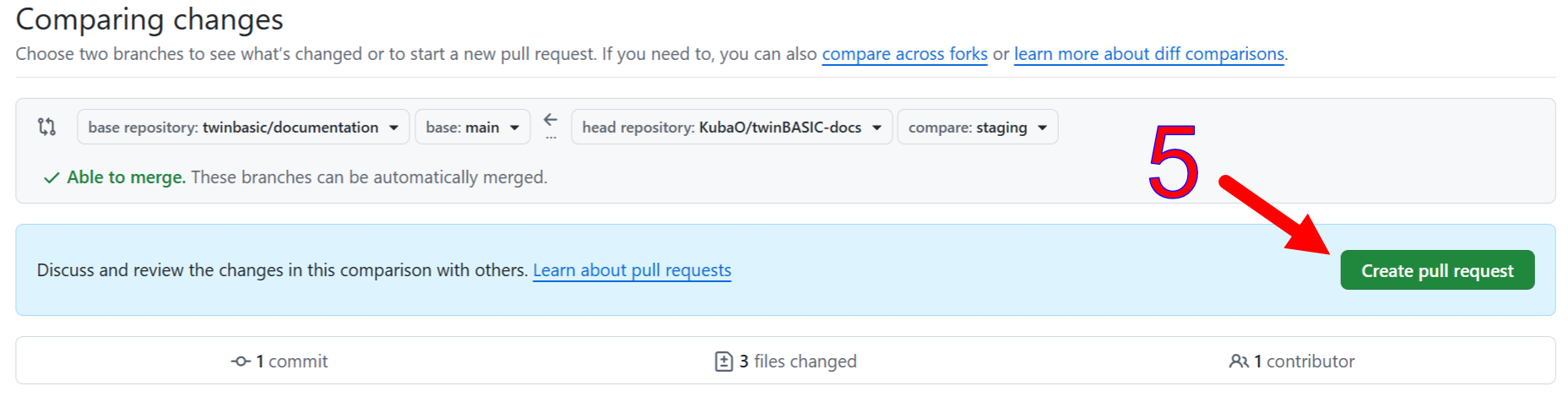
A maintainer will merge the pull request into the documentation repository. You may wish to mention an outstanding request on #docs channel, although the #github-docs channel provides automated notifications of pull requests. Normally, a maintainer will get a notification of a new pull request via Discord, and will merge it or comment with a request for changes/improvements.
The steps below are done by maintainers
-
Review, then merge the pull request or comment with required changes.
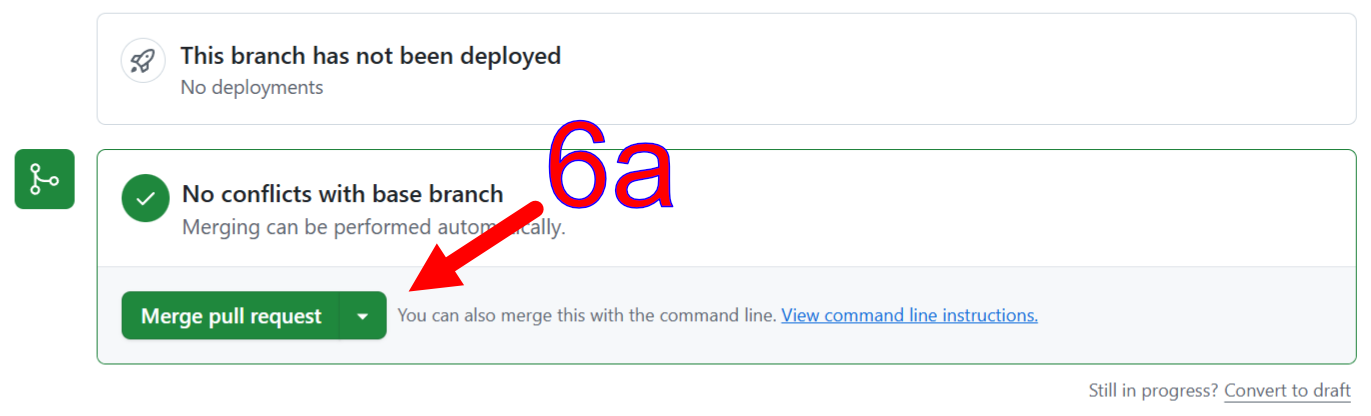
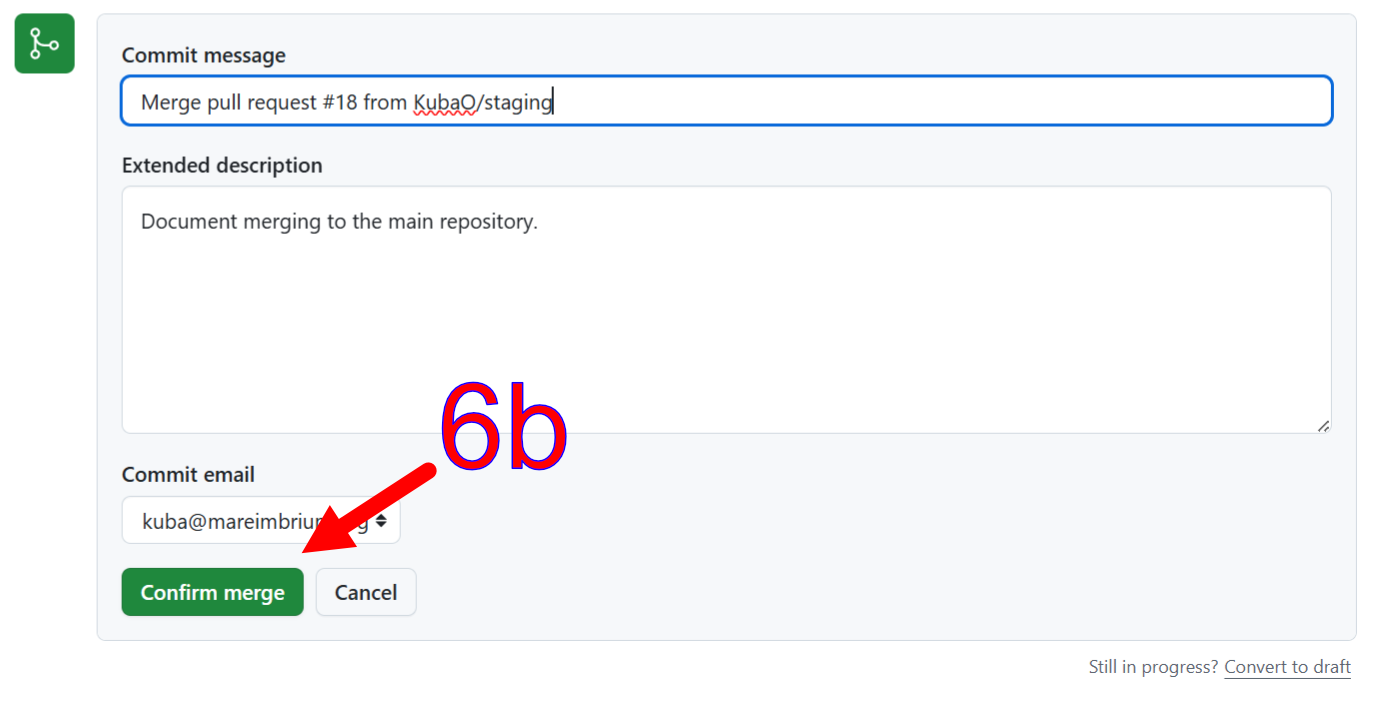
-
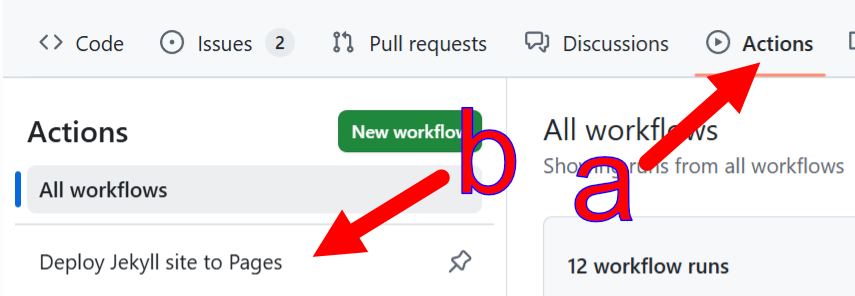
Select the Deploy Jekyll site to Pages action.
-
Manually run the build and deployment workflow, as it doesn’t start automatically.
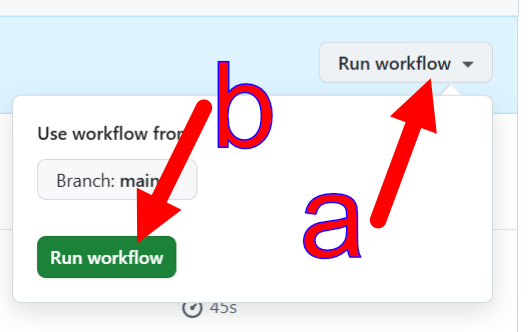
When the workflow is run manually — whether at the official repository or in a fork — it also creates a GitHub release with the offline-browsable site copy attached as a zip.
Editing Screenshots
One way of editing screenshots is to use an integrated vector/pixel software like Affinity1. A possible workflow is:
-
PrtSc to capture the screenshot.
-
In Affinity, Ctrl-Alt-Shift-N (File, New from Clipboard) to get the entire screenshot into the program.
-
Use the Vector Crop tool (from the Vector studio) to crop the screenshot down to the relevant part.


-
Select the cropped image, and copy Ctrl-C to clipboard.
-
Create a new file from clipboard again to open a document with just the cropped screenshot in it Ctrl-Alt-Shift-N (File, New from Clipboard).
-
Close the file you opened in #2.
-
Add arrow and labels as needed. Those can be copy-pasted from other
.affiles in this repository. -
Export to PNG Ctrl-Alt-Shift-W (File, Export, Export…).
Note
It is a convention to put the .af (“source”) files in the _Images folder, and the exported .png files in the Images folder. Only the latter is published to the website. The former is only to preserve sources for easy editing/updates.
1 Affinity is a free-as-in-beer software that combines the functionality of a vector editor, a bitmap editor, and a publishing layout editor. To download, a Canva account is required. The accounts are free.