Mouse, Keyboard and Drag and Drop
Finding what lies under a point, the mouse and keyboard events, the mouse pointer, and the members that let the grid act as the source or the target of a drag and drop.
The grid divides what is under the mouse into cells, dividers between rows or columns, check boxes and drop-down buttons. HitTest takes a point and stores the answer in five read-only properties, HitRow, HitCol, HitResult, HitRowDivider and HitColDivider. MouseRow and MouseCol give the row and column at the current position of the mouse pointer, without a point to pass. The click events report the cell, so a handler seldom needs either.
Dragging comes in three forms. The grid can be the source or the target of an OLE drag and drop, which carries data between controls and between programs; it can accept files dropped from the shell; and it can draw the two marks that show where a drop will land, the insert mark and the drop highlight. The drag members that every control has, Drag, DragIcon and DragMode, are on the control’s own page.
Hit testing
HitTest takes a point in the unit of the container, which is twips on a form with the default scale. The point is measured from the top-left corner of the grid, so it is the X and Y that a mouse event or a cell position gives. HitResult says what is there:
| HitResult | What is at the point | HitRow, HitCol | HitRowDivider, HitColDivider |
|---|---|---|---|
| FlexHitResultNoWhere | Nothing: the point is outside the cells, for instance beyond the last row or column, or above or to the left of the grid. | -1 | -1 |
| FlexHitResultCell | A cell, a fixed one too. | The cell. | -1 |
| FlexHitResultCheckBox, FlexHitResultCheckBoxDisabled | The check box of a cell. | The cell. | -1 |
| FlexHitResultComboCue, FlexHitResultComboCueDisabled | The drop-down button or the button of a cell. | The cell. | -1 |
| FlexHitResultDividerRowTop, FlexHitResultDividerRowBottom | The edge between two rows in a fixed column, when AllowUserResizing allows rows to be resized. The row to be resized is HitRowDivider: the divider is its bottom edge. | The cell the point is in. | The row, or -1. |
| FlexHitResultDividerColumnLeft, FlexHitResultDividerColumnRight | The edge between two columns in a fixed row, when columns can be resized. The column to be resized is HitColDivider. | The cell the point is in. | The column, or -1. |
| FlexHitResultDividerFrozenRowTop, FlexHitResultDividerFrozenRowBottom, FlexHitResultDividerFrozenColumnLeft, FlexHitResultDividerFrozenColumnRight | The place where the user can drag to freeze or unfreeze rows or columns, when AllowUserFreezing allows it. | The cell the point is in. | The row or column. |
A check box or a drop-down button exists only for a cell that has one: see CellChecked and AlwaysAllowComboCues. The five properties keep what the last call of HitTest found; the grid also calls the same test for its own events, but does not store those results. Before the first call, HitRow, HitCol, HitRowDivider and HitColDivider are -1 and HitResult is FlexHitResultNoWhere.
Dim g As VBFLXGRD18.VBFlexGrid
Set g = VBFlexGrid1
g.Rows = 8: g.Cols = 6

Debug.Print "before any test: " & g.HitRow & "," & g.HitCol & " result " & g.HitResult

g.HitTest g.ColPos(2) + 20, g.RowPos(3) + 20          ' inside a cell
Debug.Print "cell: " & g.HitRow & "," & g.HitCol & " result " & g.HitResult

g.HitTest g.ColPos(2) + 20, 5                          ' in the fixed row
Debug.Print "heading: " & g.HitRow & "," & g.HitCol & " result " & g.HitResult

g.HitTest 5, g.RowPos(3) + 20                          ' in the fixed column
Debug.Print "row heading: " & g.HitRow & "," & g.HitCol & " result " & g.HitResult

g.HitTest 30000, 30000                                 ' far outside
Debug.Print "outside: " & g.HitRow & "," & g.HitCol & " result " & g.HitResult
' Output:
' before any test: -1,-1 result 0
' cell: 3,2 result 1
' heading: 0,2 result 1
' row heading: 3,0 result 1
' outside: -1,-1 result 0
A divider is found only when resizing is allowed, and only within a few pixels of the edge:
Dim g As VBFLXGRD18.VBFlexGrid
Set g = VBFlexGrid1
g.Rows = 8: g.Cols = 6
Dim OnePixel As Long
OnePixel = Screen.TwipsPerPixelX

g.HitTest g.ColPos(3) - OnePixel, 100                  ' just left of column 3 in the heading
Debug.Print "no resizing: result " & g.HitResult

g.AllowUserResizing = FlexAllowUserResizingBoth
g.HitTest g.ColPos(3) - OnePixel, 100
Debug.Print "right edge of column 2: result " & g.HitResult & ", divider " & g.HitColDivider & "," & g.HitRowDivider
g.HitTest g.ColPos(3) + OnePixel, 100
Debug.Print "left edge of column 3: result " & g.HitResult & ", divider " & g.HitColDivider & "," & g.HitRowDivider
' Output:
' no resizing: result 1
' right edge of column 2: result 5, divider 2,-1
' left edge of column 3: result 4, divider 2,-1
MouseRow and MouseCol do not say whether the pointer is over a cell: they give the row and column whose area the pointer’s position falls in, and the last row or column when the pointer is beyond the grid’s cells. When the pointer is above the grid MouseRow is 0, and when it is to the left MouseCol is 0.
The mouse events
A click raises the events in this order:
| # | Event | Notes |
|---|---|---|
| 1 | BeforeMouseDown | For every button. Set Cancel to stop the grid from handling the press. |
| 2 | The events of a change of the current cell and the selection | See Current Cell and Selection. Only for the left button, and not when BeforeMouseDown was cancelled. |
| 3 | MouseDown | |
| 4 | CellClick | On release, when the button is released over the cell it was pressed in, and the point is a cell. |
| 5 | MouseUp | |
| 6 | Click | On release, when the pointer is still over the grid. |
When BeforeMouseDown is cancelled, the grid raises none of the events 2, 3, 4 and 6, but MouseUp still follows. A double click raises DblClick, and CellDblClick when it is on a cell, after the Click of its first press. A click on a heading selects its column or row (AllowBigSelection) and still raises CellClick for the fixed cell.
The class below prints each of them. A program can also send the mouse and key messages that Windows sends to a window, which makes it possible to run a sample without a mouse:
Class MouseTrace
    Private WithEvents Grid As VBFLXGRD18.VBFlexGrid

    Public CancelMouseDown As Boolean
    Public SwallowKeys As Boolean

    Public Sub Attach(ByVal G As VBFLXGRD18.VBFlexGrid)
        Set Grid = G
    End Sub

    Private Sub Grid_BeforeMouseDown(ByVal Button As Integer, ByVal Shift As Integer, ByVal X As Single, ByVal Y As Single, Cancel As Boolean)
        Debug.Print "BeforeMouseDown " & Button
        Cancel = CancelMouseDown
    End Sub

    Private Sub Grid_MouseDown(Button As Integer, Shift As Integer, X As Single, Y As Single)
        Debug.Print "MouseDown " & Button & " (current row " & Grid.Row & ")"
    End Sub

    Private Sub Grid_CellClick(ByVal Row As Long, ByVal Col As Long, ByVal Button As Integer)
        Debug.Print "CellClick " & Row & "," & Col
    End Sub

    Private Sub Grid_MouseUp(Button As Integer, Shift As Integer, X As Single, Y As Single)
        Debug.Print "MouseUp " & Button
    End Sub

    Private Sub Grid_Click()
        Debug.Print "Click"
    End Sub

    Private Sub Grid_RowColChange()
        Debug.Print "RowColChange " & Grid.Row & "," & Grid.Col
    End Sub

    Private Sub Grid_MouseEnter()
        Debug.Print "MouseEnter"
    End Sub

    Private Sub Grid_MouseMove(Button As Integer, Shift As Integer, X As Single, Y As Single)
        Debug.Print "MouseMove"
    End Sub

    Private Sub Grid_MouseLeave()
        Debug.Print "MouseLeave"
    End Sub

    Private Sub Grid_ContextMenu(ByVal X As Single, ByVal Y As Single)
        Debug.Print "ContextMenu " & X & "," & Y
    End Sub

    Private Sub Grid_KeyDown(KeyCode As Integer, Shift As Integer)
        Debug.Print "KeyDown " & KeyCode
        If SwallowKeys Then KeyCode = 0
    End Sub

    Private Sub Grid_KeyPress(KeyChar As Integer)
        Debug.Print "KeyPress " & KeyChar
        If SwallowKeys Then KeyChar = 0
    End Sub

    Private Sub Grid_KeyUp(KeyCode As Integer, Shift As Integer)
        Debug.Print "KeyUp " & KeyCode
    End Sub
End Class
Module MouseInput
    Private Declare PtrSafe Function SendMessageW Lib "user32" (ByVal hWnd As LongPtr, ByVal Msg As Long, ByVal wParam As LongPtr, ByVal lParam As LongPtr) As LongPtr

    Private Const WM_KEYDOWN As Long = &H100
    Private Const WM_KEYUP As Long = &H101
    Private Const WM_CHAR As Long = &H102
    Private Const WM_MOUSEMOVE As Long = &H200
    Private Const WM_LBUTTONDOWN As Long = &H201
    Private Const WM_LBUTTONUP As Long = &H202
    Private Const WM_MOUSELEAVE As Long = &H2A3
    Private Const WM_CONTEXTMENU As Long = &H7B

    ' Press and release the left button in the middle of a cell.
    Public Sub ClickCell(ByVal G As VBFLXGRD18.VBFlexGrid, ByVal Row As Long, ByVal Col As Long)
        Dim X As Long, Y As Long, lParam As LongPtr
        X = (G.ColPos(Col) + G.ColWidth(Col) \ 2) \ Screen.TwipsPerPixelX
        Y = (G.RowPos(Row) + G.RowHeight(Row) \ 2) \ Screen.TwipsPerPixelY
        lParam = (CLngPtr(Y) * &H10000) Or CLngPtr(X)
        SendMessageW G.hWnd, WM_LBUTTONDOWN, 1, lParam
        SendMessageW G.hWnd, WM_LBUTTONUP, 0, lParam
    End Sub

    Public Sub MoveMouse(ByVal G As VBFLXGRD18.VBFlexGrid)
        SendMessageW G.hWnd, WM_MOUSEMOVE, 0, 0
    End Sub

    Public Sub LeaveMouse(ByVal G As VBFLXGRD18.VBFlexGrid)
        SendMessageW G.hWnd, WM_MOUSELEAVE, 0, 0
    End Sub

    ' The menu key or Shift+F10: the position is -1,-1.
    Public Sub ContextMenuKey(ByVal G As VBFLXGRD18.VBFlexGrid)
        SendMessageW G.hWndUserControl, WM_CONTEXTMENU, G.hWnd, -1
    End Sub

    Public Sub PressKey(ByVal G As VBFLXGRD18.VBFlexGrid, ByVal KeyCode As Long)
        SendMessageW G.hWnd, WM_KEYDOWN, KeyCode, 0
        SendMessageW G.hWnd, WM_KEYUP, KeyCode, 0
    End Sub

    Public Sub TypeChar(ByVal G As VBFLXGRD18.VBFlexGrid, ByVal Ch As Long)
        SendMessageW G.hWnd, WM_KEYDOWN, Ch, 0
        SendMessageW G.hWnd, WM_CHAR, Ch, 0
        SendMessageW G.hWnd, WM_KEYUP, Ch, 0
    End Sub
End Module
VBFlexGrid1.Rows = 6: VBFlexGrid1.Cols = 5
Dim t As New MouseTrace
t.Attach VBFlexGrid1

Debug.Print "-- click on cell 3,2"
ClickCell VBFlexGrid1, 3, 2
Debug.Print "-- click on the same cell"
ClickCell VBFlexGrid1, 3, 2
Debug.Print "-- click on the heading of column 2"
ClickCell VBFlexGrid1, 0, 2
Debug.Print "range now " & VBFlexGrid1.RowSel & "," & VBFlexGrid1.ColSel
Debug.Print "-- click on cell 4,4, cancelled"
t.CancelMouseDown = True
ClickCell VBFlexGrid1, 4, 4
Debug.Print "current cell " & VBFlexGrid1.Row & "," & VBFlexGrid1.Col
' Output:
' -- click on cell 3,2
' BeforeMouseDown 1
' RowColChange 3,2
' MouseDown 1 (current row 3)
' CellClick 3,2
' MouseUp 1
' Click
' -- click on the same cell
' BeforeMouseDown 1
' MouseDown 1 (current row 3)
' CellClick 3,2
' MouseUp 1
' Click
' -- click on the heading of column 2
' BeforeMouseDown 1
' RowColChange 1,2
' MouseDown 1 (current row 1)
' CellClick 0,2
' MouseUp 1
' Click
' range now 5,2
' -- click on cell 4,4, cancelled
' BeforeMouseDown 1
' MouseUp 1
' current cell 1,2
The mouse events report the position in twips, measured from the top-left corner of the grid: X and Y of BeforeMouseDown, MouseDown, MouseMove and MouseUp. ContextMenu and the drag and drop events give it in the unit of the container, as HitTest takes it. MouseTrack switches on MouseEnter and MouseLeave:
Dim t As New MouseTrace
t.Attach VBFlexGrid1

Debug.Print "-- MouseTrack = False"
MoveMouse VBFlexGrid1
LeaveMouse VBFlexGrid1
VBFlexGrid1.MouseTrack = True
Debug.Print "-- MouseTrack = True"
MoveMouse VBFlexGrid1
MoveMouse VBFlexGrid1
LeaveMouse VBFlexGrid1
Debug.Print "-- the menu key"
ContextMenuKey VBFlexGrid1
' Output:
' -- MouseTrack = False
' MouseMove
' -- MouseTrack = True
' MouseEnter
' MouseMove
' MouseMove
' MouseLeave
' -- the menu key
' ContextMenu -1,-1
The keyboard events
The key events carry a key code, as for every control: KeyDown and KeyUp for each key, and KeyPress between them for a key that produces a character. KeyDown is raised before the grid acts on the key, so a handler can stop the grid by setting KeyCode to 0; KeyPress works the same way with KeyChar. PreviewKeyDown and PreviewKeyUp come earlier still, before Windows hands the key to the form, and decide whether the grid gets keys that a form would otherwise use, such as Enter for a default button or Esc for a cancel button. The key codes are the KeyCodeConstants, and Shift is made of the ShiftConstants.
VBFlexGrid1.Rows = 6: VBFlexGrid1.Cols = 5
VBFlexGrid1.Row = 1: VBFlexGrid1.Col = 1
Dim t As New MouseTrace
t.Attach VBFlexGrid1

Debug.Print "-- Down"
PressKey VBFlexGrid1, vbKeyDown
Debug.Print "-- the letter A"
TypeChar VBFlexGrid1, 65
Debug.Print "-- Down, swallowed by KeyDown"
t.SwallowKeys = True
PressKey VBFlexGrid1, vbKeyDown
Debug.Print "current cell " & VBFlexGrid1.Row & "," & VBFlexGrid1.Col
' Output:
' -- Down
' KeyDown 40
' RowColChange 2,1
' KeyUp 40
' -- the letter A
' KeyDown 65
' KeyPress 65
' KeyUp 65
' -- Down, swallowed by KeyDown
' KeyDown 40
' KeyUp 40
' current cell 2,1
The properties that decide where Tab, Enter and the arrow keys take the current cell are on the Current Cell and Selection page. This sample shows them:
Dim g As VBFLXGRD18.VBFlexGrid
Set g = VBFlexGrid1
g.Rows = 4: g.Cols = 4
g.Row = 1: g.Col = 1

PressKey g, vbKeyTab
Debug.Print "Tab, TabBehavior = FlexTabControls: " & g.Row & "," & g.Col

g.TabBehavior = FlexTabCells
PressKey g, vbKeyTab
Debug.Print "Tab, FlexTabCells: " & g.Row & "," & g.Col
PressKey g, vbKeyTab
PressKey g, vbKeyTab
Debug.Print "Tab twice more, at the last column: " & g.Row & "," & g.Col

g.WrapCellBehavior = FlexWrapRow
g.Row = 1: g.Col = 3
PressKey g, vbKeyTab
Debug.Print "Tab, FlexWrapRow: " & g.Row & "," & g.Col

g.WrapCellBehavior = FlexWrapGrid
g.Row = 3: g.Col = 3
PressKey g, vbKeyTab
Debug.Print "Tab at the last cell, FlexWrapGrid: " & g.Row & "," & g.Col

g.WrapCellBehavior = FlexWrapNone
g.Row = 1: g.Col = 1
PressKey g, vbKeyReturn
Debug.Print "Enter, DirectionAfterReturn = None: " & g.Row & "," & g.Col
g.DirectionAfterReturn = FlexDirectionAfterReturnDown
PressKey g, vbKeyReturn
Debug.Print "Enter, Down: " & g.Row & "," & g.Col
g.DirectionAfterReturn = FlexDirectionAfterReturnRight
PressKey g, vbKeyReturn
Debug.Print "Enter, Right: " & g.Row & "," & g.Col

PressKey g, vbKeyEnd
Debug.Print "End: " & g.Row & "," & g.Col
PressKey g, vbKeyHome
Debug.Print "Home: " & g.Row & "," & g.Col
' Output:
' Tab, TabBehavior = FlexTabControls: 1,1
' Tab, FlexTabCells: 1,2
' Tab twice more, at the last column: 1,3
' Tab, FlexWrapRow: 2,1
' Tab at the last cell, FlexWrapGrid: 1,1
' Enter, DirectionAfterReturn = None: 1,1
' Enter, Down: 2,1
' Enter, Right: 2,2
' End: 2,3
' Home: 2,1
IMEMode sets the state of the Input Method Editor while the grid has the focus.
Drag and drop
The grid as a source. OLEDrag starts an OLE drag from code, usually from a MouseDown or MouseMove handler. The grid raises OLEStartDrag, where the handler puts the data into the Data object and sets the effects it allows, then OLEGiveFeedback while the pointer moves, so that it can choose the cursor, and OLESetData when the target asks for a format that has not been supplied yet. OLECompleteDrag comes last, with the effect that was carried out.
The grid as a target. With OLEDropMode set to FlexOLEDropModeManual, the grid raises OLEDragOver while data is moved over it and OLEDragDrop when it is dropped. There is no automatic mode. While the data is over the grid, OLEDragDropScroll lets the grid scroll when the pointer is near an edge, in the directions that OLEDragDropScrollOrientation allows. The Data object is a DataObject, and Effect is made of the OLEDropEffectConstants.
Files. With AllowDropFiles set, files dropped from the shell raise DropFiles. This works only while OLEDropMode is FlexOLEDropModeNone: a grid that is an OLE drop target receives the files through OLEDragDrop.
Showing the target. InsertMark draws a line between two rows or two columns, to show where dropped data will be inserted, and DropHighlight draws a row or column in the highlight colours, to show what dropped data will go onto. InsertMarkMode and DropHighlightMode choose whether they work on rows or columns, and each is independent of the other. HitTestInsertMark turns the position of the pointer into the row or column for the mark, and tells which side of it the pointer is on. The handler for OLEDragOver sets the mark and the handler for OLEDragDrop removes it:
Private Sub Form_Load()
    VBFlexGrid1.OLEDropMode = FlexOLEDropModeManual
    VBFlexGrid1.InsertMarkMode = FlexDropTargetModeByRow
End Sub

Private Sub VBFlexGrid1_MouseDown(Button As Integer, Shift As Integer, X As Single, Y As Single)
    If Button = vbLeftButton Then
        VBFlexGrid1.HitTest X, Y
        If VBFlexGrid1.HitResult = FlexHitResultCell And VBFlexGrid1.HitCol = 0 Then VBFlexGrid1.OLEDrag
    End If
End Sub

Private Sub VBFlexGrid1_OLEStartDrag(Data As DataObject, AllowedEffects As Long)
    Data.SetData VBFlexGrid1.TextMatrix(VBFlexGrid1.Row, 1), vbCFText
    AllowedEffects = vbDropEffectCopy
End Sub

Private Sub VBFlexGrid1_OLEDragOver(Data As DataObject, Effect As Long, Button As Integer, Shift As Integer, X As Single, Y As Single, State As Integer)
    Dim After As Boolean, Row As Long
    If State = vbLeave Then
        VBFlexGrid1.InsertMark = -1
    ElseIf Data.GetFormat(vbCFText) Then
        Row = VBFlexGrid1.HitTestInsertMark(X, Y, After)
        VBFlexGrid1.InsertMark(After) = Row
        Effect = vbDropEffectCopy
    Else
        Effect = vbDropEffectNone
    End If
End Sub

Private Sub VBFlexGrid1_OLEDragDrop(Data As DataObject, Effect As Long, Button As Integer, Shift As Integer, X As Single, Y As Single)
    Dim After As Boolean, Row As Long
    Row = VBFlexGrid1.HitTestInsertMark(X, Y, After)
    VBFlexGrid1.InsertMark = -1
    If After Then Row = Row + 1
    VBFlexGrid1.AddItem Data.GetData(vbCFText), Row
End Sub

Private Sub VBFlexGrid1_DropFiles(FileList As Variant, ByVal X As Single, ByVal Y As Single)
    Dim i As Long
    For i = LBound(FileList) To UBound(FileList)
        Debug.Print FileList(i)
    Next i
End Sub
The marks are drawn with InsertMarkColor and with the selection colours, and they stay until the code sets them back to -1.
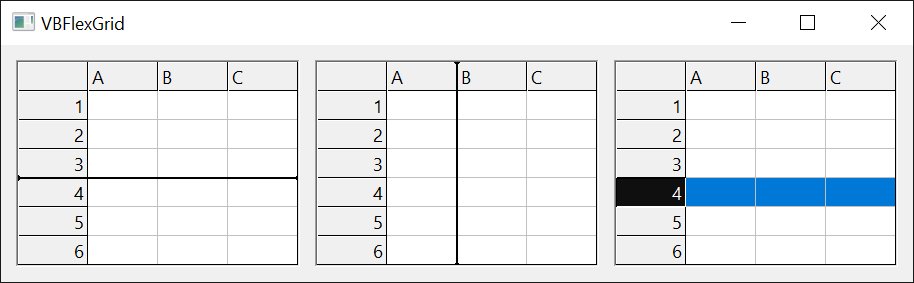
Dim g As VBFLXGRD18.VBFlexGrid
Set g = VBFlexGrid1
g.Rows = 8: g.Cols = 6
Dim After As Boolean, Row As Long

Debug.Print "no mark: " & g.InsertMark(After) & " " & After

Row = g.HitTestInsertMark(5, g.RowPos(3) + 5, After)           ' the upper half of row 3
Debug.Print "upper half: row " & Row & ", after " & After
Row = g.HitTestInsertMark(5, g.RowPos(3) + g.RowHeight(3) - 5, After)   ' the lower half
Debug.Print "lower half: row " & Row & ", after " & After

g.InsertMark(True) = 2                                         ' below row 2
Debug.Print "mark: row " & g.InsertMark(After) & ", after " & After
g.InsertMark = -1
Debug.Print "removed: " & g.InsertMark

g.DropHighlight = 4
Debug.Print "highlight: " & g.DropHighlight
g.DropHighlightMode = FlexDropTargetModeByColumn               ' changing the mode removes it
Debug.Print "after the mode change: " & g.DropHighlight

On Error Resume Next
Err.Clear: g.InsertMark = 99
Debug.Print "InsertMark 99: " & Err.Number & " " & Err.Description
Err.Clear: g.DropHighlight = 99
Debug.Print "DropHighlight 99, by column: " & Err.Number & " " & Err.Description
g.DropHighlightMode = FlexDropTargetModeByRow
g.InsertMarkMode = FlexDropTargetModeByColumn
Err.Clear: g.InsertMark = 99
Debug.Print "InsertMark 99, by column: " & Err.Number & " " & g.InsertMark
' Output:
' no mark: -1 False
' upper half: row 3, after False
' lower half: row 3, after True
' mark: row 2, after True
' removed: -1
' highlight: 4
' after the mode change: -1
' InsertMark 99: 30009 Invalid Row value
' DropHighlight 99, by column: 30010 Invalid Col value
' InsertMark 99, by column: 0 99
Properties
HitRow
Returns the row found by the last call of HitTest. Long, read-only.
Syntax: object.HitRow
-1 when nothing was found, and before the first call.
HitCol
Returns the column found by the last call of HitTest. Long, read-only.
Syntax: object.HitCol
HitResult
Returns what the last call of HitTest found. A FlexHitResultConstants member, read-only.
Syntax: object.HitResult
See the table under Hit testing.
HitRowDivider
Returns the row whose bottom edge the last call of HitTest found. Long, read-only.
Syntax: object.HitRowDivider
-1 unless HitResult is one of the row divider results.
HitColDivider
Returns the column whose right edge the last call of HitTest found. Long, read-only.
Syntax: object.HitColDivider
-1 unless HitResult is one of the column divider results.
MouseRow
Returns the row at the current position of the mouse pointer. Long, read-only.
Syntax: object.MouseRow
See Hit testing for what it returns when the pointer is not over a row.
MouseCol
Returns the column at the current position of the mouse pointer. Long, read-only.
Syntax: object.MouseCol
MouseTrack
Returns or sets whether the grid raises MouseEnter and MouseLeave. Boolean. Default: False.
Syntax: object.MouseTrack [ = value ]
With True the grid also draws check boxes and drop-down buttons in their hot state while the pointer is over them.
MousePointer
Returns or sets the shape of the mouse pointer over the grid. A FlexMousePointerConstants member. Default: FlexMousePointerDefault.
Syntax: object.MousePointer [ = value ]
A value other than 0 to 30 and 99 raises error 380. FlexMousePointerCustom (99) shows MouseIcon. The standard shapes are those of MousePointerConstants, up to 15; the others are new.
MouseIcon
Returns or sets the picture of the custom mouse pointer. IPictureDisp.
Syntax: object.MouseIcon [ = value ]
Used when MousePointer is 99. It must be an icon or a cursor, or Nothing; any other kind of picture raises error 380. A Set statement and an assignment both work.
IMEMode
Returns or sets the Input Method Editor mode of the grid. A FlexIMEModeConstants member. Default: FlexIMEModeNoControl.
Syntax: object.IMEMode [ = value ]
Applied when the grid or its edit box gets the focus. Any other value raises error 380.
OLEDropMode
Returns or sets whether the grid is an OLE drop target. A FlexOLEDropModeConstants member. Default: FlexOLEDropModeNone.
Syntax: object.OLEDropMode [ = value ]
FlexOLEDropModeManual makes the grid raise OLEDragOver and OLEDragDrop. Any other value raises error 380.
OLEDragDropScroll
Returns or sets whether the grid scrolls while data is dragged near its edge. Boolean. Default: True.
Syntax: object.OLEDragDropScroll [ = value ]
The grid scrolls one line, row or column, for each OLEDragOver with the pointer within 16 device-independent pixels of an edge. The edge of a side that has no scroll bar does not scroll, and neither does a pointer outside the grid.
OLEDragDropScrollOrientation
Returns or sets in which directions the grid scrolls during a drag. A FlexScrollOrientationConstants member. Default: FlexScrollOrientationBoth.
Syntax: object.OLEDragDropScrollOrientation [ = value ]
Any other value raises error 380.
AllowDropFiles
Returns or sets whether the grid accepts files dropped from the shell. Boolean. Default: False.
Syntax: object.AllowDropFiles [ = value ]
The files are reported by DropFiles. It has no effect while OLEDropMode is FlexOLEDropModeManual.
InsertMark
Returns or sets the row or column that has the insert mark.
Syntax: object.InsertMark [ ( After ) ] [ = value ]
- After
- optional A Boolean, by reference. A read stores in it whether the mark is after the row or column, below it or to its right. An assignment uses it to place the mark: False puts it before the row or column.
- value
- A Long, the row or column number, or -1 for no mark. The mark is a line between two rows when InsertMarkMode is FlexDropTargetModeByRow, and between two columns when it is FlexDropTargetModeByColumn.
A row outside the grid raises error 30009. See the note below for columns.
Note 1.8.69.0
The column number is checked only when DropHighlightMode is FlexDropTargetModeByColumn: with InsertMarkMode set to by column and DropHighlightMode left at by row, any column number, 99 in a grid of six, is accepted and stored, and nothing is drawn.
InsertMarkColor
Returns or sets the colour of the insert mark. OLE_COLOR. Default: vbBlack.
Syntax: object.InsertMarkColor [ = value ]
InsertMarkMode
Returns or sets whether the insert mark works on rows or on columns. A FlexDropTargetModeConstants member. Default: FlexDropTargetModeByRow.
Syntax: object.InsertMarkMode [ = value ]
Changing it removes the mark, setting InsertMark to -1. Any other value raises error 380.
DropHighlight
Returns or sets the row or column that is drawn as the target of a drop.
Syntax: object.DropHighlight [ = value ]
- value
- A Long, the row or column number, or -1 for none. An invalid row raises error 30009, and an invalid column raises error 30010.
DropHighlightMode
Returns or sets whether the drop highlight works on rows or on columns. A FlexDropTargetModeConstants member. Default: FlexDropTargetModeByRow.
Syntax: object.DropHighlightMode [ = value ]
Changing it removes the highlight. Any other value raises error 380.
Methods
HitTest
Finds what is at a point and stores the result in the Hit properties.
Syntax: object.HitTest ( X, Y )
- X, Y
- required Single The point, in the unit of the container, from the top-left corner of the grid.
It raises no error for a point outside the grid; HitResult is then FlexHitResultNoWhere. See Hit testing.
HitTestInsertMark
Returns the row or column at a point, for the insert mark.
Syntax: object.HitTestInsertMark ( X, Y [, After ] ) As Long
- X, Y
- required Single The point, in the unit of the container.
- After
- optional A Boolean, by reference. Set to True when the point is in the second half of the row or column, and to False when it is in the first half.
Returns a row when InsertMarkMode is by row, and a column when it is by column. Below the last row, or to the right of the last column, it returns the last one. It returns 0 for a point above and to the left of the grid.
OLEDrag
Starts an OLE drag with the grid as the source.
Syntax: object.OLEDrag
The grid raises OLEStartDrag. The call returns when the drag ends.
Events
BeforeMouseDown
Occurs before the grid processes a mouse button press.
Syntax: Private Sub object_BeforeMouseDown ( ByVal Button As Integer, ByVal Shift As Integer, ByVal X As Single, ByVal Y As Single, Cancel As Boolean )
- Button
- A MouseButtonConstants value: left, right or middle.
- Shift
- The state of Shift, Ctrl and Alt, as ShiftConstants.
- X, Y
- The position in twips.
- Cancel
- Set to True to keep the grid from processing the press: the current cell, the selection and the check boxes are left alone, and neither MouseDown, CellClick nor Click is raised for it.
MouseDown
Occurs when the user presses a mouse button over the grid.
Syntax: Private Sub object_MouseDown ( Button As Integer, Shift As Integer, X As Single, Y As Single )
Raised after the grid has moved the current cell and the selection, so Row already has the cell that was pressed. The arguments are those of BeforeMouseDown.
MouseUp
Occurs when the user releases a mouse button.
Syntax: Private Sub object_MouseUp ( Button As Integer, Shift As Integer, X As Single, Y As Single )
MouseMove
Occurs when the user moves the mouse over the grid.
Syntax: Private Sub object_MouseMove ( Button As Integer, Shift As Integer, X As Single, Y As Single )
- Button
- The buttons that are down, as a combination.
MouseEnter
Occurs when the pointer moves into the grid.
Syntax: Private Sub object_MouseEnter ( )
Raised only when MouseTrack is True, before the MouseMove that follows the entry.
MouseLeave
Occurs when the pointer moves out of the grid.
Syntax: Private Sub object_MouseLeave ( )
Raised only when MouseTrack is True.
Click
Occurs when the user presses and releases a mouse button over the grid.
Syntax: Private Sub object_Click ( )
Raised on release, after MouseUp, if the pointer is still over the grid. It is raised for a click anywhere, headings and the empty area included; use CellClick to react to a cell.
DblClick
Occurs when the user double-clicks.
Syntax: Private Sub object_DblClick ( )
Raised after CellDblClick, when there is one.
CellClick
Occurs when a cell is clicked.
Syntax: Private Sub object_CellClick ( ByVal Row As Long, ByVal Col As Long, ByVal Button As Integer )
- Row, Col
- The cell. Headings are cells too.
- Button
- The button, as for BeforeMouseDown.
Raised on release, before MouseUp, only when the button is released over the cell where it was pressed and the point is a cell: not a divider, a check box or a drop-down button.
CellDblClick
Occurs when a cell is double-clicked.
Syntax: Private Sub object_CellDblClick ( ByVal Row As Long, ByVal Col As Long, ByVal Button As Integer )
The arguments are those of CellClick. It is raised only when the double click is on a cell.
ContextMenu
Occurs when the user clicks the right mouse button or presses the menu key or Shift+F10.
Syntax: Private Sub object_ContextMenu ( ByVal X As Single, ByVal Y As Single )
- X, Y
- The position of the pointer, in the unit of the container. -1 and -1 when the key started the menu, because the pointer is not involved.
KeyDown
Occurs when the user presses a key.
Syntax: Private Sub object_KeyDown ( KeyCode As Integer, Shift As Integer )
- KeyCode
- The key. Set it to 0 to keep the grid from acting on the key.
- Shift
- The state of Shift, Ctrl and Alt.
KeyPress
Occurs when a key that produces a character is pressed and released.
Syntax: Private Sub object_KeyPress ( KeyChar As Integer )
- KeyChar
- The character code. Set it to 0 to discard the character, which keeps it from starting an edit or an incremental search.
KeyUp
Occurs when the user releases a key.
Syntax: Private Sub object_KeyUp ( KeyCode As Integer, Shift As Integer )
PreviewKeyDown
Occurs before KeyDown, while Windows still decides who gets the key.
Syntax: Private Sub object_PreviewKeyDown ( ByVal KeyCode As Integer, IsInputKey As Boolean )
- KeyCode
- The key.
- IsInputKey
- Set to True so that the grid receives the key. The arrow keys, Home, End, Page Up and Page Down always go to the grid. For Tab, TabBehavior decides, and for Enter and Esc this argument does: without it a default button or a cancel button on the form gets them, unless WantReturn is True.
Raised for keys that go through the message loop of the form, so it is not raised for a key posted straight to the grid’s window.
PreviewKeyUp
Occurs before KeyUp.
Syntax: Private Sub object_PreviewKeyUp ( ByVal KeyCode As Integer, IsInputKey As Boolean )
The arguments are those of PreviewKeyDown.
OLEStartDrag
Occurs when an OLE drag starts.
Syntax: Private Sub object_OLEStartDrag ( Data As DataObject, AllowedEffects As Long )
- Data
- The DataObject to fill with the data that is being dragged.
- AllowedEffects
- The effects the source allows, as OLEDropEffectConstants.
OLEGiveFeedback
Occurs at the source while the pointer moves, so that it can change the cursor.
Syntax: Private Sub object_OLEGiveFeedback ( Effect As Long, DefaultCursors As Boolean )
- Effect
- The effect the target would carry out.
- DefaultCursors
- Set to False to use a cursor of your own.
OLESetData
Occurs at the source when the target asks for a format that OLEStartDrag did not supply.
Syntax: Private Sub object_OLESetData ( Data As DataObject, DataFormat As Integer )
- DataFormat
- The format that is asked for. Supply it with Data.SetData.
OLECompleteDrag
Occurs at the source when the drag has finished or was cancelled.
Syntax: Private Sub object_OLECompleteDrag ( Effect As Long )
- Effect
- The effect that was carried out, 0 for a cancelled drag.
OLEDragOver
Occurs at the target while data is dragged over the grid.
Syntax: Private Sub object_OLEDragOver ( Data As DataObject, Effect As Long, Button As Integer, Shift As Integer, X As Single, Y As Single, State As Integer )
- Data
- The dragged data.
- Effect
- The effect to allow. Set it to say what a drop here would do.
- Button, Shift
- The buttons and the Shift, Ctrl and Alt keys.
- X, Y
- The position, in the unit of the container.
- State
- Whether the pointer has entered, left or is moving over the grid: a DragOverConstants value.
Raised only when OLEDropMode is FlexOLEDropModeManual. Afterwards the grid scrolls if OLEDragDropScroll is True and the effect is not none.
OLEDragDrop
Occurs at the target when data is dropped on the grid.
Syntax: Private Sub object_OLEDragDrop ( Data As DataObject, Effect As Long, Button As Integer, Shift As Integer, X As Single, Y As Single )
The arguments are those of OLEDragOver, without State. Raised only when OLEDropMode is FlexOLEDropModeManual.
DropFiles
Occurs when the user drops files from the shell on the grid.
Syntax: Private Sub object_DropFiles ( FileList As Variant, ByVal X As Single, ByVal Y As Single )
- FileList
- A zero-based array of String, one element for each file. It holds full paths.
- X, Y
- The position of the drop, in the unit of the container.
Raised only when AllowDropFiles is True and OLEDropMode is FlexOLEDropModeNone.
See Also
- VBFlexGrid – the control, with Drag, DragIcon and DragMode
- Current Cell and Selection – what a click selects, and the keys that move the current cell
- Sizes and Positions – RowPos, ColPos and the resizing of rows and columns
- Check Boxes and Drop-Down Lists, Buttons and Calendars – the cells that hit testing finds inside a cell
- FlexHitResultConstants, FlexDropTargetModeConstants, FlexOLEDropModeConstants, FlexScrollOrientationConstants, FlexMousePointerConstants, FlexIMEModeConstants